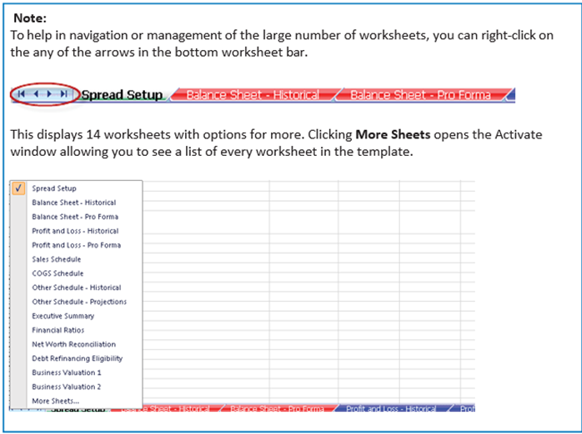
Spread Setup
The Spread Setup spreadsheet allows you to enter information for each period that you plan to enter financial information
The Spread Setup spreadsheet allows you to enter information for each period that you plan to enter financial information.
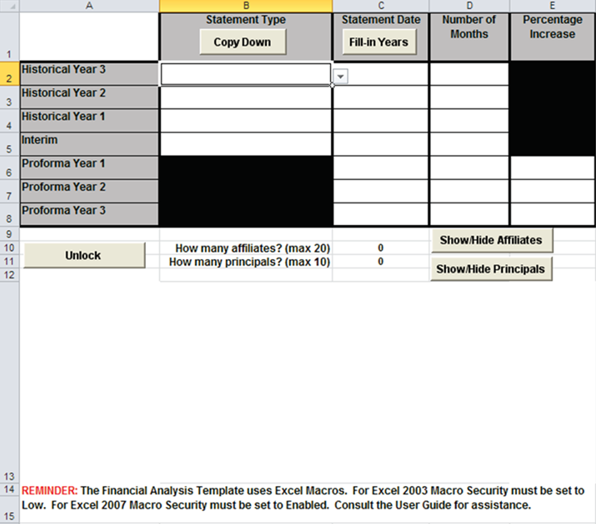
The following table describes the features of the Spread Setup tab.
| Feature | Descripton |
|---|---|
| Statement Type |
The statement type for the historical and interim periods.
Options are:
|
| Statement Date |
The date for which the financial statements are prepared. The date format is MM/DD/ YYYY. Note:
You can type out the date as Month
Day, Year (for example: August 8, 2010) and TSoftPlus will
automatically convert it to MM/DD/YYYY. |
| Number of Months | The number of months these statements cover. Enter a number from 0 to 12. |
| Percentage Increase | Indicates the Proforma periods, the estimated percentage increase from the previous year. Enter a number from 0.00-100.00. |
| Copy Down | Once the Historical Year 3 Statement Type is selected, clicking this button copies the same Statement Type down for the rest of the years. |
| Fill-In Years | Once the Historical Year 3 Statement Date is entered, clicking this button copies the same date, plus one year, for the rest of the years. It also populates "12" for all of the Number of Months. |
| Unlock/Lock button |
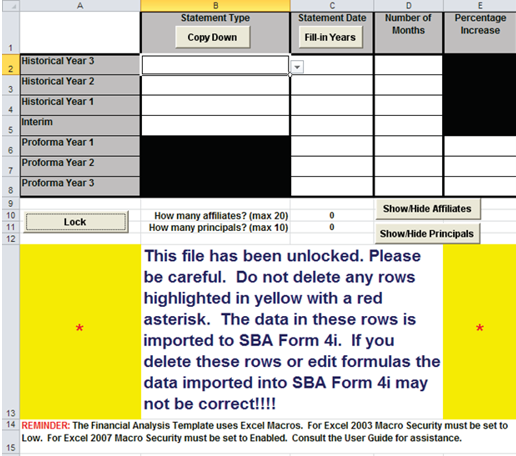
Removesthe protection for all cells and worksheets of the current spreadsheet, allowing them to be edited. After removing protection, a message appears on the screen confirming the file has been unlocked.
Note:
|
| Show/Hide Affiliates |
After entering the number of desired affiliates for the current record, you must click the Show/Hide Affiliates button to alter the number of Affiliate tabs within the spreadsheet that are configured for the record. Note:
|
| Show/Hide Principals | This feature allows you to create a Personal Cash Flow
spreadsheet for the desired number of principals. After entering the
number of desired principals for the current record, you must click
the Show/Hide Principals button to alter the number of
Principal tabs within the spreadsheet that are configured for the record. Note:
|
- Balance Sheet - Historical
- Balance Sheet - Pro Forma
- Profit and Loss - Historical
- Balance Sheet - Pro Forma
- Sales Schedule
- COGS Schedule
- Other Schedule - Historical
- Other Schedule - Pro Forma
- Executive Summary
- Financial Ratios
- Net Worth Reconciliation