Creating Submitting a Loan from TSoftPlus to ETran
add short description here
To utilize ETran, you must first sign up with the SBA. For information on ETran and how to obtain a user name and password, refer to https://www.sba.gov/.
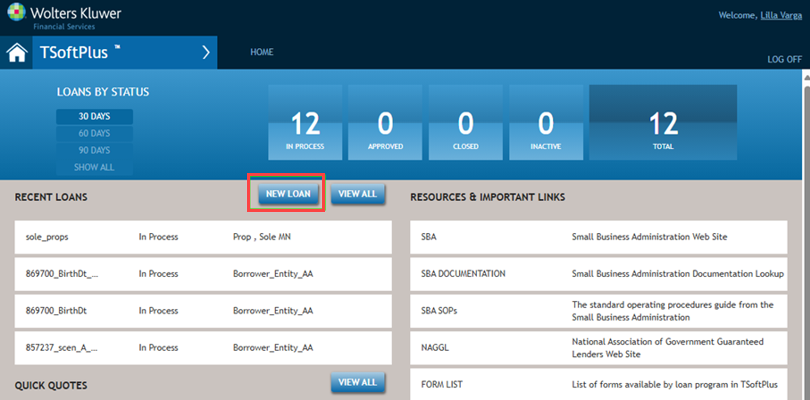
- Select the NEW LOAN button on the TSoftPlus main page.
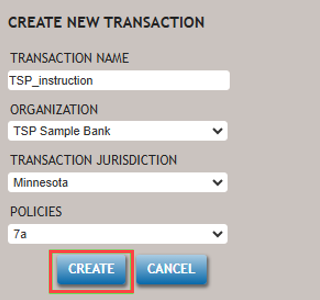
- Create a new transaction by filling in the fields and selecting the
CREATE button.
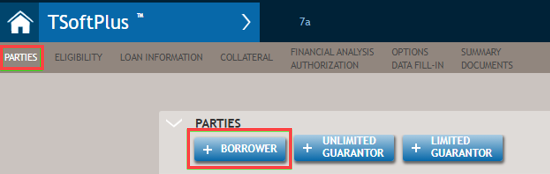
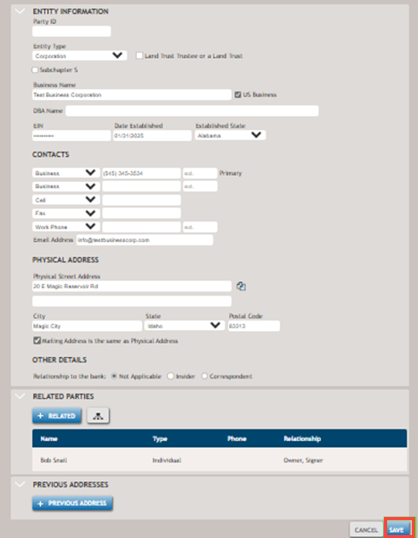
- On the PARTIES page add a Borrower.
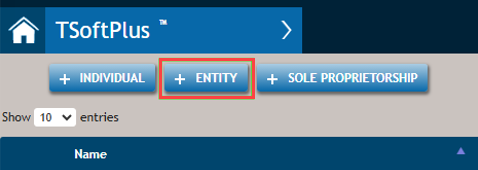
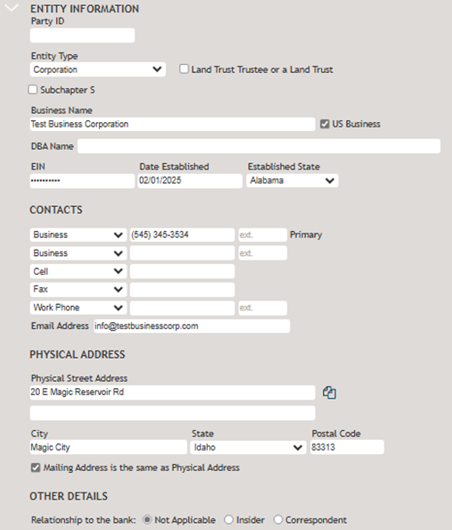
- Select + Entitybutton.
Add an EIN/SSN, add Date Established.
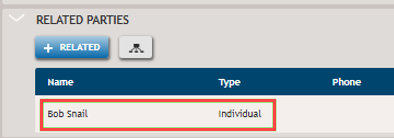
- Add at least one Owner under RELATED PARTIES.

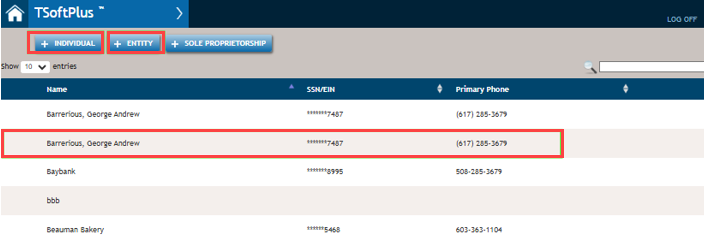
Choose from the listed Parties or define a new party with either the + Individual or the + Entity buttons.
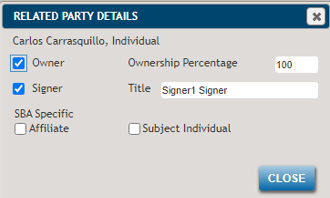
- To add ownership details, click on the registered party in Related Party
Details.
All ownership must total 100%. If there are multiple owners, the ownership percentages must add up to 100%.
 Note:Be sure to include full address, SSN/EIN and citizenship status for the owner and date of birth if it’s an individual.
 - After entering the details of related parties, be sure to click the SAVE
button to save the Borrower page.
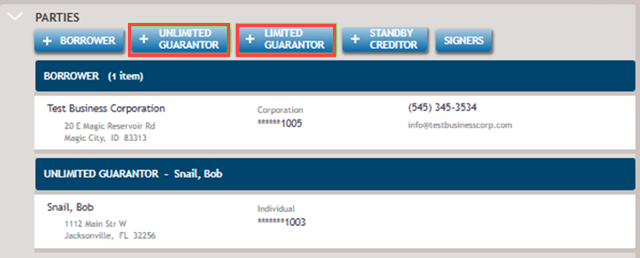
- Add at least one of the owners as a Guarantor, either unlimited or limited. The
guarantor should be an US Citizen so that the transaction can be submitted to
ETran.
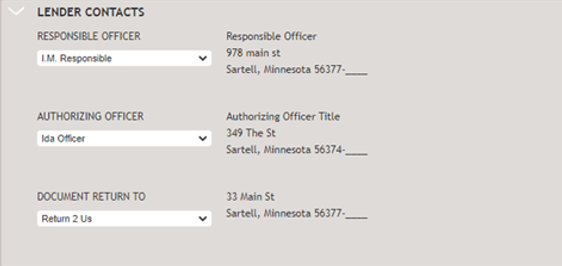
- Add Responsible Officer, Authorizing Officer and Document
Return To under the LENDER CONTACTS section.
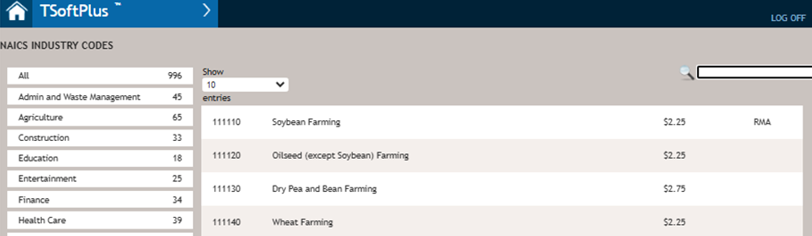
- To proceed, select a NAICS code. On the ELIGIBILITY page, under
INDUSTRY CODES, click the SEARCH button for NAICS
CODE.
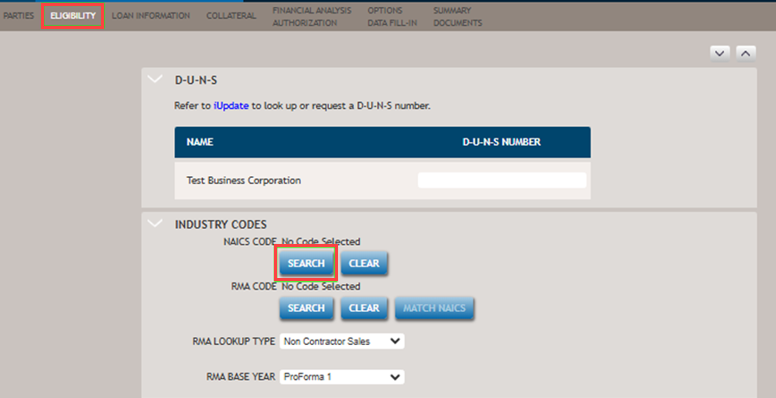
Choose the desired code from the list provided.

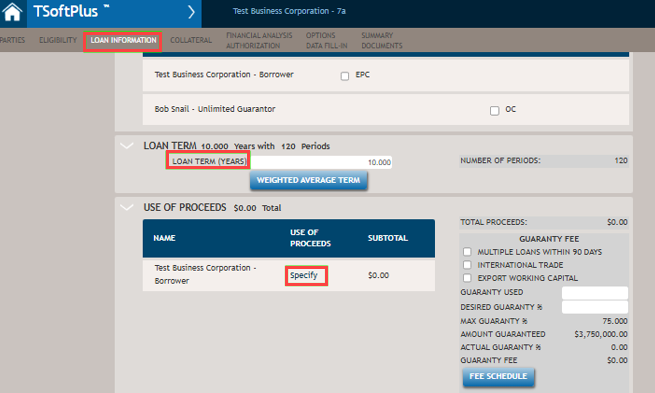
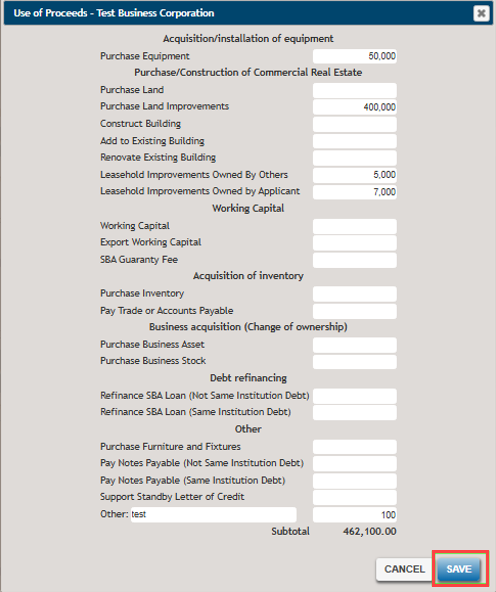
- On the LOAN INFORMATION page, enter the LOAN TERM and specify the
USE OF PROCEEDS by selecting Specify. Then, click
SAVE.
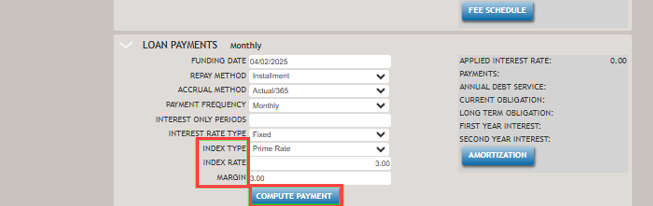
- On the LOAN INFORMATIONpage, set the Index to Prime, then enter
the Index Rate and Margin. Once all the inputs are entered, select
the Compute Payment button.
- At the bottom of the LOAN INFORMATIONpage, under General
Information, set the number of Form 159s to be created.

- On the OPTIONS DATA FILL-IN page and make sure to fill in several Forms, by selecting them from the dropdown and clicking on View Documents.
- On the Form 1920 Lenders Application for Guaranty for all 7a Programs:
- On Section A. Loan Processing Options: select one of the
Processing Methods.

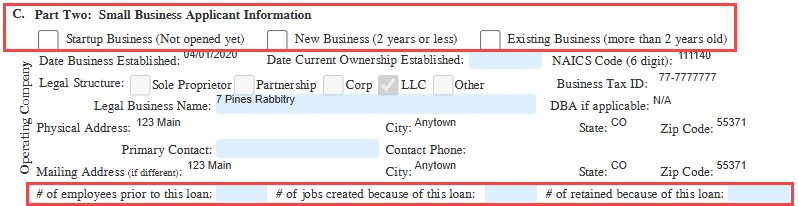
- On Section C. Part Two: Small Business Applicant Information:
select either Startup, New Business, or Existing Business. Then enter
the numbers for # employees prior to loan, # jobs created
because of this loan, and # jobs retained because of this
loan.
- On Section A. Loan Processing Options: select one of the
Processing Methods.
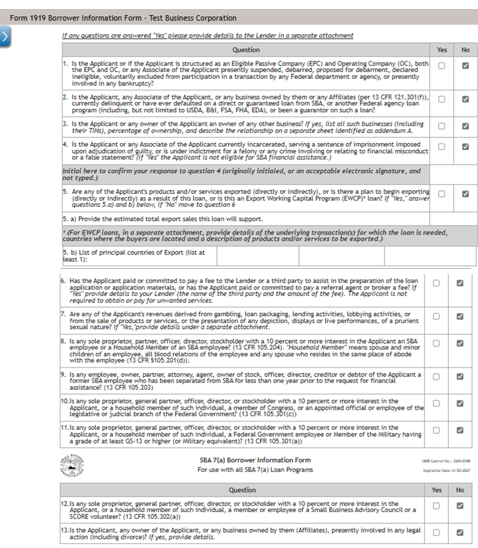
- On the Form 1919 Borrower Information:
- Fill out the section for # of existing employees, # of FTE
jobs saved/retained, and # of new jobs created.

- Under the Applicant Owner's Demographic Information (Optional)
section: answer all of the eligibility questions (Y/N questions).
- Fill out the section for # of existing employees, # of FTE
jobs saved/retained, and # of new jobs created.
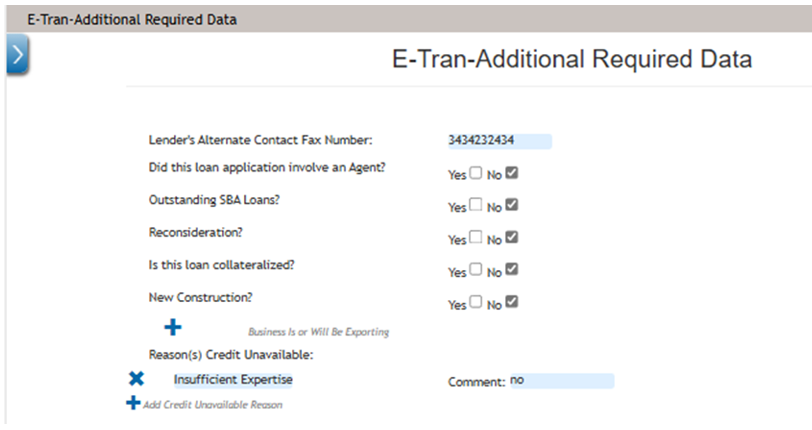
- ETran Additional Required Data document and fill out most of the
form.
- Set Does this loan involve an Agent to No.
- Set Outstanding SBA Loans? to No
- Set Is this loan collateralized to No.
- Add at least one Reason Credit Unavailable.
- Borrower – set Controlling Interest to Primary Borrower.
- Borrower – set Prior SBA Loan? to No
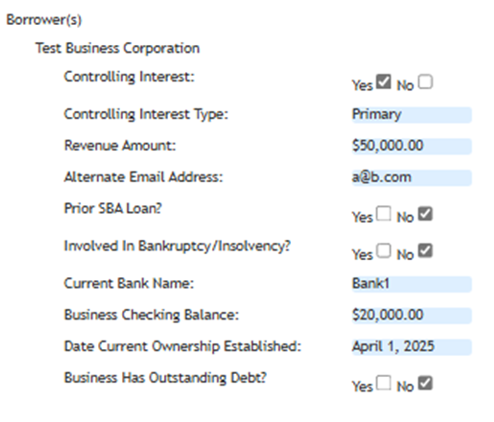
- Owner – set Controlling Interest to Owner of the Concern
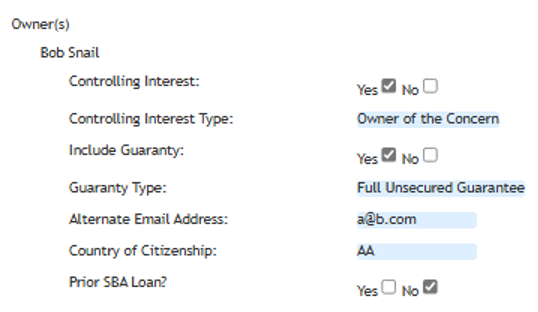
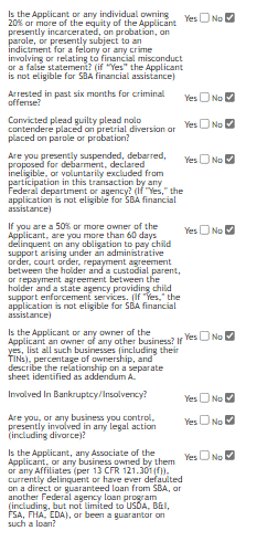
- Guarantor(s)
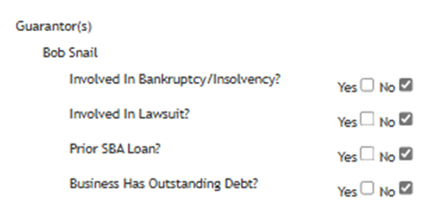
- Credit Score Financials and remainder of document – can be left blank.
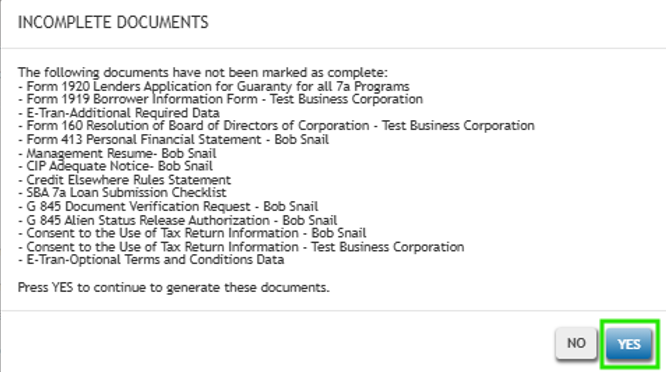
- After filling out the forms, select Done at the Options Data Fill
and press Yes to generate the documents.
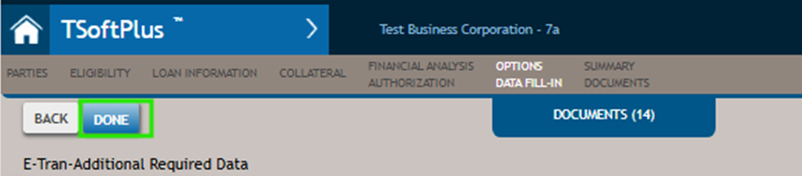
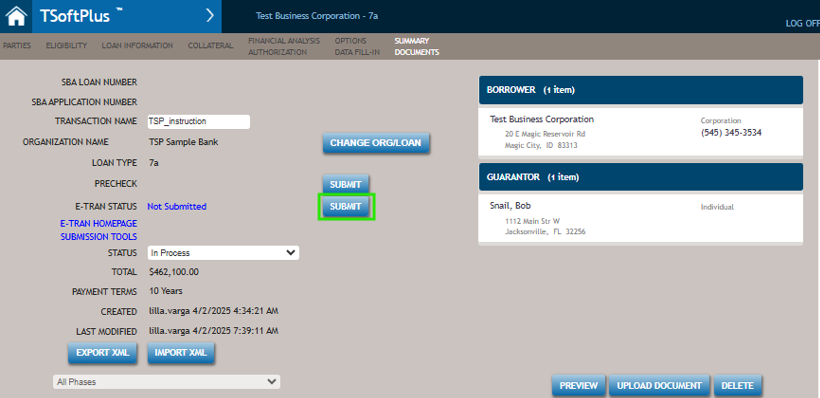
- Go to SUMMARY DOCUMENTS page and select SUBMIT.
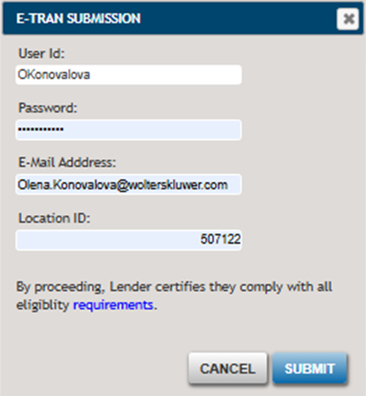
- Enter your ETran User ID, Password, E-mail Address,
Location ID and select SUBMIT.
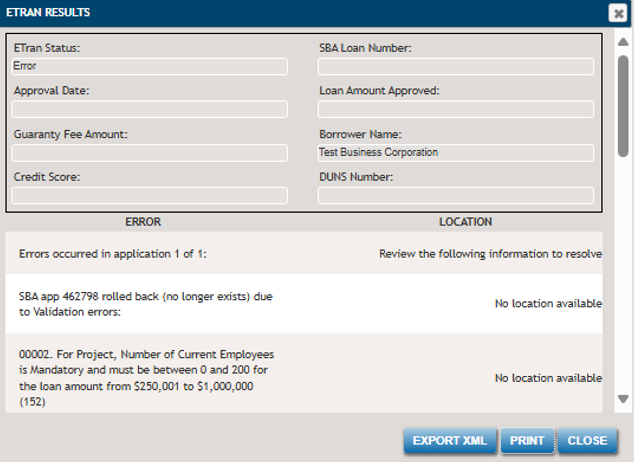
- If there are errors, identify the missing fields and complete the forms
or update the data input pages.
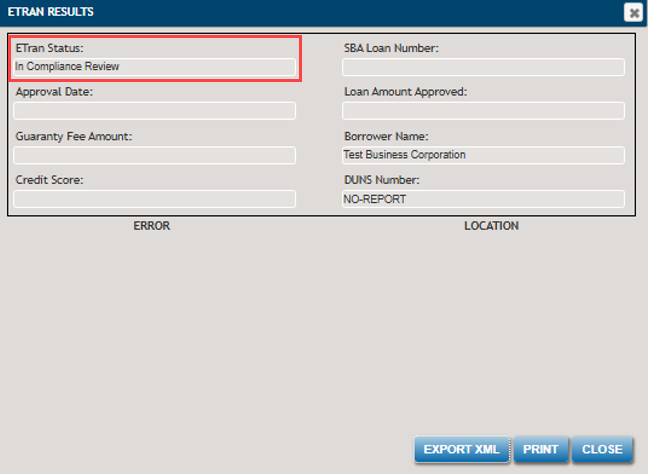
- Once all errors are resolved, the following screen will appear: ETran
Status: In Compliance Review.
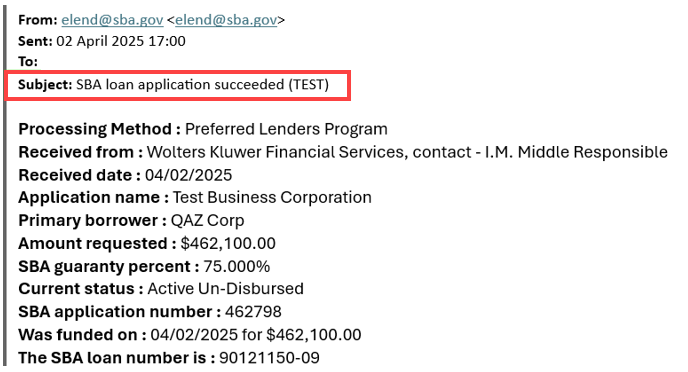
- After submitting, you will receive a confirmation email and be able to
find the transaction in ETran.
Below is a sample of a confirmation email.
- Enter your ETran User ID, Password, E-mail Address,
Location ID and select SUBMIT.
- When completed with SBA's website.
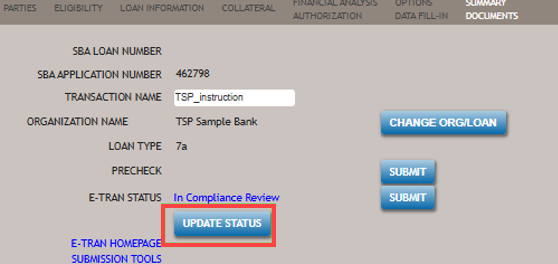
- Return to TSoftPlus
Summary Documents page and select Update Status button to update
the status.
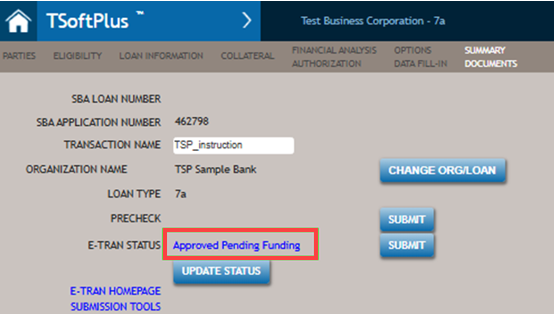
- If the process is successful, the status will change to Approved
Pending Funding.
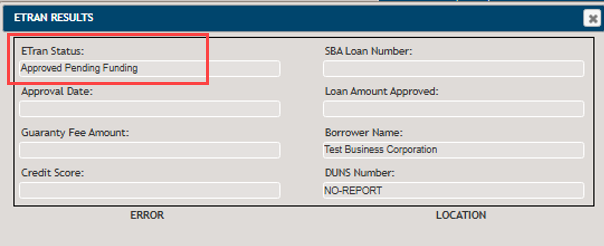
- If the process is successful, the status will change to Approved
Pending Funding.