Importing a Financial Analysis Spreadsheet
Note:
Important: The Financial Analysis workbook cannot be
locked while in use with TSoftPlus. If you lock it and try to import into the
workbook into TSoftPlus, the following error message is displayed upon leaving the
Financial Analysis page or clicking Save in TSoftPlus:
Once you unprotect the workbook, you can import into TSoftPlus normally.
An error occurred while importing the spreadsheet. The data was not imported.
Please ensure the workbook is not encrypted or write protected. - Locate and select the desired loan.
- Select the FINANCIAL ANALYSIS link in the submenu.
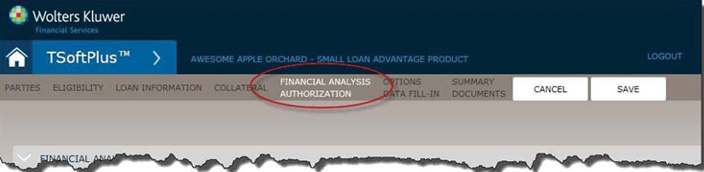
The Financial Analysis screen is displayed.
- Select the IMPORT button.
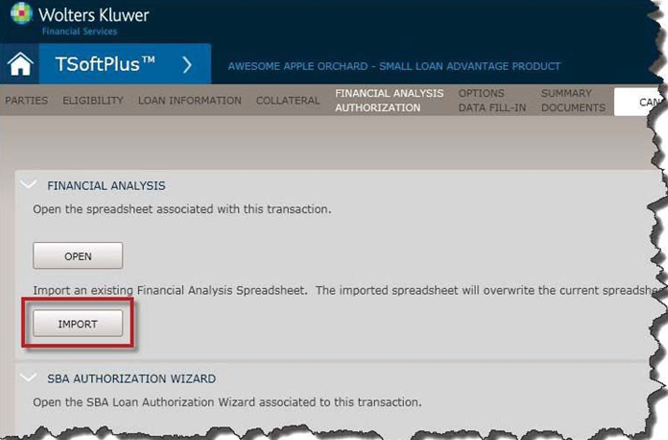
The Windows Open dialog box is displayed.
- Locate and select the Excel spreadsheet you wish to import and select
OPEN.
The spreadsheet is associated with the loan and you are returned to the Financial Analysis screen.