Summary Documents
Selecting SUMMARY DOCUMENTS from the submenu displays the Summary page.
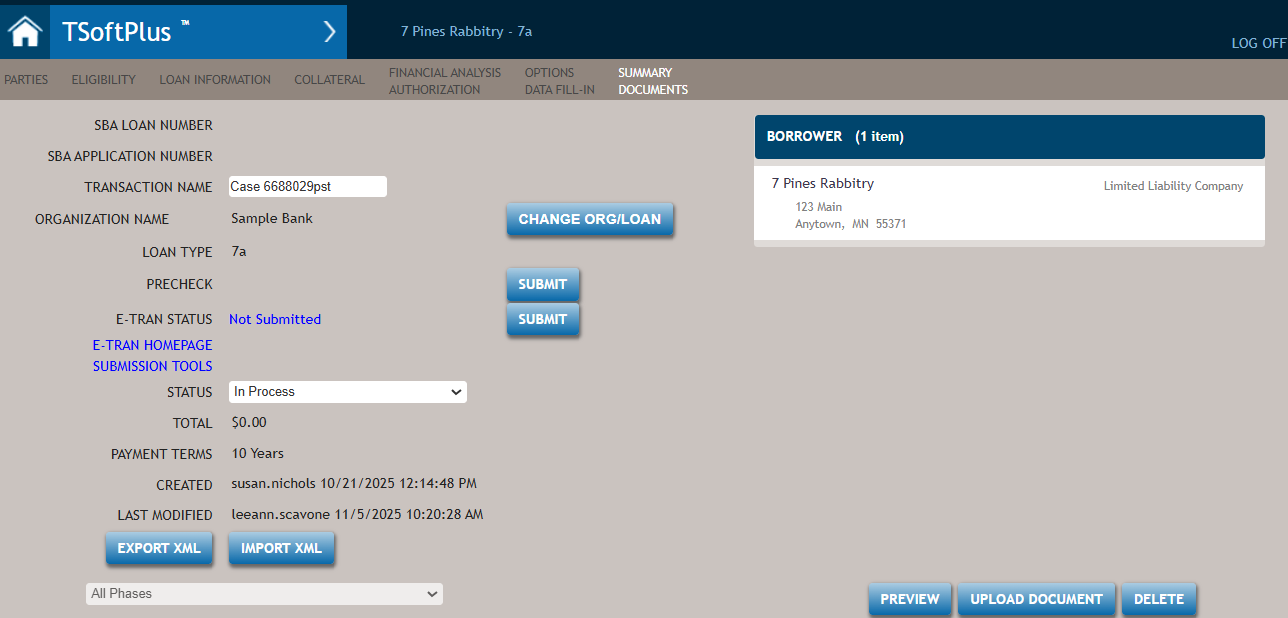
The following list describes the features of the Summary page.
- Status
-
Allows you to change the status of the loan. The options are:
- In-Process
- Approved
- Closed
- Inactive
Note:This setting affects how the loan is reported in Loans by Status on the Dashboard.
- SUMMARY - Lists the following general information about the loan
transaction.
Table 1. Summary List - SBA Loan Number
- Status
- Transaction Name
- Total (loan amount)
- Credit Score
- Loan Type
- E-Tran Status
- Payment Terms
- SBA Loan Auth
- Created by name, date and time
- Upload Documents
- Last Modified by name, date and time
- Precheck
- DOCUMENTS - lists all loan documents organized by document phase.
The following list describes the features of the Summary page.
- Status
-
Allows you to change the status of the loan. The options are:
- In-Process
- Approved
- Closed
- Active
Note:This setting affects how the loan is reported in Loans by Status on the Dashboard. - Credit Score
- Blank before submission. Otherwise lists the numerical credit score.
- E-Tran Status
- Displays the current E-Tran status. The E-Tran Status is a hyperlink and can be clicked at any time to display the E-Tran response page.
- SBA Loan Auth
- After E-Tran submission, click Submit and login. Upon
successful submission, the loan authorization PDF will open. Once
obtained, a link to the SBA Loan Authorization will be displayed,
allowing you to access the loan authorization PDF at any time. Note:The SBA Loan Auth is not available for SBA Express, Export Express or CAPLine loans.
- Upload Documents
- Allows you to send documents to the SBA after the ETRAN RESULTS screen shows a returned status of Awaiting Documents for non-delegated 7a loans.
- CHANGE ORG/LOAN
- This feature allows you to change the organization, jurisdiction, or
loan program type for the transaction currently being viewed. Note:
- Any previously generated PDFs are deleted and must be re- created when using this feature.
- Selecting this button displays the Change Organization/Loan Type dialog box allowing the user to update the Organiztion, Transaction Jurisdiction, and the Policies. The Organization, Transaction Jurisdiction, and Policies default with the choices that are currently selected for the transaction.
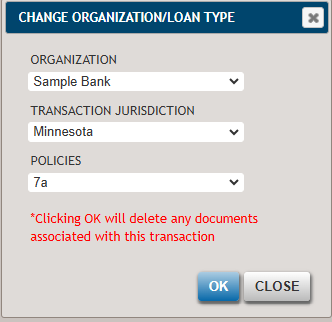 Note:E-TranStatus Check: Clicking OK initiates a check of the E-Tran status of the transaction.
- Organization: The organization options include only those options available to the you as a user, based on the setup in Administration. If you do not have access to the organization currently associated to the transaction, the organization does not default, and a different organization must be selected. The organization currently used for the transaction can be found on the Summary page - Organization Name.
- Transaction Jurisdiction: If the organization is changed, the jurisdiction changes and defaults to the address state of the organization selected but can be overridden.
- Policies: The policy of the current transaction is highlighted in blue. Select a new policy by clicking the policy name from the dropdown list. Selecting a different policy (loan program) cannot be done for 504 loan transactions. If the loan transaction is 504, the Change Organization/Loan Type button is not available. If the loan transaction is for a program other than 504, 504 products are excluded from the product list, preventing the transaction from being changed to a 504 product.
Changing the loan program does not automatically recompute payment results. If you are changing the loan program, it is important to review and adjust all options on the Loan Information page (for example, some payment options are not available for all programs. Revolving is an option only for Express programs.) Click the COMPUTE button so results update and calculate accurately per the rules for the loan program selected.
- This feature cannot be used if the transaction was previously
submitted to E- Tran with an approved status, or
if there is an SBA Loan Number populated for the
transaction. The following message displays informing the user
of this scenario.
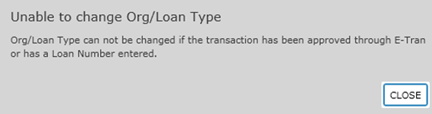
- Select CLOSE to close the dialogue box and return to the Summary page.
- If the E-Tran status is acceptable, the following
dialogue box is displayed.
Select YES to continue or NO to return to the Summary page.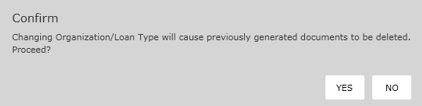
- SUBMIT (Credit Score)
- Allows you to submit the loan application for a credit score. For more information, refer to Using Credit Scoring.
- SUBMIT (E-Tran)
- Allows you to submit the loan application using E-Tran. For more information, refer to Submitting a Loan Using E-Tran.
- EXPORT XML
- Allows you to export the transaction information into an XML file to save locally and then send electronically (email, etc) to another user of TSoftPlus.
- IMPORT XML
- Allows you to import transaction information (including E-Tran results and SBA number if applicable) that you received from another user of TSoftPlus.
- Documents Filter
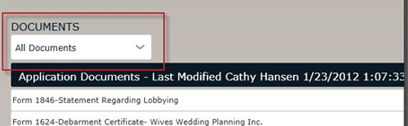
This filter contains a list of only the phases for documents that were created. Possible phases include Application, Authorization, Closing, and Post-Closing. This list enables you to filter documents based on a specific phase (or all phases), allowing you to select only those documents in that phase for printing using the Print by Phase feature. The default is All Documents.
- Documents Header Bar
-
Shows the phase of documents, last modified by name and last modified by date/time.
A process continuously monitors the status of the PDF generation and displays a
PROCESSING...message until the PDFs are ready. Once the documents are generated, they will be listed for that phase, and the dark blue header bar will update to reflect the new status.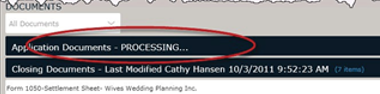
If any PDFs existed for the phase generating new ones, they will be cleared (removed) and the dark blue header bar for that phase will update and include a status message stating
PROCESSING...until the new docs are generated. While the documents are being processed, you can navigate to other sections of the transaction to continue your work.Newly created documents are listed with the most recent at the top.
- Loan Documents
- Click any document name in the list to open the document in PDF format.
- UPLOAD (PDF)
- Allows you to add additional PDF documents to the Documents list. Any
documents added in this manner are placed in the Additional
Documents category. for more information, refer to Adding Additional
Documents to a Loan. Note:The maximum size for a file upload is 5MB.
- DELETE(PDF)
- Provides the ability to select one or more documents to delete.
- PRINT(PDF)
-
When the PRINT (PDF) option is selected, TSoftPlus generates and displays a PDF that includes the documents chosen using the checkboxes on the far right of each document.
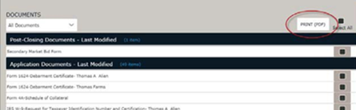
Select All checkbox: Selects all documents. When the PRINT (PDF) option is clicked, this feature allows all documents to be printed as a single PDF file which opens in Adobe Reader, enabling you to view, print, or save the file.