Eligibility Screen
The Eligibility screen allows you to display the Loan Eligibility screen.
Choosing ELIGIBILITY from the submenu will display the Loan Eligibility screen.
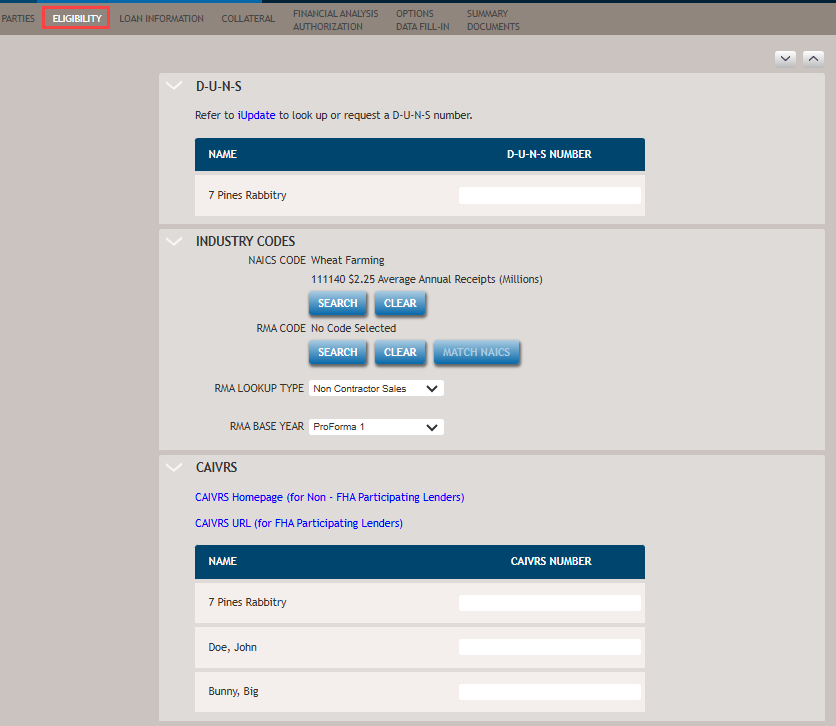
The list below outlines the features available on the Eligibility screen.
- D-U-N-S
- Enter the D-U-N-S number for each borrower. An iUpdate link to the Dun and Bradstreet (D&B) web site is provided to look up or request a D-U-N-S number. This number is used to credit-score all loans in ETran.
- Industry Codes
- Allows you to indicate the following types of industry codes:
- NAICS Code (North American Industry Classification System)
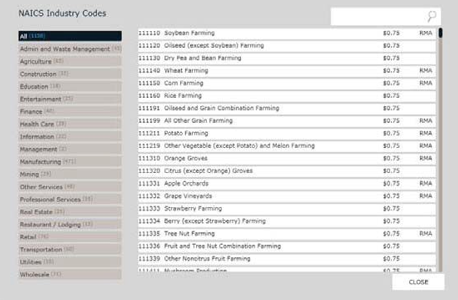
- Search - Provides a pop-up list of NAICS industry codes for selection to associate with the loan.
- Clear - removes any NAICS code currently associated with the loan.
- RMA Code (Risk Management Association)
- Search Provides a pop-up list of NAICS industry codes to search and select for loan association.
- Clear - removes any RMA code currently associated with the loan.
- Match NAICS - If the selected NAICS code contains RMA data, selecting the Match NAICS button will automatically associate the RMA code with the selected NAICS code. If the selected NAICS code does not contain RMA data, this button will be disabled.
- RMA Lookup Type - allows you to select one of the
following to apply to the borrower:
- Non Contractor Assets
- Non Contractor Sales
- Contractor Revenue
-
- RMA Base Year - Allows you to select what items you
would like to compare. Options are:
- Hist Yr 3
- Hist Yr 2
- Hist Yr 1
- Interim
- ProForma1
Note:The first time the Financial Analysis spreadsheets are opened, there will be 0 for Assets and 0 for Sales, so it will use the RMA data from the 0 – xxx,xxx record. In order to update the Financial Analysis spreadsheets with the RMA data applicable to your specific Assets or Sales amounts, values need to be entered in the appropriate Assets or Sales cells in the spreadsheet. Then you must save, close and then re-open the spreadsheet. This triggers the correct RMA data to populate based on your entered Assets or Sales amounts. - RMA Base Year - Allows you to select what items you
would like to compare. Options are:
- NAICS Code (North American Industry Classification System)
- CAIVRS
-
Selecting the first link, CAIVRS Homepage (for Non - FHA Participating Lenders) displays the HUD website, allowing you to obtain CAIVRS numbers.
The second link, CAIVRS URL (for FHA Participating Lenders) opens a new window and displays the FHA Connection site. There you can request a User ID and access to CAIVRS.
The Name column is automatically populated with the names of any parties for the transaction: borrower, owner, guarantor, standby creditor, affiliates, and subject individuals.
The CAIVRS Number column allows you to enter the CAIVRS number for the party.