Manage Existing Transactions Screen
Use the Manage Existing Transactions screen to quickly search for and manage loan transactions
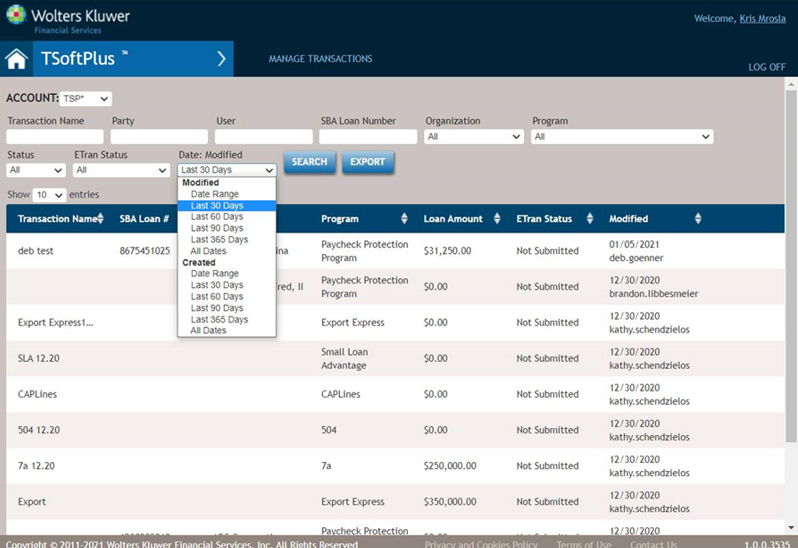
The following table describes the features of the Transaction screen.
- Party
-
Allows you to enter a partial or full name of a party. The search function is not case sensitive and returns any transactions where the party is assigned any role to the transaction; borrower, owner, guarantor, signer, affiliate or creditor.
If multiple text strings are entered, the function searches the string in the entity's business name field and combinations of the multiple strings in the individuals first and last name fields (excludes middle name).
Examples:- Two strings entered:
John Doeentered in the party field returns the following transactions:- "JohnDoe" is found in the Entity's business name, OR
- "John"is found in the first name and "Doe" is found in the last name, OR
- "Doe"is found in the first name and "John" is in found in the last name.
- Three Strings entered:
John George
                                        Doe
entered in the party field returns the following transactions:- "John George Doe" is found in the Entity's business name, OR
- "John"is found in first name and "George Doe" is found in the last name, OR
- "George Doe" is found in first name and "John" is found in the last name, OR
- "John George" is found in first name and "Doe" is found in the last name, OR
- "Doe"is found in first name and "John George" is found in last name.
- Two strings entered:
- Organization
- Provides a list of all organizations that exist in Administration. The default is no organization selected (blank).
- Status
-
Allows you to select the status of a loan to search for. Options are:
- In Process
- Inactive
- Approved
- Closed
- Dates
-
Allows you to select a date limit to search for. Options are:
- Modified
- Date Range
- Last 30 Days
- Last 60 Days
- Last 90 Days
- Last 365 Days
- All Dates
- Created
- Date Range
- Last 30 Days
- Last 60 Days
- Last 90 Days
- Last 365 Days
- All Dates
Selecting Date Range displays fields for you to specify the To and From date range to search on.
If searching on Created dates, you can hover over the Created Date/By in your search results to view the Modified Date/By.
If searching on Modified dates, you can hover over the Modified Date/By in your search results to view the Created Date/By.
- Modified
- Transaction Name
- Allows you to enter a transaction Name for the search. The search returns only an exact match.
- User
- Allows you to search for transactions created or modified by a specific user. Users are created in Administration
- Program
- Allows you to search for a specific program (created in Administration). If an Organization is selected, the list of Programs is filtered and shows only those applicable for the Organization selected.
- SBA Loan Number
- Allows you to search for a loan with a specified SBA Loan Number.
- Sort By
- Clicking on the up/down arrows for a column allows you to sort the results based on the data in that column.
- ETran Status
- Allows you to search for loans in a specific ETran Status.
- Search
- Begins the search for transactions, returning results based on your criteria. Pressing Enter on your keyboard when the cursor is in any of the fields invokes the search.
- Export
-
Visible if user has the “Download Manage Transactions Report” permission. Clicking on this button will download the results of the search as a CSV file.Note:Only the first 1000 results will be included. Results will include the following fields:
Table 1. - Transaction ID
- Org Short Name
- Org Legal Name
- Program
- First Entity Borrower Name
- First Individual Borrower Name
- First Owner Email
- First Signer Email
- SBA Loan Number
- Transaction Name
- Transaction Status
- ETran Status
- ETran Submission Date
- PPP Status (PPP Only)
- Form ID (PPP only)
- Forgiveness Submission Date (PPP Only)
- Loan Amount
- Date Created
- Created By
- Date Modified
- Modified By
Hovering over a record, displays icons on the far right for copying or deleting.
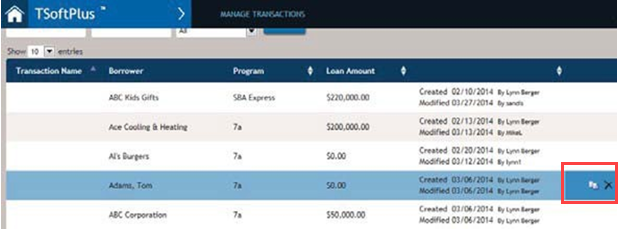
- Delete Icon - Deletes the record from the system. A message is displayed to confirm your choice.
- Copy Icon - Creates a new transaction and copies data from the selected transaction. After confirming your choice, the following message is displayed, allowing you to choose to change the Org/Loan type.
The Copy feature copies all information except Financial Analysis and the Loan Authorization (7a and 504). All data entered on the workflow pages (Parties, Eligibility, Loan Information, Collateral) and all data entered directly on the documents are copied to the new transaction.

- The Copy feature copies all information except Financial Analysis and the Loan Authorization (7a and 504). All data entered on the workflow pages (Parties, Eligibility, Loan Information, Collateral) and all data entered directly on the documents are copied to the new transaction.
- If you do not change the Organization/Loan Type, the Organization/Loan Type from the existing transaction is copied to the new transaction. This includes Organization, Transaction Jurisdiction, and Loan Type.
- When copying from a transaction where the Financial Analysis Excel template was used to populate the Form 1244 (504), the financial spread information on this form copies to the new transaction. The financial spread information on this form resets once the Financial Analysis Excel template is opened and saved when modifying the new copied transaction.
- The Created By and Modified By Username and Date/Time update with the user performing the copy.
- The SBA Loan Number from the existing transaction does not copy to the new transaction.
- The ETran status is reset to Not Submitted.
- The Status of the Transaction is reset to In Process.
Selecting a record opens the loan transaction to a specific page based on the loan status:
| If the Record Status is: | Selecting the Record Opens: |
|---|---|
| In Process and Inactive | Loan Parties Page |
| Approved | Document Criteria Page |
| Closed | Loan Summary Page |
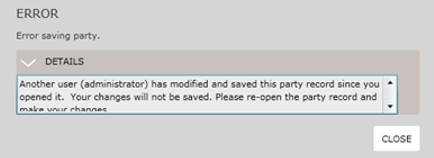
The second user must reopen the party record to enter and save new information.