Financial Analysis and Authorization Screen
Use the Financial Analysis and Authorization screen to view or edit the borrower’s Financial Analysis, 7a or 504 Loan Authorization, and Credit Memo.
- View or modify the Financial Analysis of the borrower and affiliates.
- View or modify the Credit Memo.
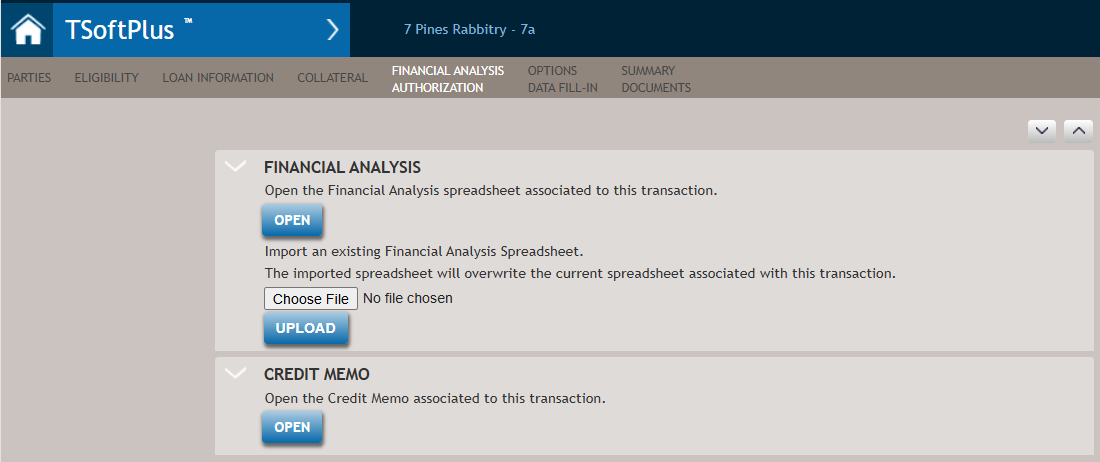
Each time a loan is created, a Financial Analysis spreadsheet is created for the specifics of that loan. This spreadsheet can be viewed or modified after the loan is created. For more information, please refer to the section on Opening the Financial Analysis Spreadsheet.
Optionally, you may import an existing spreadsheet to associate with the loan. For more information, please refer to the section on Importing a Financial Analysis Spreadsheet.
The following list describes the features of the Financial Analysis and Authorization screen.
| Feature | Description |
|---|---|
| Financial Analysis | |
| OPEN | Allows you to open a Financial Analysis spreadsheet to perform financial spreading. Any data saved during the spreading process will be reflected in TSoftPlus. For more information, please refer to the section on Working With Financial Analysis Spreadsheets. |
| IMPORT | Enables the upload of a Financial Analysis spreadsheet that has been partially or fully completed. For more information, please refer to the section on Working With Financial Analysis Spreadsheets. |
|
Note:
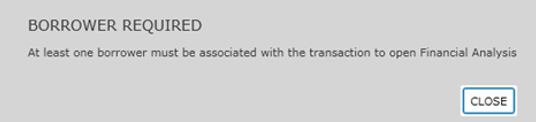
Financial Analysis spreadsheets are
associated with the borrower record. Therefore, a borrower must
be present on the loan before the Financial Analysis
spreadsheets can be opened. If you attempt to open or import a
spreadsheet without a borrower, the following message appears.
If changes are made to any data that is populated from TSoftPlus down to the Financial Analysis spreadsheets (ex. Use of Proceeds, Payment, etc.), then the Financial Analysis spreadsheets need to be closed and reopened to reflect the new changes. |
|
| Loan Authorization Note:
Important: If you experience trouble opening the
Loan Authorization Wizard, refer to Loan Authorization
Wizard within the FAQs section for
assistance. |
|
| OPEN | Allows you to open the Loan Authorization Wizard in
Microsoft Word. For more information, refer to Using the Loan Authorization
Wizard. Note: If the transaction is
a CapLines loan, the CapLines Loan Authorization is
displayed. For Microsoft Word, if you select Disable
all Macros with notification, you must perform the following
steps:
|
| REMOVE |
This button is enabled when an existing loan authorization has been opened or saved to the transaction. If a Loan Authorization has not been opened or saved, this button is disabled. This feature can be useful for the following circumstances:
|
| Credit Memo | |
| OPEN | Allows you to open a Credit Memo document. For more information, refer to Working with the Credit Memo. |
| REMOVE | This button is enabled when an existing Credit Memo has been opened and saved to the transaction. If a Credit Memo has not been opened or saved, this button is disabled. |
| SAVE | Allows you to save any information or data entered on the screen. |
| CANCEL | Allows you to return to the previously viewed screen without saving any information or data. |
- • Select File > Save to automatically save all data to TSoftPlus.
- • Select the Close button (X). You are prompted with the message: Do you want to save the changes you made to TSoftPlus™?. Select Yes.
- Select File > Save to automatically save all data in Financial Analysis to TSoftPlus.
- • Select the Close button (X). You are prompted with the message: Do you want to save the changes you made to TSoftPlus™?. Select Yes.
- Select File > Save As to automatically save the file to the location of your choice. You can name the file anything and still be able to import it back into TSoftPlus at a later time.