Submitting a Loan Using E-Tran
To utilize E-Tran, you must first sign up with the SBA. For information on E-Tran and how to obtain a user name and password, refer to https://www.sba.gov/.
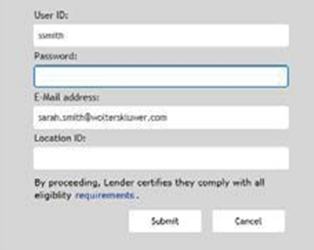
- From the Summary page, select SUBMIT. The following screen
appears.
 Note:
Note:- • The User ID, E-Mail address, and Location ID fields appear blank if no submissions have previously been made. Once populated and submitted, the values are stored locally and automatically populate for subsequent submissions.
- • The Location ID identifies a Lender's physical location. Each lender has a Location ID for each location when applicable. Your Location ID was part of your institution's SBA GLS authorization registration.
- • Clicking the requirements link displays the eligibility questions set forth by the SBA.
- Enter your user name, password, email, and location ID in the provided fields.
Then select Submit. The E-Tran response page is displayed.
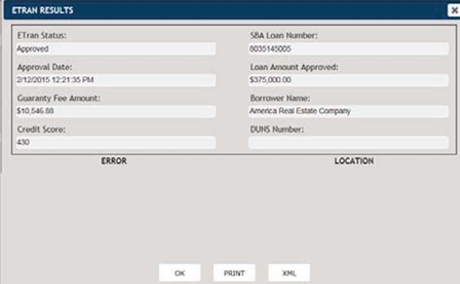
If the status is approved, the E-Tran response page is displayed, and the status is Approved. The page also returns an approval date and SBA Loan Number, as well as the Loan Amount approved, the Guaranty Fee and Borrower's Name. The SBA Loan Number displays on the Summary page in the Loan Summary section. Select PRINT to send the Approval message to a printer for paper record keeping.
Select XML to save the XML file to a location on your computer. This feature is useful if troubleshooting with the Help Desk is necessary
If an application is missing key information, or has other problems, the loan submission may be returned as an error. If errors are encountered, you will see the following message and the E-Tran Status on the Summary page will change to Error. You will need to correct any errors and then resubmit the transaction.
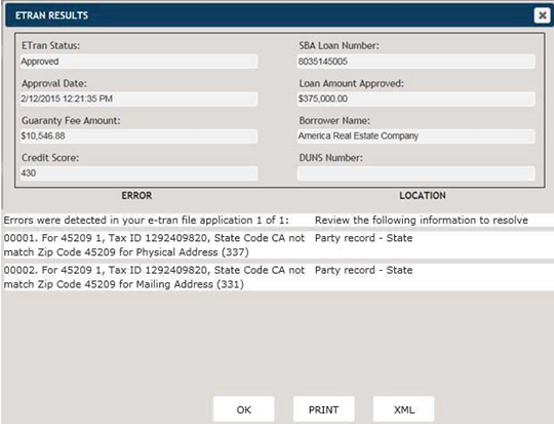
The Error column on the left is the error as it is received back from E-Tran. The Location column on the right is the location you can go to correct the error. It can either be a document name with page number and field, or a screen with expander and field names in TSoftPlus. If there is no applicable location available to correct the error, a message is displayed stating
No location available.Click PRINT to print the error messages and locations.
Select XML to save the XML file to a location on your computer. This feature is useful if troubleshooting with the Help Desk is necessary.
- 3. Select OK to return to the Summary and Documents page.Note:
- If a user attempts to Submit a loan that has already been approved
by E-Tran processing, the following message will display.
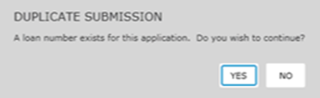
The system checks to see if a SBA Loan Number has previously been returned from the E- Tran service. If the SBA Loan Number was manually entered by the user on a document and the user attempts to Resubmit, the system will not display the Duplicate Submission message because it wasn't originally submitted/approved via E-Tran service.
- • If an error was returned, the Summary and Documents page reflects
the error, as shown below. The blue text shown is a hyperlink that
allows you to view the error from the E-Tran response page.
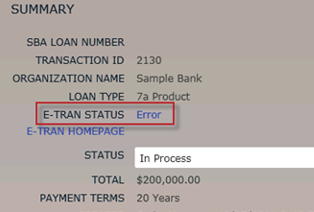
- • Another link, E-TRAN HOMEPAGE, allows you to view the E-Tran web site in another browser window, where you can log on and view your submission.
-
Note:TIP: For information tips pertaining to E-Tran, refer to E-Tran-Specific Tips in the Appendices.
- If a user attempts to Submit a loan that has already been approved
by E-Tran processing, the following message will display.