Upload Documents
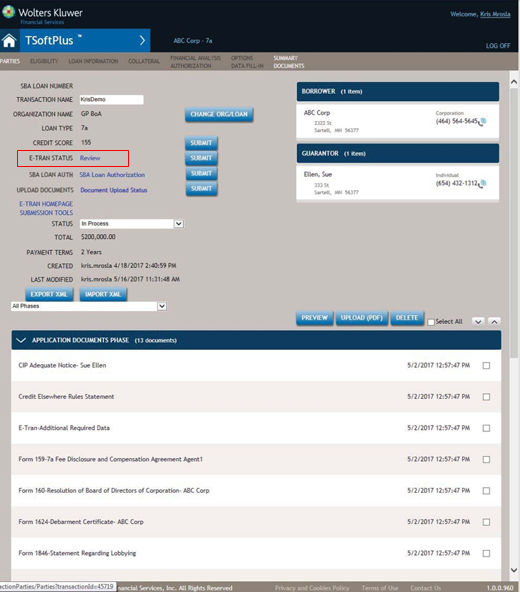
Functionality was added so documents for 7a loans can be sent to the SBA from TSoftPlus instead of using the SBA website. For non-delegated 7a loans, you can now send documents to the SBA after the ETRAN RESULTS screen shows a returned status of Awaiting Documents.
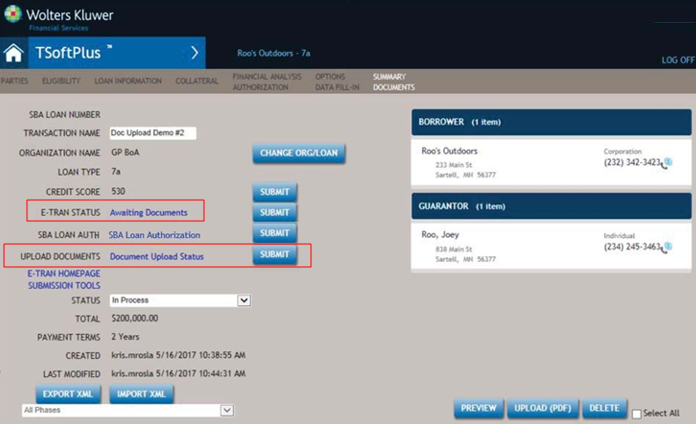
After you receive an Awaiting Documents status on the ETRAN Results page, UPLOAD DOCUMENTS displays under the E-TRAN STATUS line. Select the SUBMIT button next to UPLOAD DOCUMENTS to send documents to the SBA.
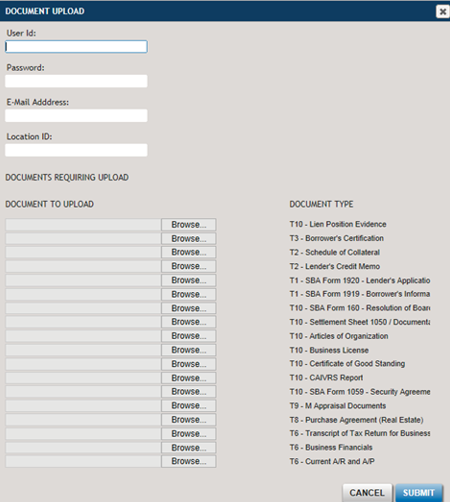
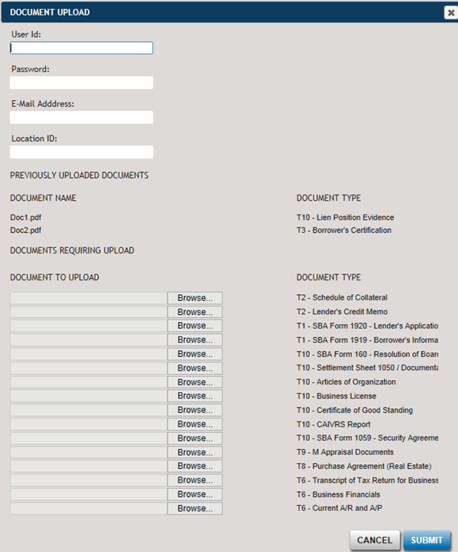
Complete the information on the DOCUMENT UPLOAD screen including adding the documents to upload. Select the SUBMIT button to send the documents or the CANCEL button to cancel the upload.
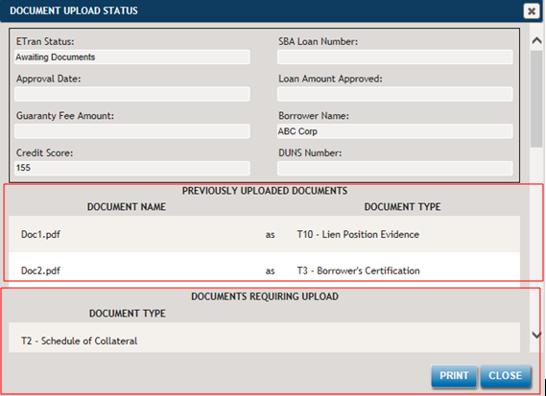
The DOCUMENT UPLOAD STATUS screen will display after documents have been successfully uploaded.
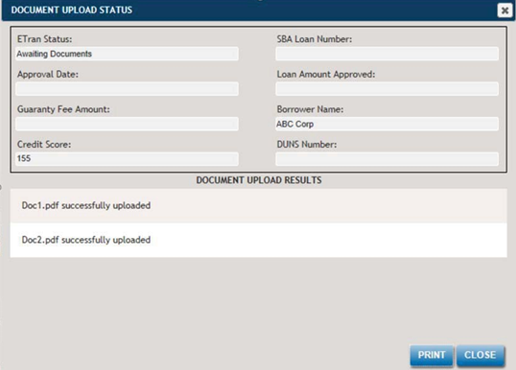
You can view the status of the uploaded documents by selecting the DOCUMENT UPLOAD STATUS link. Select the PRINT button to print the status or the CLOSE button to close the screen. If you did not upload all the documents, the DOCUMENT UPLOAD STATUS screen will display both the uploaded documents and the remaining documents needed uploading as shown below.
If more documents need uploading, return to the Summary Documents page and select the SUBMIT button again on the UPLOAD DOCUMENTS line.
The DOCUMENT UPLOAD screen will display allowing you to upload the remaining documents. The previously uploaded documents will also display. Complete the information including adding the remaining documents to upload. Select the SUBMIT button.
After all documents are uploaded, the Summary Documents page will display with Review for the E-Tran status, and the UPLOAD DOCUMENTS line disappears.