Authoring Superscripts Using LinkText/LinkReference for PDF Tagging
When producing a tagged PDF (see Creating a Tagged PDF), .req files must be authored using the LinkText/LinkReference elements for Superscript notations where a footnote reference exists in order to produce a properly tagged PDF.
Existing content that uses the Wrap in Superscript emphasis tag will need
to be converted to use the LinkText/LinkReference functionality in order to continue
to be formatted as Superscript and produce a properly tagged PDF. Be sure to first
add the LinkText elements, remove the Wrap in Superscript emphasis
tag, and then add the LinkReference where the Superscript existed.
Remember:
- While not validated by the system, the best practice is to author a LinkText before linking it with the corresponding LinkReference. This ensures the name and LinkName values are populated in the list of available links for selection.
- In order to use the new LinkName attribute, users should ensure they are using content stylesheet version 22.8 or later.
- Add the LinkText element.The LinkText element is similar to a Para element and allows a text phrase to be added as a string. This LinkText represents the reference (footnote) text and is read at the point where the LinkReference is inserted.
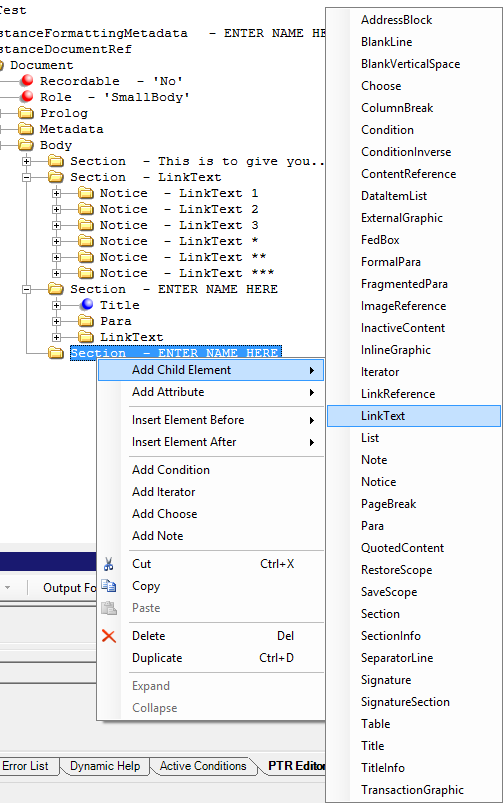
- Right-click on the element and select Add Child Element > LinkText from the shortcut menu.LinkText can be added to several elements, but is only honored when it has Para, FragmentedPara, or Phrase as a child element.
-
Once the LinkText element exists, add the name and
LinkName attributes.
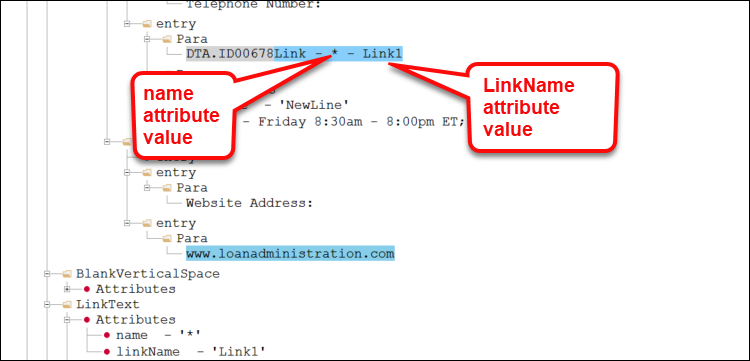
The name attribute is a string value that defines the reference mark (number, letter, or symbol). Right-click on the LinkText element and select Add Attribute > name from the shortcut menu.
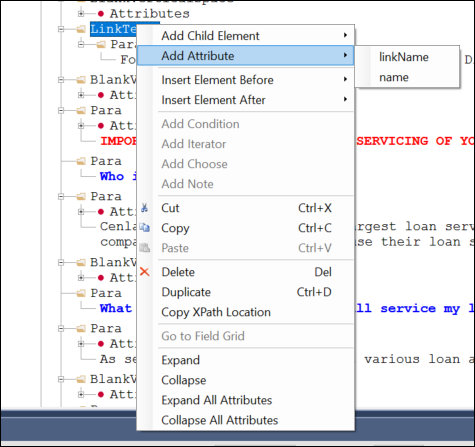
While using the name attribute, the LinkName attribute is an additional string value that allows the name attribute value within the LinkReference element to be used in multiple locations throughout the REQ file.
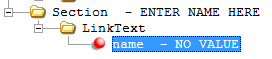
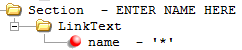
- Double-click on the name attribute NO VALUE and enter the reference mark.Examples: *, **, ***, 1, 2, 3, etc. The name value can be used across all LinkText elements. If the REQ is also using the LinkName attribute, the LinkName attributes must be unique in order to use the same name value (for example: using multiple instances of ‘*’). If NOT using the LinkName attribute, then the name attributes must be unique.
-
Double-click on the LinkName attribute NO VALUE and enter a
corresponding value.
The LinkName value must be unique across all LinkText elements.

- Add the LinkReference element to the content that references the link text description.The LinkReference element is added inline as a child element within the target element (for example, with a para, ordered list, bulleted list) and serves as the marker for the footnote. LinkReference can be added as child of a paragraph group elements (Para, FormalPara, or FragmentedPara).
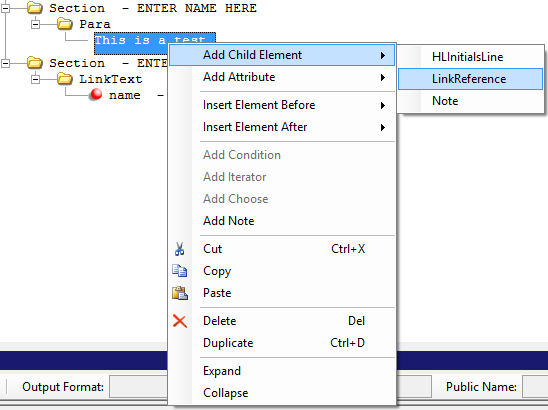
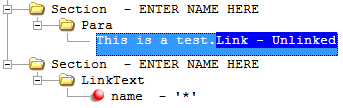
- Right-click on the content where the LinkedReference marker is to be placed and select Add Child Element > LinkReference.Once added, the Link marker is added with the default value of Unlinked.
-
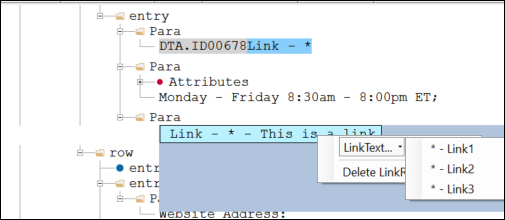
Double-click on the text to invoke edit capabilities and click
on the Link marker to activate the element. Right-click to see the submenu of
options; click on the LinkText dropdown and select from the list of
available LinkText and LinkName references authored in the
document.
Tip: To remove or change the LinkReference, invoke edit
capabilities and right-click the Link item and choose a different link reference
option or select Delete LinkReference option.