Meeting Requirements for Accessibility - Embedded PDF
The accessibility requirements for a Tagged PDF are implemented within Adobe Acrobat.
The Adobe Acrobat online documentation contains detailed information on ensuring your document is considered "accessible" including the following:
- Adding fillable form fields and descriptions
- Setting the tab order
- Adding tags to a PDF
- Adding accessible links
- Adding bookmarks
- Running and understanding the Adobe Acrobat Accessibility Checker
To access the Adobe Acrobat online documentation, click here.
Important items to verify
When authoring an embedded PDF, be sure to consider the following important guidelines:
- If the form is enabled for e-signature, validate that the
corresponding Signature and Date field have the same name;
note that the first part of the Date field should match that
of the Signature and must end with _eSigDate, for
example:
{UniqueSignatureFieldName]_eSig{UniqueSignatureFieldName]_eSig_eSigDate
- Verify the field names are correct in the tagline fields. In
order to differentiate between more than one instance of
these fields, you can append a number to the end of the
names below (for example: _2):
- Form_UserDefined_Left
- Form_UserDefined_Center
- Form_UserDefined_Right
- Form_CustomBrandTag
- Form_WarrantyControl
- Form_Barcode
- Validate all multiple line fields have the Multi-Line checkbox checked in the Prepare Form panel in Adobe Acrobat.
- Field names should NOT contain periods ("."); we recommend using
underscores ("_") in place of a period. An example
SignatureFieldelement value could look like this:SIG_Borrower_1_1_true_1_eSigorPurchaserSignatureArea_eSig. The naming convention must avoid the use of "." (periods / dots). - Field tagging requirements: When authoring cells within a table,
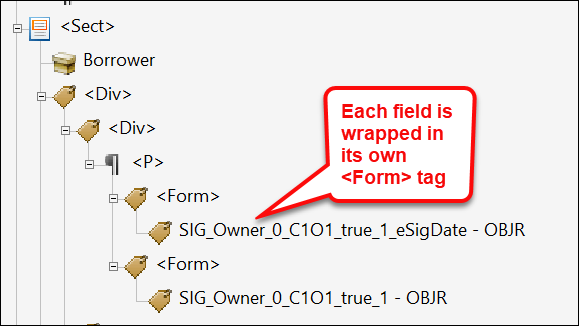
the expectation is there should be one
<Form>tag authored per field. In other words, multiple fields should not reside within the same<Form>tag.