Creating a Tagged PDF
- In the Requirements Editor, open the target document.
- In the Assembly menu, click Execute Document.
-
In the Rendering Engine dropdown, select FOP 2.6 as
the rendering option.
Note: By default, Expere automatically uses the latest version of the FOP rendering engine when generating a tagged PDF (currently displayed as FOP 2.6 in the Requirements Editor.
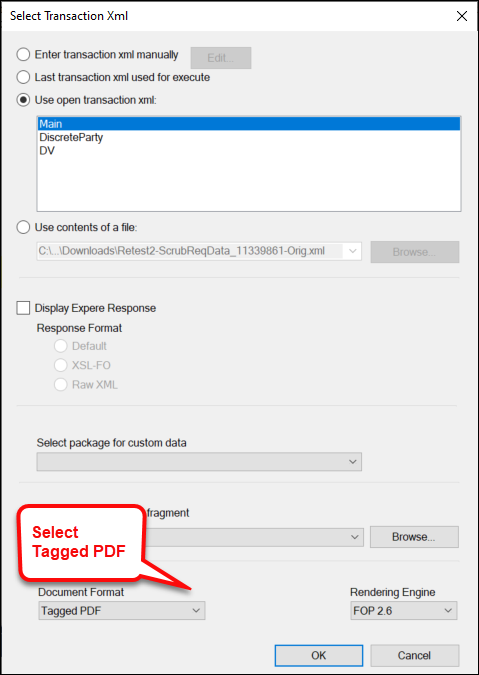
- In the Document Format dropdown, select the Tagged PDF option.
- Click OK.
When the TaggedPDF option is selected and the Assemble/Execute
Document or Preview options are performed, the generated output is a
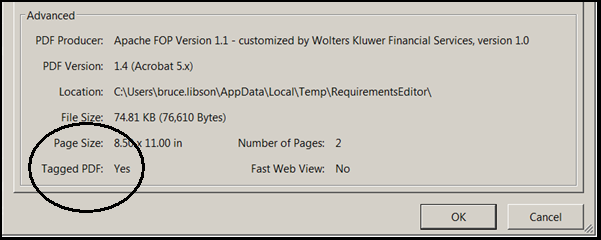
tagged PDF. The document is identified as a tagged PDF in the Adobe Acrobat document
Properties dialog box as Tagged PDF = Yes.