Loan Authorization Wizard
You may experience trouble opening the Loan Authorization Wizard. This is due to
inadequate browser security settings. The following procedure explains how to set your
browser's security settings to allow for the operation of the Loan Authorization
Wizard.
Note:
If the Loan Authorization page is displayed
within Word, but the Update link does not appear at the top of the first page, you
must enable editing within Excel and Word. For more information, refer to Enabling
Editing in Excel and Word.
- Log in to TSoftPlus.
- From the Internet Explorer Tools menu, select Internet Options.
- Within the Security tab, click Local Internet.
- Click the Sites button. The Local Intranet dialog is displayed.
- Click Advanced. A second Local Intranet dialog is displayed.
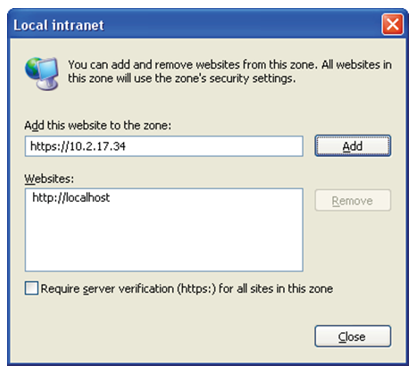 The URL of the TSoftPlus application is already entered in the dialog, as shown above.Note:The URL for your installation of TSoftPlus will be different from the example above.
 - Click Add. the URL is added to the Websites list.
- Click Close.
- Click OK to close the first Local Intranet dialog.
- Click OK in the Internet Options dialog to accept the changes and return to TSoftPlus.