Modifying the PTR for the Signature Areas - Static/PDF
-
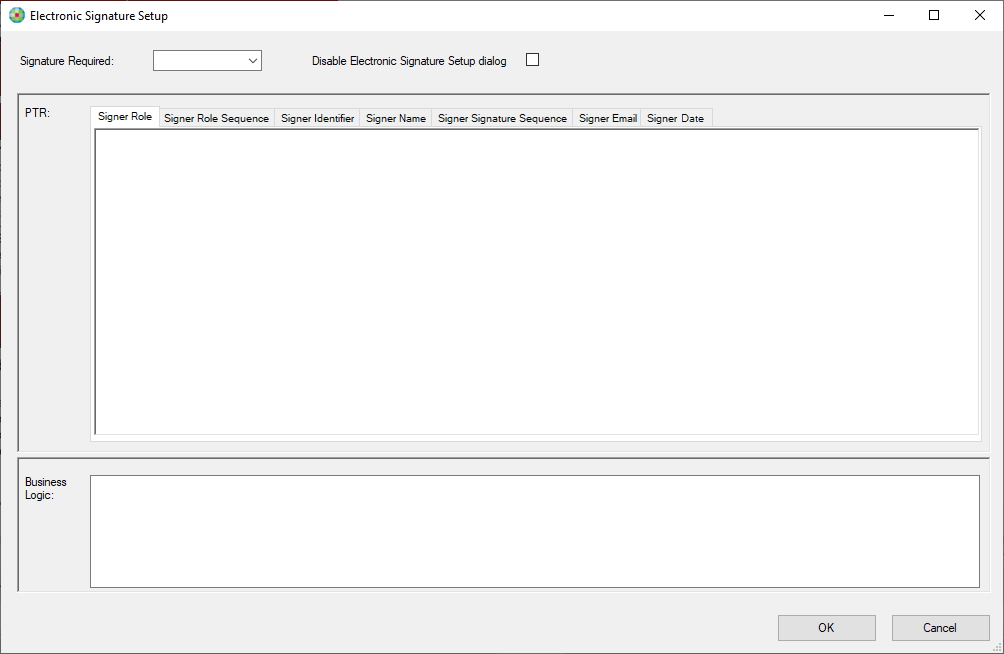
Clicking in the E-Signature field causes the Electronic
Signature Setup window to appear. If the field is not named correctly with .eSig
then the Electronic Signature Setup window will not appear.
-
Select the Disable Electronic Signature Setup dialog if you wish to
author the PTR rule without requiring the assistance of the Electronic Signature
Setup window.
Note: Selecting this feature adds a
CODINGcomment to the top of the PTR that prevents the Electronic Signature Setup window from displaying. In order to use the window again, you will need to manually remove the comment from the PTR rule. -
Code the PTRs for E-Signatures (Signer Role, Signer Role
Sequence, Signer Identifier, Signer Name, Signer Signature Sequence, and Signer
EMail and Signer Date). The requirements should provide all the necessary
information for each tab.
Note: The Signer Date tab is only available for PDF Requirements documents. This tab allows you to author a PTR that will be a simple PRINT statement with the signature date field name. If the PTR is not specified in this tab it is not added to the generated PTR.
-
Highlighting is applied to the signature line defined through the
SignatureTarget as the area above a signature and date line on a document.
- Enabled via PTR in signature field –
PRINT “HIGHLIGHT_SIGNATURE” - Color is set in XTemplate via I-32
- Currently, highlighting does not work concurrently with esignature functionality. E-Signature takes precedence over the highlighting even if provisions for both are present.
- Enabled via PTR in signature field –
-
When the XTemplate is opened in the Requirements Editor, the PTR can be edited
with a PRINT statement. For Example:
IF LOAN/_APPLICATION/LOAN_PRODUCT_DATA/LOAN_FEATURES/@LienPriorityType = 'FirstLien' THEN PRINT "HIGHLIGHT_SIGNATURE" ENDIF -
All signature highlights must be coded to be contingent on the indicator
appropriate for each schema.
- /Txn/HighlightSignaturesInd
- /LOAN/_CLOSING_DOCUMENTS/@HighlightSignaturesInd
-
Within Requirements Editor and viewing the Field Grid (example), the first
signature field is always highlighted and the second field is only highlighted
if there is a second name (Borrower[2]/LastName is not empty).

Note:Watch the order in which the fields appear in the field grid. In the case of our example, the second signature field appears in the Field Grid BEFORE the first signature.
- Save the updated REQ file.