Working with the Find feature
The Find feature within Requirements Editor ( / Ctrl + F) provides the ability to look for a variety of
criteria. The options within the Find dialog are dynamic based on the context of your
focus and selection. For example, the Find dialog for the Outline Editor tab provides
different options than when called from the Package Rules tab.
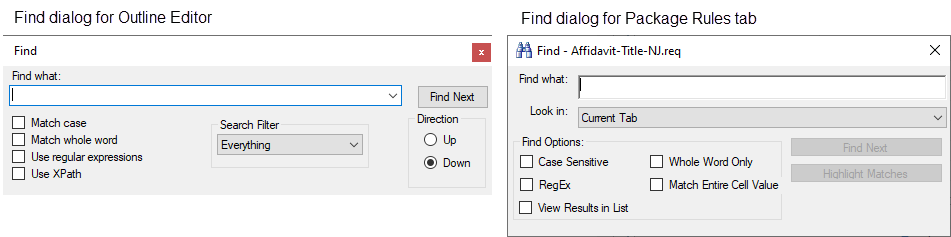
The following table describes the options within the Find dialog and the windows and tabs
in which they are applicable.
Note: When called from the Outline
Editor tab, the Find feature and all options within it pertain only to the Outline
Editor and does not include others tabs in its search. For example, the Use
XPath option for the Outline Editor does not include Field Grid or Package
Rules XPaths. For this functionality, the XPath Location
feature is provided.
| Option | Description | Used within |
|---|---|---|
| Find what | Allows you to enter or select the criteria you wish to locate | All tabs and windows |
| Find Next | Searches for and displays the next string matching the criteria | All tabs and windows |
| Look in | Allows you to select the scope of the search. Options are:
|
|
| Highlight Matches | When applicable, matched results will be highlighted for easier identification |
|
| Match case | Instructs the search to find only strings that match the case of your criteria |
|
| Match whole word | Instructs the search to find only strings that match your criteria as a whole word. No partial results are reported. |
|
| Use regular expressions | Allows you to use Regular Expression syntax within your search criteria |
|
| Use XPath | Allows you to use an XPath to find a corresponding element
location in the outline structure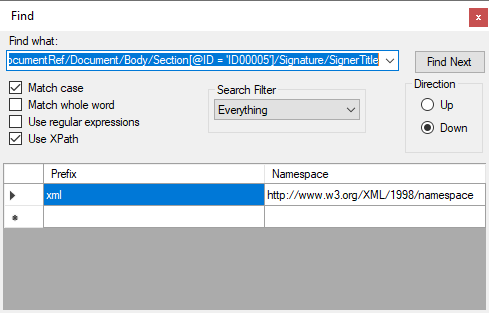 |
|
| Search Filter | Allows you to limit the scope of the search. Choices include:
|
|
| Direction | Allows you to select the Up/Down direction of the search beginning with the location of the selected item. |
|
| Find Options | Includes the following options:
|
|
| Options exclusive to Replace Feature |
Note: This feature is available only in the
Replace dialog ( / Ctrl + H).
|
|
| Replace with | Allows you to enter a string of characters to replace the searched criteria. |
|
| Replace | Replaces the currently selected match with the content of the Replace with string |
|
| Replace All | Replaces all instances of the matching search criteria with the content of the Replace with string |
|