Creating Requirements Files (REQ Files)
Creating the various types of REQ files
|
Dynamic Requirement: |
A dynamic requirement file, or dynamic document, is used to create a document on demand for financial transactions. Dynamic documents are tailored to a specific transaction and include only the text defined as relevant for a given transaction, hence the dynamic nature of the requirement file. |
|
Inherited Requirement: |
An inherited requirement file, or inherited document, is used to create a document on demand that is based on (inherits) the organizational structure of another document but does not carry over any content from the source document. It is in this respect that creating a new inherited document differs from creating a new document as a copy (save as) of another document. |
|
Static Requirement: |
A static requirement file, or static document, is written and prepared in advance for particular processes or lending transactions. Static documents are created with specific content in a fixed format with compliance content that does not change with each transaction. |
In addition to the kind of requirements file, you will want to also know how the naming convention for the files and some of the basic requirements for the REQ. These are typically defined in a REQ requirements document or some other defining document that is prepared during analysis.
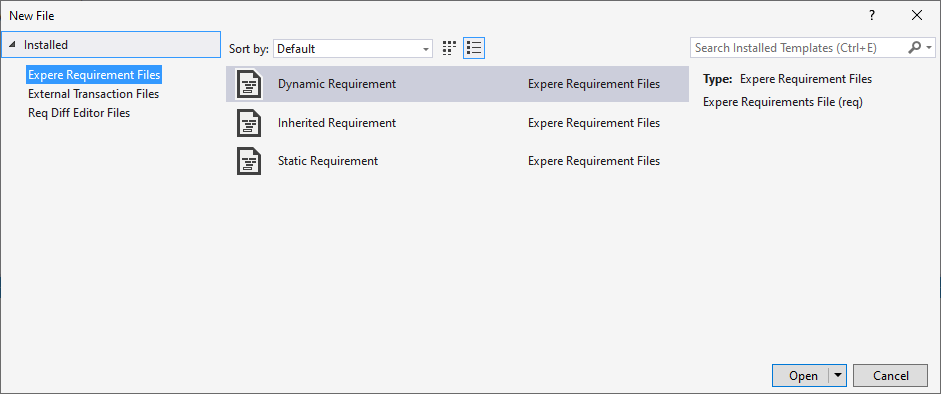
With the requirements for the file known in advance, you can create the REQ file by selecting . The New File dialog box lists all the available REQ file templates. Typically this includes the three templates mentioned above but you may have additional templates available to you.
REQ File Reference
| Property | Description | Applies to Doc Type |
|---|---|---|
| Schema | Allows you to select the schema to which this document is to be
associated Note: You can only select the schema during document creation.
Once the document is created, the Schema selection option is
disabled. |
Dynamic Static |
| Precedence Unit | Allows you to set the precedence level for the document. By default, this value populates with as ORG.WoltersKluwerFinancialServices.Root representing the base precedence structure for an REQ file. | Dynamic Static |
| Form Name | The form name is typically determined prior to authoring the REQ file and is supplied in a requirements document (along with the Document ID and Document Display Name). The naming convention for a form name is to mirror the document name with no spaces. The form name is also the value used as the REQ file name. | Dynamic Static |
| Revision Date | Allows you to enter a revision date for the document. This date is not automatically updated when the document is saved. | Dynamic Static |
| Document ID | (Required) A value defining the technical name for the REQ file that is
used in processing. Valid values include the characters a-z, A-Z, 0-9,
underscore, and a dash; invalid characters include spaces or special
characters (&, ‘, []).
Note:
|
Dynamic Static |
| Document Display Name | (Optional) The form name as it is intended to appear in a list of documents. For example, a form name of ContributionInstructions might have a display name of Contribution Instructions. | Dynamic Static |
| Document Style | Identifies the stylesheet used for default metadata values and to
define the presentation of the form when a preview is generated. Default
choices are:
Note: The Document Style list includes only
stylesheets located in the Core folder. If the Core folder does not
exist, the feature defaults to the items in the ContentItems
folder. |
Dynamic Static |
| State | Used to define a jurisdiction target for the REQ file. | Dynamic Static |
| Copies | Allows you to indicate the number of copies to be made for this
requirements file when it is executed/utilized by other tools. The default
is 1. Note:
|
Dynamic Static |
| Content Type | Allows you to set the type of content this document is to be
considered. Choices are:
|
Dynamic |
| Line of Business | Allows you to select a Line of Business to associate with the
document. Note:
|
Dynamic |
| Document List | Allows you to select the following options:
|
Dynamic Static |
| eSignature Document | Indicates the document is an eSignature document. If this option is not selected, electronic signatures will not appear within the signature fields of the executed document. | Dynamic Static |
| Logos supported | Selecting this option allows a logo to be added to a requirement
document. Notice:
|
Dynamic |
| Generate Barcode Coversheet | Selecting this option sets the corresponding attribute in the document
to true (see example below) and generates a barcode coversheet.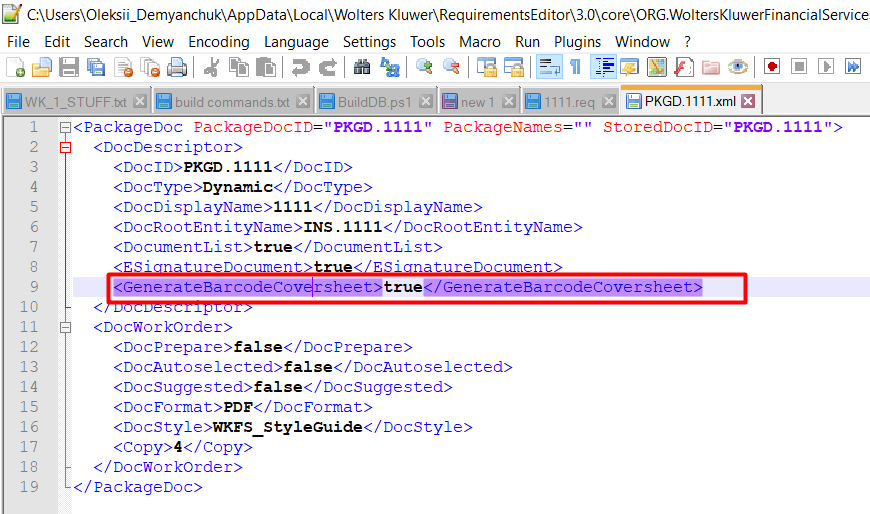 |
Dynamic |
| SmartDoc | Selecting this option causes the smartDoc attribute to be added
to the REQ file.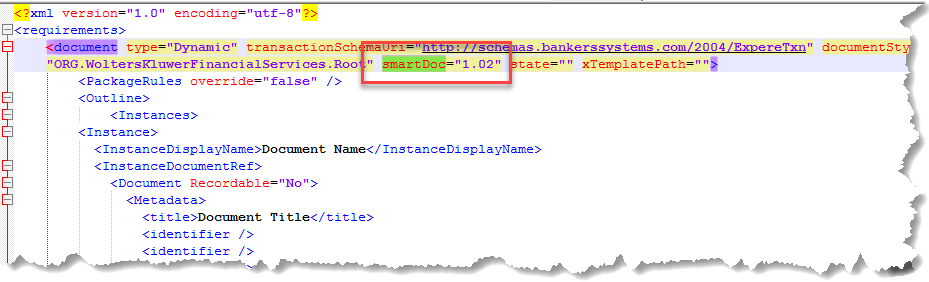 This subsequently adds a new element,
SmartDoc, to the PKGD file with a value of 1.02. 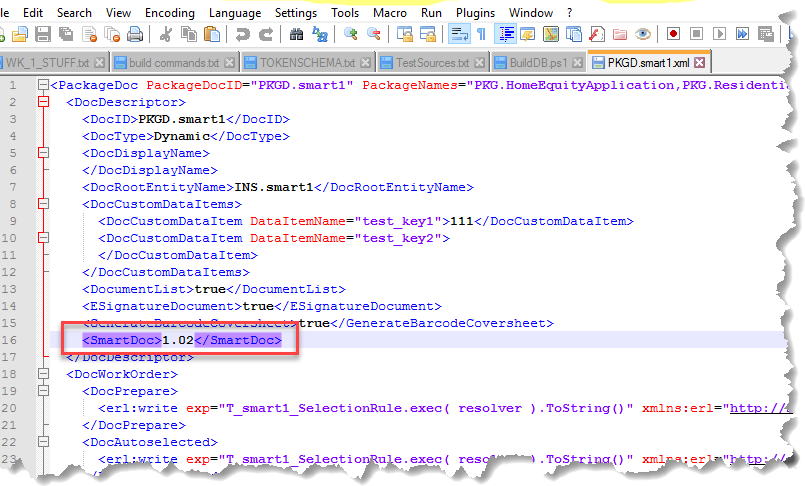 When executing a SmartDoc, the Expere Engine returns PDF and XML documents. Also, the XHTML is automatically extracted from the generated XML file and placed into a separate XHTML (.xml) file. The default applications are used to display each document. Note: This feature is currently disabled for
Static documents.
|
Dynamic Static |
| XTemplate | (Required) A required value that associates the REQ file to an XTemplate file. | Static |