Using Spell Check within Documents
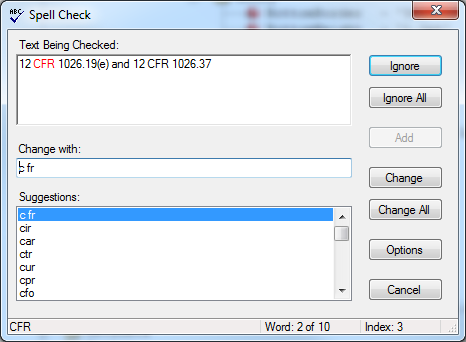
The Spell Check feature of Requirements Editor allows you to check the spelling of
all text in any open document. Selecting Tools > Spell Check displays the
familiar Spell Check dialog.
Note:
- Regardless of your location within the document, Spell Check begins at the top of the information within the Outline Editor tab.
- Code for graphics and xPaths are not checked.
Spell check within dynamic documents
The following tabs and columns are spell checked within dynamic
documents:
Note: Private notes (Note elements containing a Type attribute
with a value of private) are not included when performing Spell
Check.
- Field Grid tab
- Business Logic
- Developer Notes
- Package Rules tab
- Selection - Business Logic
- Suggestion - Business Logic
- Notes tab
- Description
- Mandatory Change Description
- Non-Mandatory Change Description
- Reason for Change
- Common File Changes
Important: Notes have a limit of 32676 characters (32K). This ensures that the entire note fits within the limitation of a single Excel spreadsheet cell. If more characters are required to satisfy the note, you must add another note row. - Instance Properties tab
- Property Value
- Discrete Party tab
- Business Logic
- Outline Editor tab
Spell check within static documents
The following tabs and columns are spell checked within static documents:
- Package Rules tab
- Selection - Business Logic
- Suggestion - Business Logic
- Discrete Party tab
- Business Logic
- Discrete Party ID Rules tab
- Business Logic
- Instance Properties tab
- Property Value
- Notes tab
- Description
- Mandatory Change Description
- Non-Mandatory Change Description
- Reason for Change
- Common File Changes
- Instance Rules tab
- Business Logic
- Instance Display Rules tab
- Business Logic