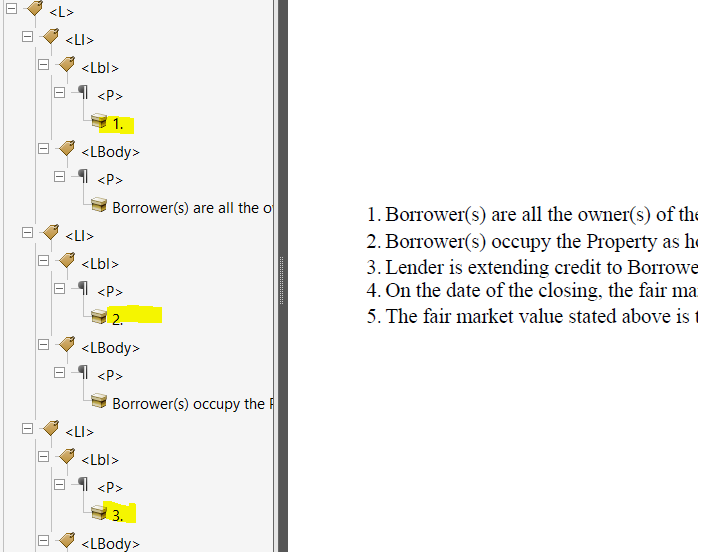
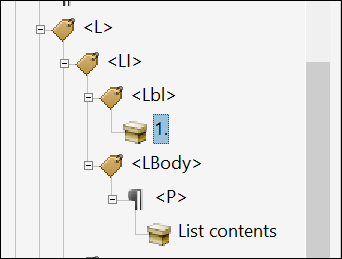
When producing a tagged PDF, ordered (sequenced) lists authored with the attribute Marker having a value of Sequence does not convert to an image with alternate text populated. Rather, the actual sequential value (number or letter) is tagged and read out loud. Figure 1. Example of Tagged PDF Sequenced List
See Sequenced List below for detailed information on adding an ordered and
sequenced list.
Sequenced List
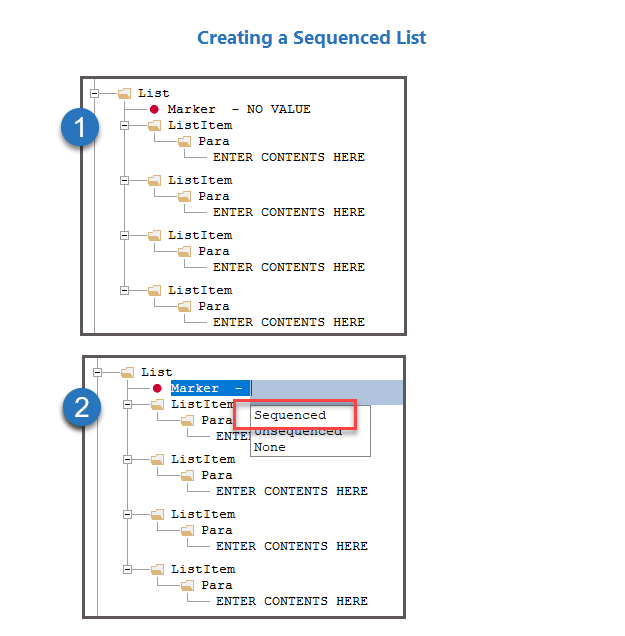
To create a sequenced list:
Right-click the element intended as the parent for the list and
select Add Child Element > List.
The list is created as shown in item 1 to the
right.
Double-click the NO VALUE attribute value to display your
options (shown in item 2 at right) and select
Sequenced.
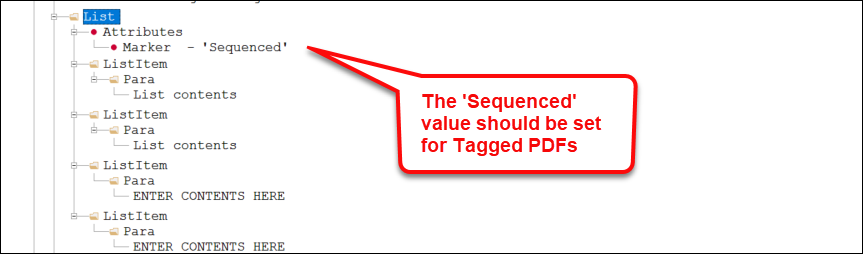
Marker attribute > 'Sequenced' value
When working with an ordered list, be sure to set the Marker attribute to
'Sequenced.' This will place otherwise insert invisible bullet; example of correctly
set up list