Using Drag and Drop
You should exercise caution when moving content in the Outline Editor.
To move content: click to select the desired elements and drag the elements to the desired location. Note that all child elements and attributes of that parent also move with it.
To copy content with drag and drop: select the desired elements and drag the
elements to the desired location while pressing the Ctrl key on the keyboard. The cursor
appears as follows when copying during drag and drop: 
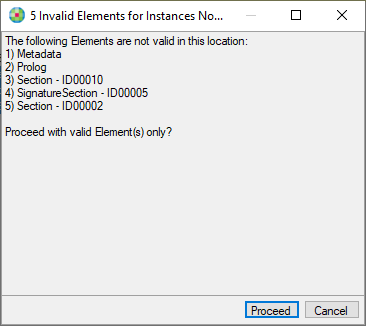
When dragging one or more elements within the Outline Editor, a valid insertion location
is indicated with the following cursor:  An invalid location is indicated by the cursor appearing as
follows:
An invalid location is indicated by the cursor appearing as
follows: 
You can cancel the drag-and-drop operation without moving any elements by pressing the ESC key during the drag.
- Before releasing the mouse button, watch closely for the dotted lines which indicate the level where your content will be placed. Be careful not to move your content underneath the wrong element.
- Note that you cannot drop on/from a read-only node.
- Multiple nodes can be dragged simultaneously after selecting them using Ctrl+Click or Shift+Click.