Package Rules
The use of the Package Rules
The Package Rules tab allows you to define rules to apply to an associated package (also referred to as Auto-Selection and Auto-Suggestion rules) that determine when the document should be selected or suggested based on the transaction data. In this tab, you can create new package rules or modify existing ones. A document can have Auto-Selection and Auto-Suggestion rules for each phase that it is in. A separate PTR is written for each selection and suggestion rule.
IF, include
THEN and SELECT and end with
ENDIF. The rules within the Package Rule follow the same keyword
conventions as Condition and Data PTRs. There can be multiple IFs in a Package Rule. For
example, the following rule selects the document any time either of the two conditions
were met.
:IF /Txn/Deposit/IRAPlans/IRAPlan[Type = '1'] THEN
SELECT
ELSEIF /Txn/Deposit/IRAPlans/IRAPlan[SelfDirectedInd = '1'] THEN
SELECT
ENDIF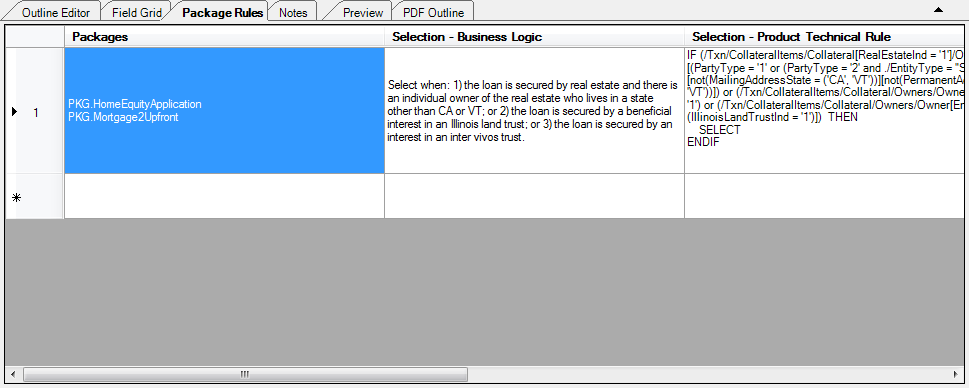
| Column | Description |
|---|---|
| Packages | Allows you to add and remove packages |
| Selection - Business Logic | Allows you to provide a readable text explaining the logic for the package |
| Selection - Product Technical Rule | Allows you to provide PTR information for the package. For more information on PTRs, see Product Technical Rule (PTR) Reference. |
| Suggestion - Business Logic | Allows you to add suggested business logic to the package rule |
| Suggestion - Product Technical Rules | Allows you to add suggested Product Technical Rules to the package rule |
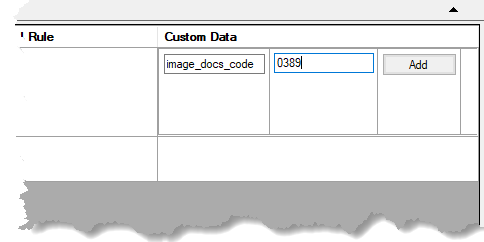
| Custom Data | Allows you to create custom metadata and assign a value to it. This helps
prevent any typographical errors and eliminates the need to retype the values
for each document. This feature is available for Static and Dynamic documents,
and is backward-compatible.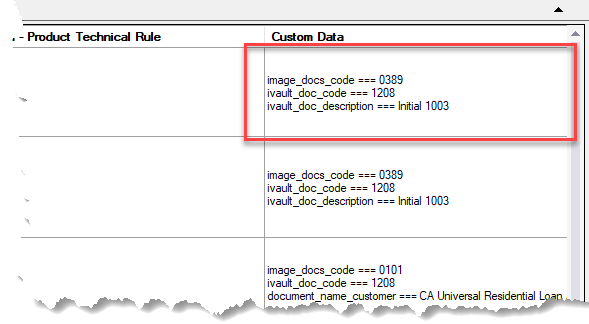 Adding Custom Data: To
add custom data to the cell:
|
| Developer Notes | Allows you to add notes to a package rule. This information is not customer facing and is stripped out when building the document. Special characters ( <, >, &, ', ") and line returns are honored. |