Working with DocViewer
DocViewer is a web application that allows you to view and save a requirements file
as rendered through the DocViewer engine.
Note:
- Before working with DocViewer, you must configure Requirements Editor to work with it. For more information, refer to Configuring for DocViewer Integration.
- For details in working with the DocViewer interface, refer to the DocViewer User Guide.
- DocViewer can only be intialized if a requirements file is open in Requirements Editor.
Working with DocViewer with an open requirements document
- With a requirements document open, select .The Select Transaction Xml dialog is displayed.
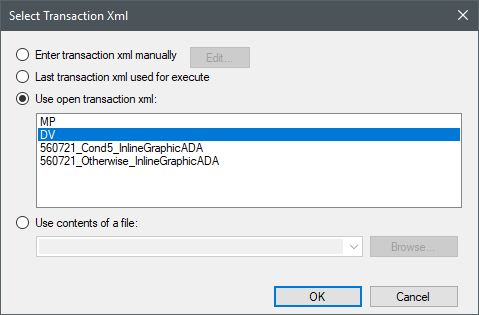
- Select DV and then select OK.DocViewer is displayed in your default web browser.
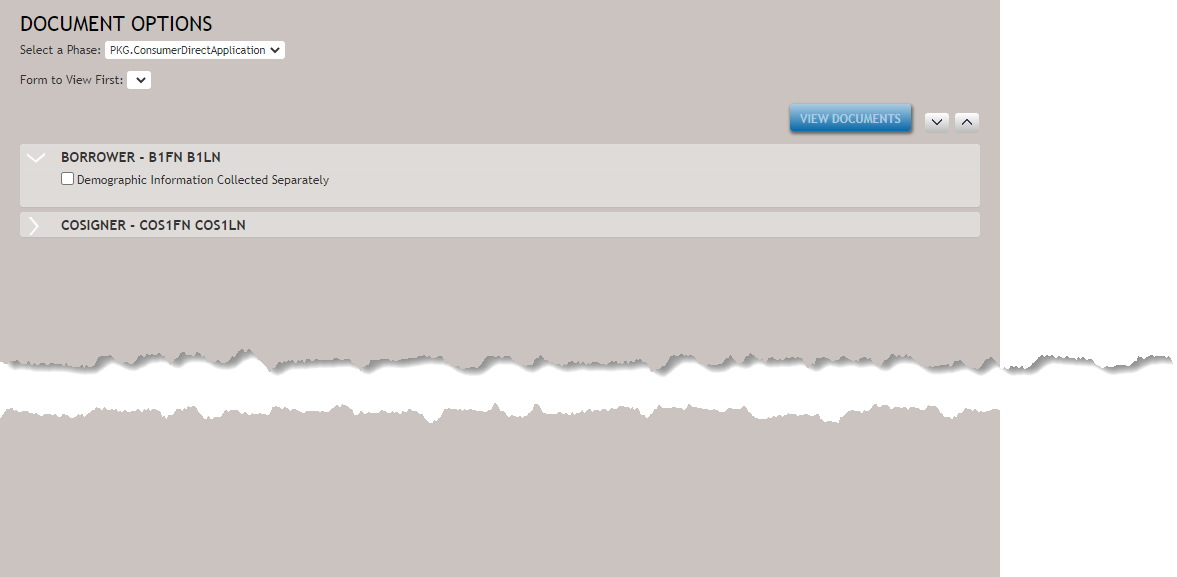
- Select all desired options as they are presented.Tip: Selecting an option in one section will repopulate the immediate lower section with associated options.
- Select View Documents to view the formatted document(s).Note: The View Documents button is enabled only when all required criteria is selected.
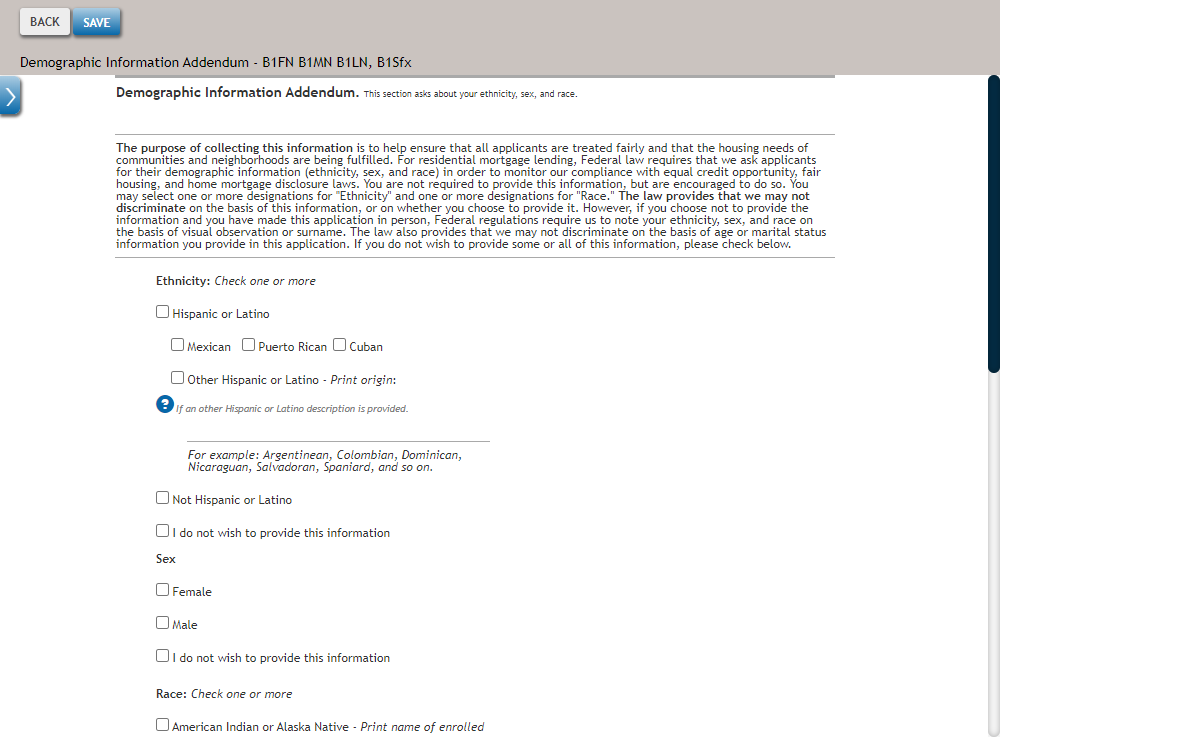
- Select Save to save the document as an XML file for future use. The
resulting DV.xml file is saved automatically to your
Downloads folder.
If a previous DV.xml file is present, the filename is appended numerically (DV (2).xml, DV (3).xml, etc).
Optionally, select Back to return to the Document Options page to edit the options.
Working with DocViewer with a saved requirements document
- With a requirements document open, select .The Select Transaction Xml dialog is displayed.
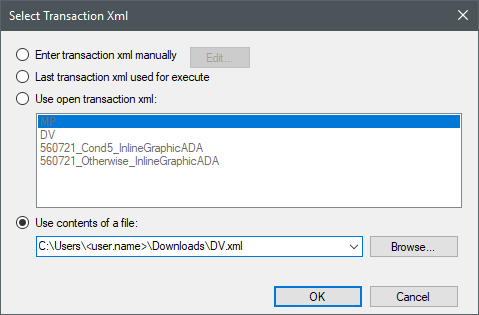
- Select Use contents of a file and then select the Browse button to select the file. Finally, select OK.
- Within the Document Options page, edit the desired options and then select View Documents to view the formatted document(s).
- Select Save to save the document as an XML file for future use. The
resulting DV.xml file is saved automatically to your Downloads folder.
If a previous DV.xml file is present, the filename is appended numerically (DV (2).xml, DV (3).xml, etc).
Optionally, select Back to return to the Document Options page to edit the options.