Context Menu Items
Requirements Editor Merge windows have contextually based (right-click) menus. Menu items that appear when right-clicking are dependent on the window you are currently working in and the document you have selected.
| Menu Item | Description | Available in |
|---|---|---|
| Add PackageID | Allows you to add a Package ID (packageID node) while in local edit mode for a changeblock of an inserted package row in the Incoming or Existing side. |
|
| Delete (Package ID) | Allows you to delete a Package ID. |
|
| Open Three-Way Merge | Allows you to compare the selected document in the Incoming, Existing and RQDIF windows. For more information, refer to Three Way Merge. |
|
| Delete from Repository.. | Deletes the selected document from the existing repository. |
|
| Change Document ID... | Allows you to change the ID of the document |
|
| Take Incoming... | Ignores file merging and takes the new updated Incoming document (an updated version of a base document). This acts like a copy, but also adds overrides, and reassigns the Org to be custom. |
|
| Take Existing... | Accepts the existing document before the merge and does not accept
incoming changes. All changeblocks will have their change decisions
changed to Keep Existing. Any changes to base that are not in conflict with the existing content would automatically be accepted as incoming as they pose no conflict to existing. The existing version remains and all incoming base changes are rejected. Therefore, the new resulting REQ file may have new overrides (on body/section/rules etc.) and may be not a full duplicate of the existing REQ version. |
|
| Use Reconciled | Accepts the reconciled version of the selected document. |
|
| Compare With Common Base | Opens the selected document with a view of the
Incoming and Existing versions.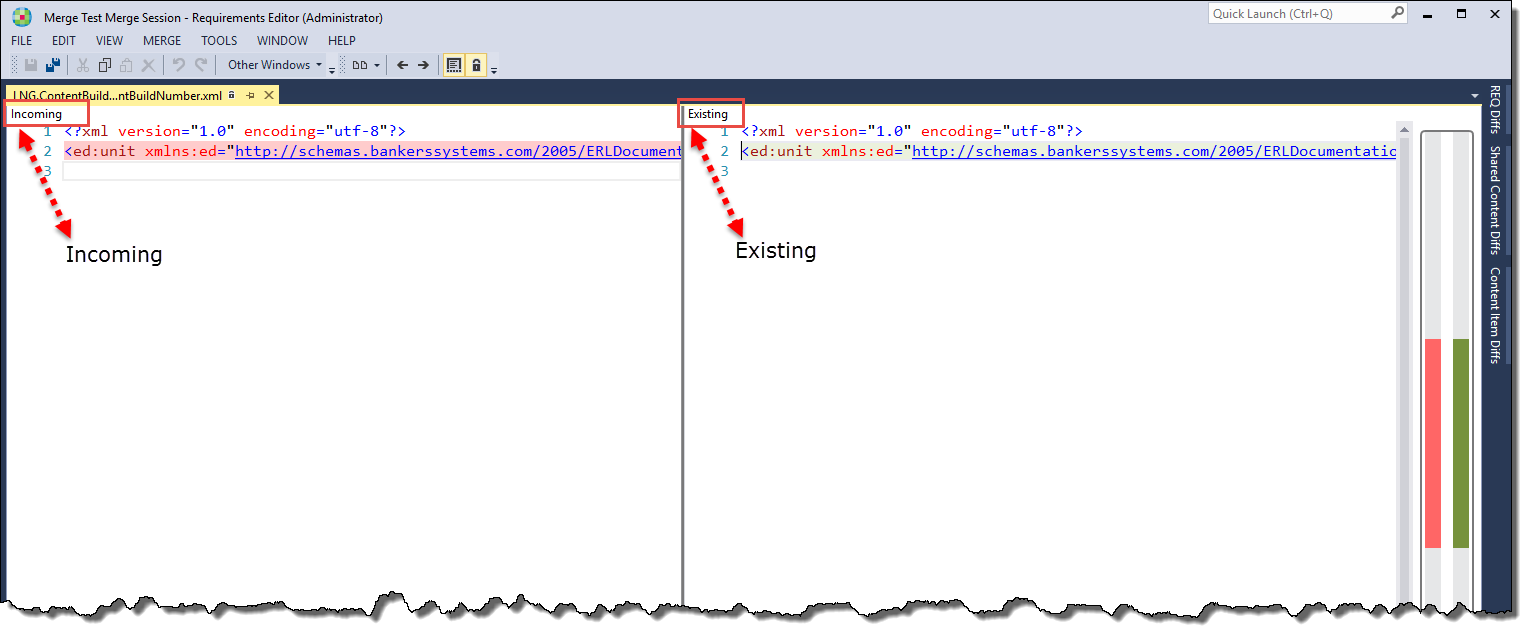 For more information, refer to Compare with Common Base. |
|
| Revert to Large Change Block | Reverts the applied mappings of a large Change Block. Notice:
|
|
| Compare with Incoming | Opens the selected document with a view of the Incoming and Existing versions. For more information, refer to Compare with Incoming. | |
| Open Incoming | Opens the incoming version of the selected document. |
|
| Open Existing | Opens the existing version of the selected document. |
|
| Open Reconciled File | Opens the reconciled version of the selected document. |
|
| Resolve Mappings | Opens the Resolve Mappings window, allowing you to map elements
having no IDs to resolve large ChangeBlock issues. This context menu
item is available only for non-resolved ChangeBlocks that could not be
automatically mapped.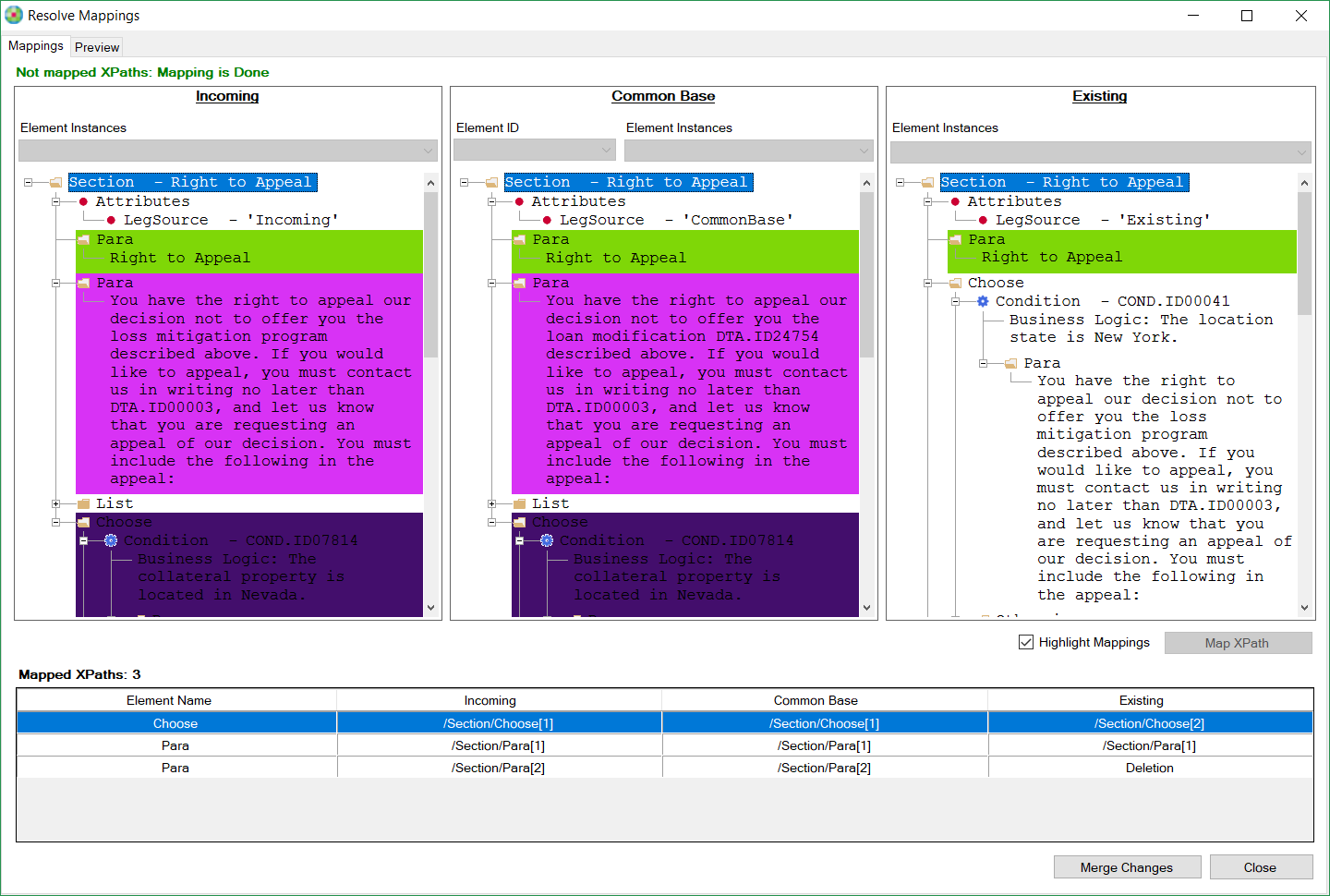 This window allows you to select elements and map them using the Map XPath button. Mapped XPaths can be viewed within the Mapped XPaths pane, which includes a totals count and the ability to delete the mapping. The Preview tab displays a preview containing three panes: Incoming, Reconciled and Existing. These display ChangeBlock details according to the created mappings with the total number of ChangeBlocks. A new preview is created only when the mappings are changed. Elements are synchronously expanded or collapsed in all three panes of the Preview tab when expanding or collapsing an element using the +/- icons or via the context menu commands. Selecting the Merge Changes button engages the merge algorithm, incorporating the applied manual mappings for the revised ChangeBlocks generation. Large ChangeBlocks are substituted with more granular ChangeBlocks. After saving the file, all merge session information related to ChangeBlocks is updated accordingly (Merge Session window counts, REQ Diffs, toolbars). The Resolve Mappings window has its own context
menu that allows you to easily compare the selected item with the
associated item in the other panes. For example, the context menu
for the selected Para element (below) in the Incoming pane
allows you to easily compare the Para with that of the Common Base
or Existing panes. 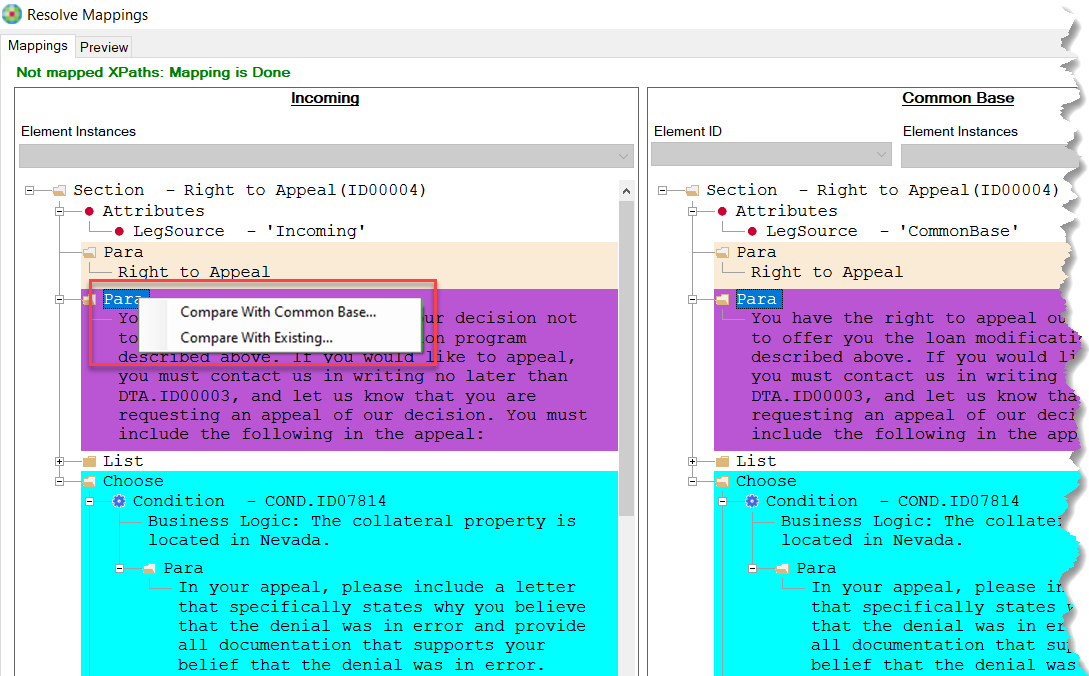 |
|
| Expand | Expands the selected node. This action is synchronized between the Incoming, Existing and Reconciled panes. |
|
| Collapse | Collapses the selected node. This action is synchronized between the Incoming, Existing and Reconciled panes. |