Three Way Merge
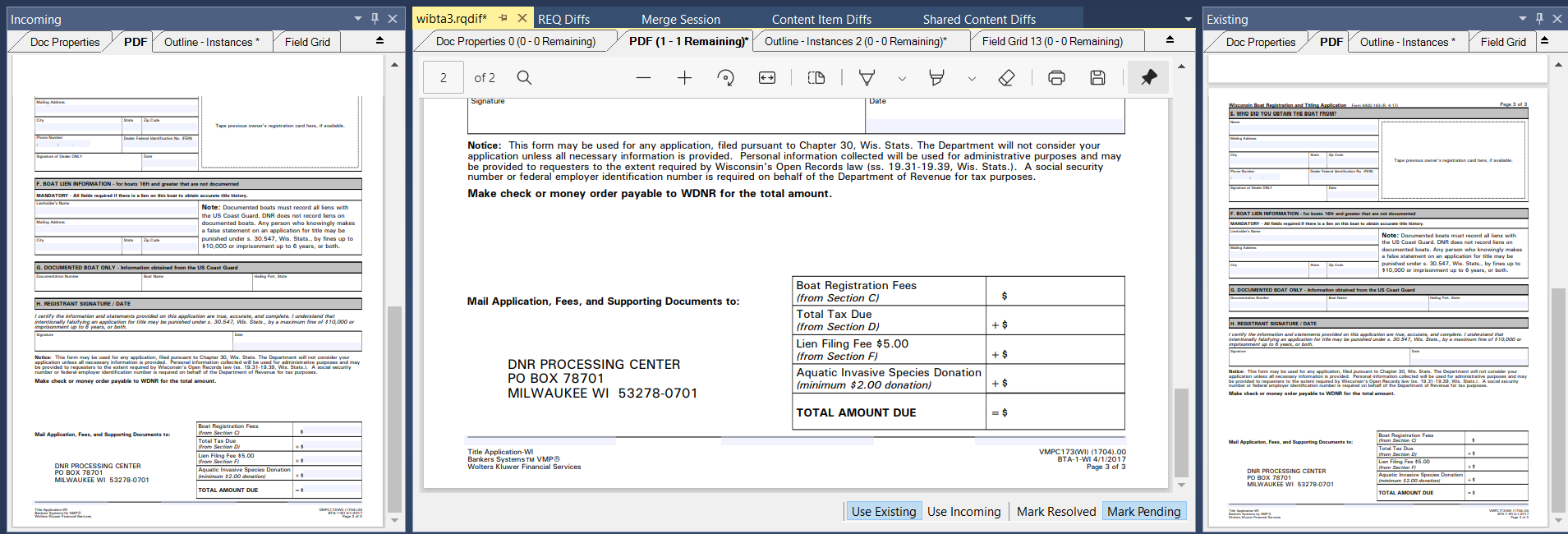
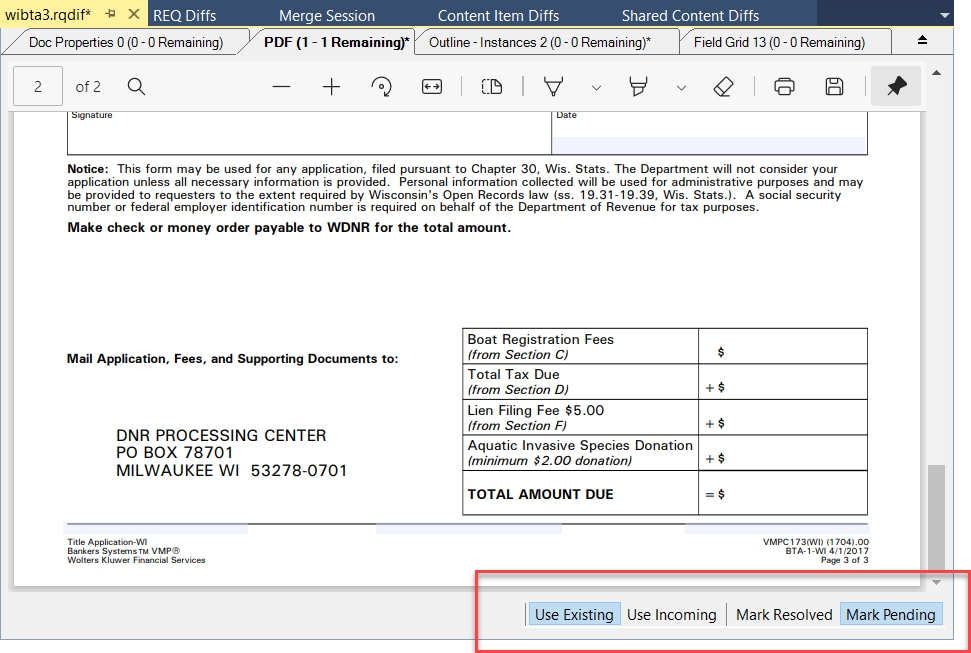
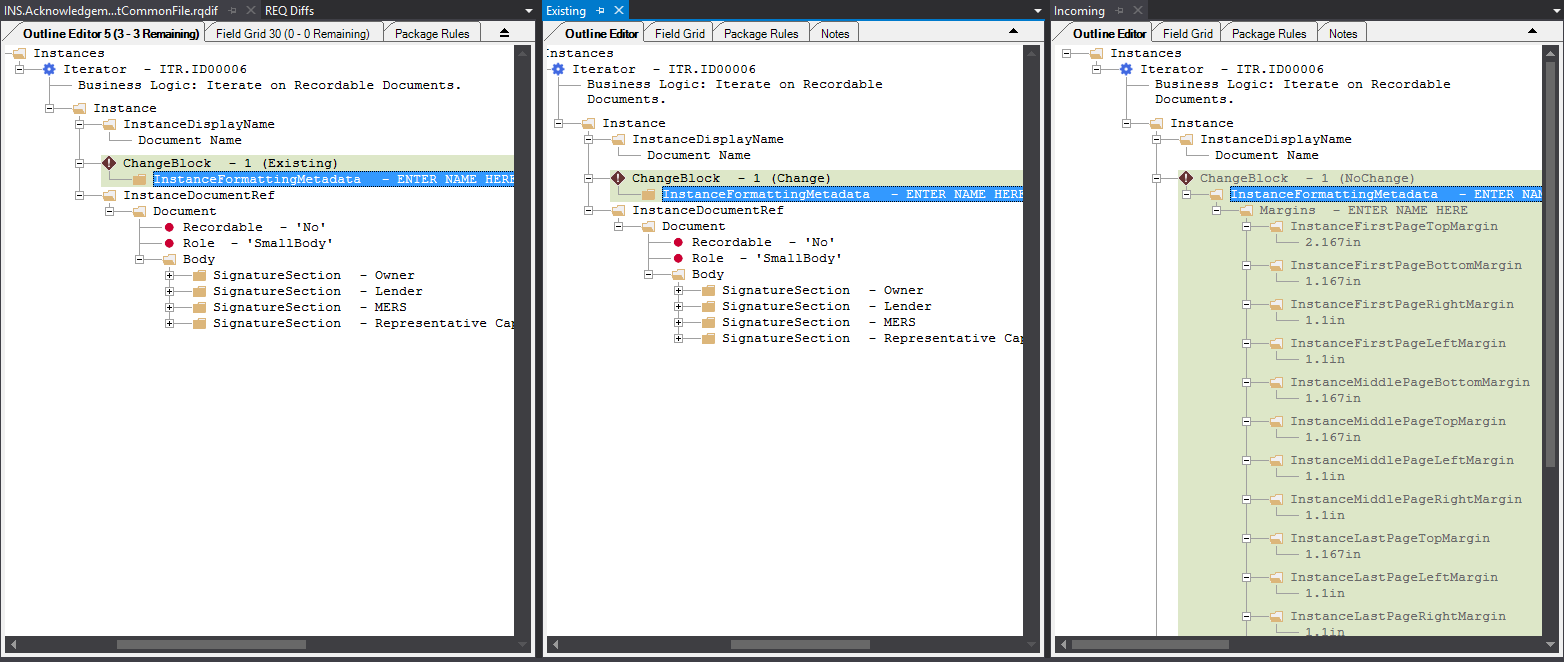
Selecting Compare with Common Base from the content menu of the REQ Diffs window allows you to view the differences of each version of the document in the following windows:
- Incoming: shows the incoming version of the document
- Existing: shows the existing version of the document
- rqdif pane: displays the selected document and dynamically
changes based upon the items selected or rejected in the Incoming and Existing
windows
On the tabs you will see numbers, {Change Number Total} ({Total number of conflicts} – {Total number of conflicts left}).
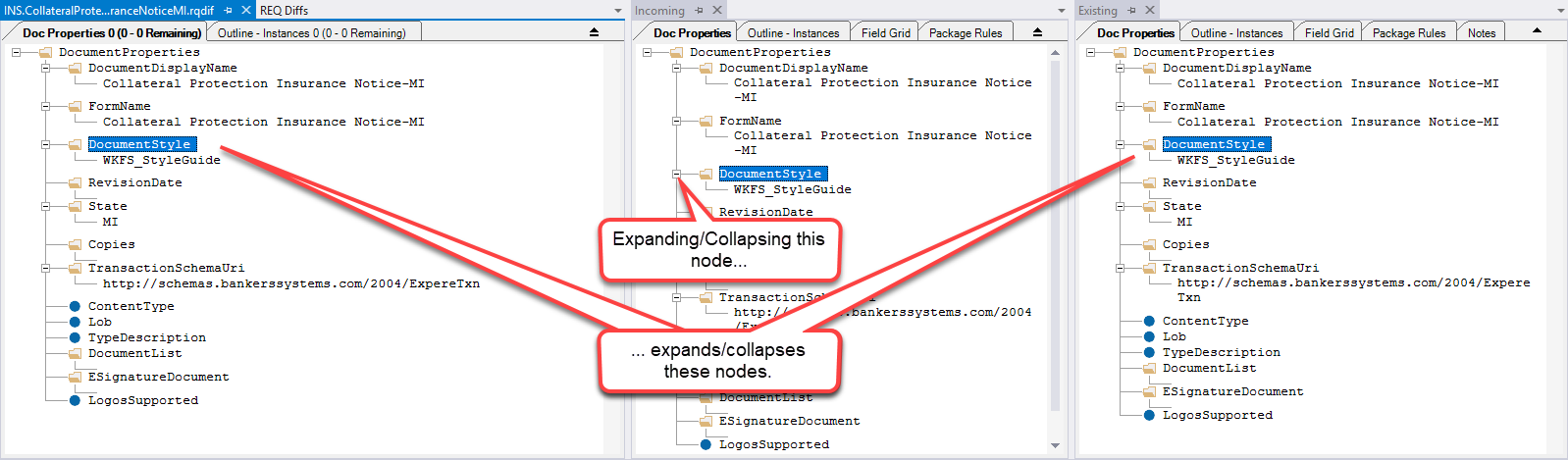
Requirements Editor supports the merging of empty TXN transactions of the Default Data REQ files. This merge only happens when there is an empty transaction on the Incoming side, otherwise the merge does not occur and the tab is not displayed.
A merged empty transaction tab functions exactly as in the other tabs (Outline, Field Grid, etc.). The document status is set to Impacted and the transaction ChangeBlock is added to the Remaining count.
For more information, refer to Empty Transactions Tab
Merging PDF Documents