Updating a Group of Aliases
This section explains how to update a group of aliases to an updated content version or new content repository for a particular library name and owner account.
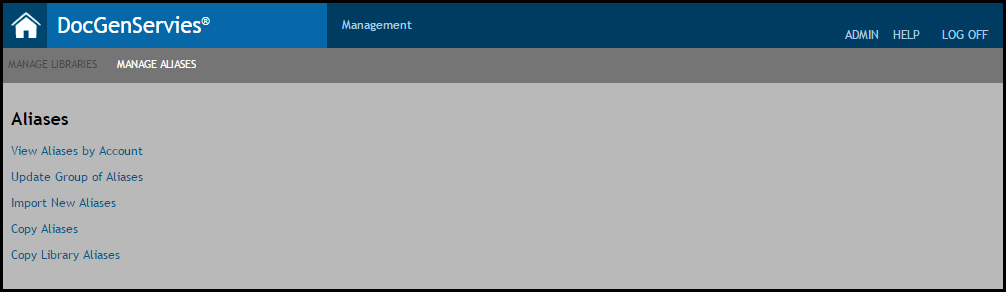
- From the Manage Aliases page, click the Update Group of Aliases link.
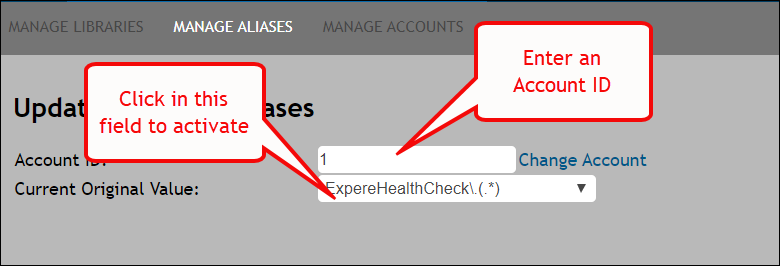
- The Update Group of Aliases section appears; enter an Account Id in the corresponding field and click View Original Values. The Current Original Value field appears.
Note: The value entered in Account id field is limited to 255 numeric characters.
Note: When a new library is deployed and the version is updated in the existing aliases, users account permissions are updated with version of existing aliases. -
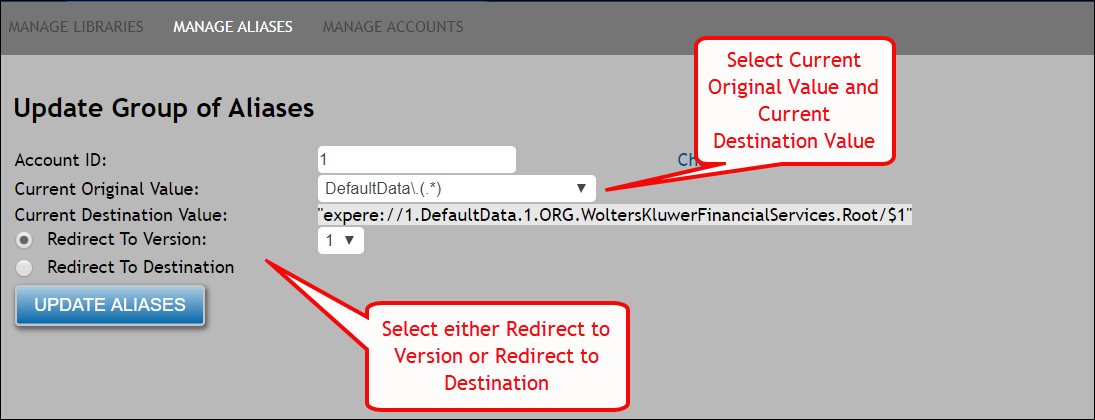
Select the Current Original
Value field to display the Current
Destination Value: field. Selecting an option
in the Current Original Value: dropdown
populates the Current Destination Value:
field. This field is read-only.
-
Select one of the following option buttons:
- Redirect To Version: select an
updated version number from the corresponding dropdown. This number will be
the new version of the newly-deployed library. For example, if entering a
new value of "2," the previous value of "expere://1.Commercial.1" now
appears as "expere://1.Commercial.2."Note: Use alphanumeric characters only.
- Redirect To Destination: select a library from corresponding dropdown. This dropdown provides a list of all libraries to which the account has access.
- Redirect To Version: select an
updated version number from the corresponding dropdown. This number will be
the new version of the newly-deployed library. For example, if entering a
new value of "2," the previous value of "expere://1.Commercial.1" now
appears as "expere://1.Commercial.2."
-
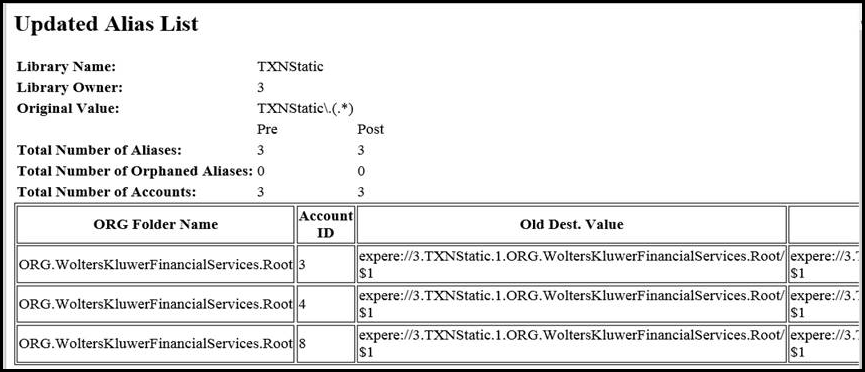
Click the Preview List
button to display a summary of the aliases that
will be updated.
Note: Clicking the Preview List button does not update the aliases.
-
Click the Update
Aliases button to display the Aliases and
Accounts Being Updated popup. Verify the
information in the popup and click Continue
to complete the Alias update and repost the
organizations, products, policies, packages and
packets for the accounts using the selected alias
in EZ Config.
Note: If the library in question has any existing configurations in EZ Config, DGS will display the following message:
Continuing with this update will repost the organizations, products, policies, packages, and packets for ALL accounts using this alias in EZ Config.
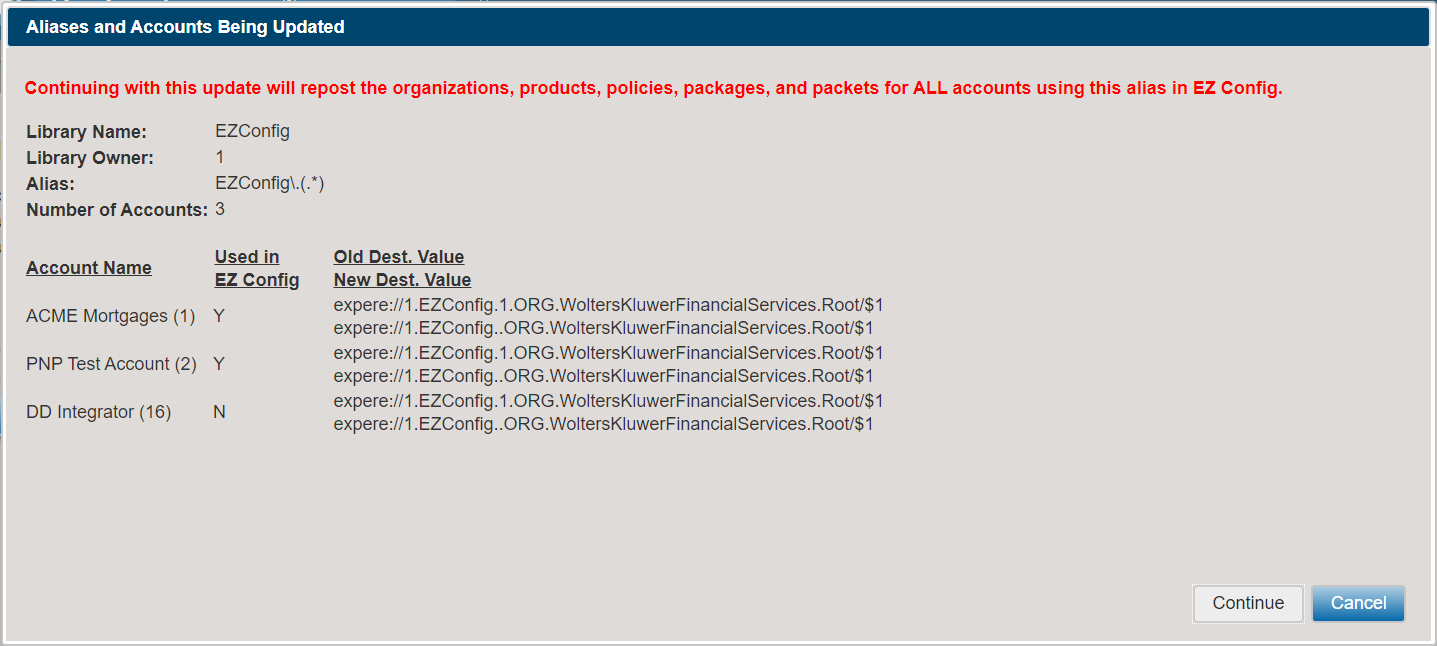
- Click Continue to repost the information to EZ Config and update the Management database. Click Cancel to exit this dialog box and display the Update Group of Aliases page.