Deploying New Libraries
A user with an appropriately assigned Role for this Account has logged into the
Document Generation Services Management Tool and has access to the
content library that needs to be deployed.
Note:
- These instructions assume that the user knows the location of the content library (the repository already built using the Requirements Editor Admin tool) to be deployed and has been assigned a role that includes permission to manage libraries. The user needs to know the name of the Account for the library to deploy.
- Internal users: those users who deploy content may only deploy pre-built content libraries and not customized libraries.
- Multiple libraries can be deployed in sequence. When a library is being deployed, any subsequent library is placed in queue and its status is displayed as Queued for Deployment.
- Click the Manage Libraries link from the Home screen, or select the Manage Libraries screen.
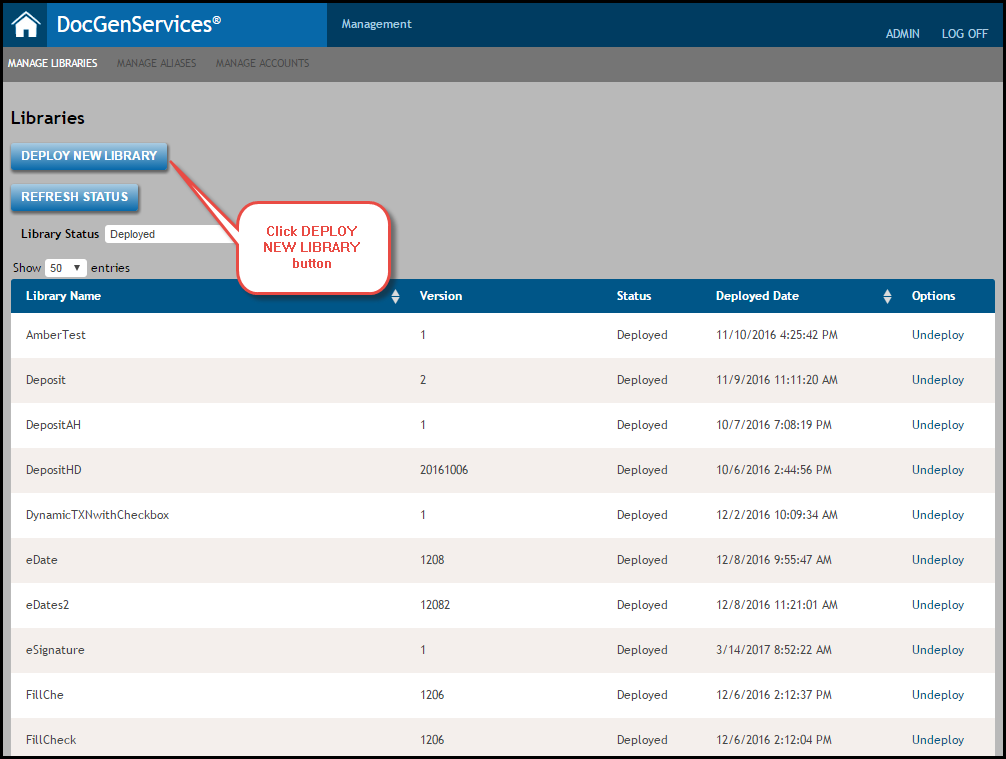
- Select Deploy new library.
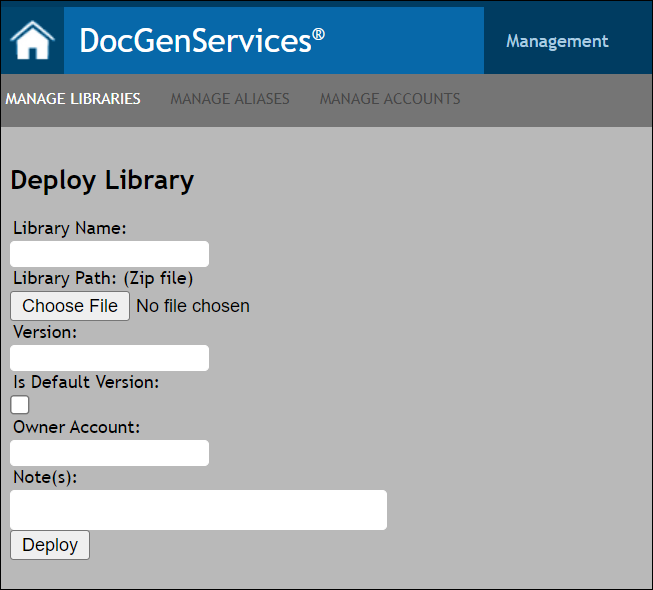
- Enter a name in the Library Name field.
- Enter the path to where the library is located on the server in the Library Path field. Or, click Choose File to navigate to a compressed archive (ZIP) containing the library files.Example: D:\ExpereRepository\Default or D:\ExpereRepository\Default.zip
- Enter a Version number. Note: Do not use a version number greater than 2147483647. Also do not use a decimal in the version number.
- If necessary, select the Is Default Version option. This option is used if a calling application requests a library by name, but does not specify a version; the library marked as default is selected.
- Enter the Account ID for the Owner Account.
- Enter any notes for the specific library in the Note(s): field. Upon deploying the library, the notes are preserved for future viewing. The character limit is 255.
- Click Deploy.
Note: Files up to 500 MB can be uploaded and will be scanned for viruses with the following message appearing:
- "File upload and virus scan in progress, this may take several minutes, do not navigate away from this page"
- Monitor/click the Refresh Status button to verify that the library has been deployed successfully. Depending on the amount of content this can take a few minutes.
Note: As mentioned above, users may only deploy pre-built content libraries. If the library deployed is not a pre-built library, an error message will appear when searching for the desired library under the FailedDeployment library status.