Removing an Alias
This section explains how to remove an alias.
- From the Manage Aliases tab, enter an Account Id.
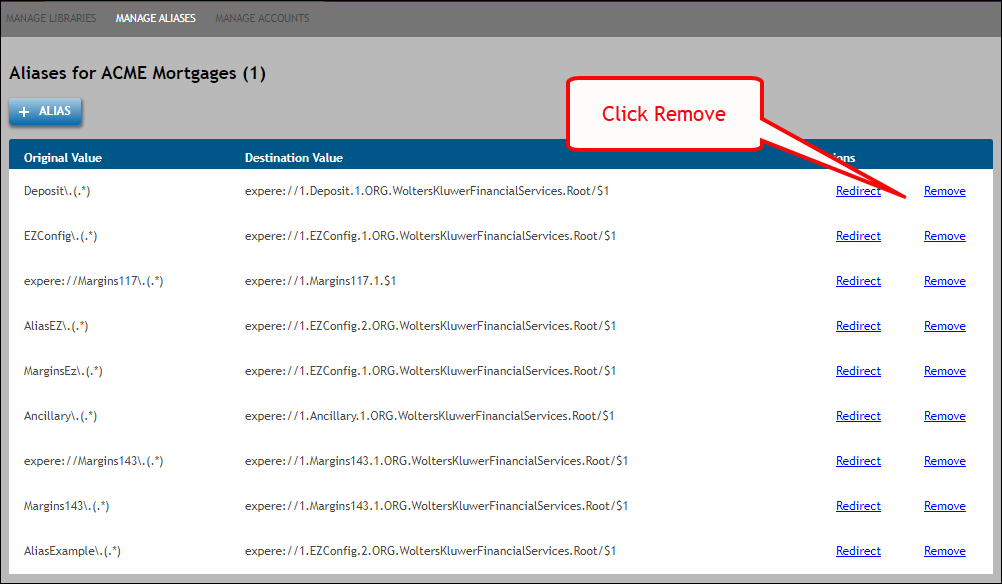
- From the Aliases for Organization page, click the Remove button to the right of the desired alias.
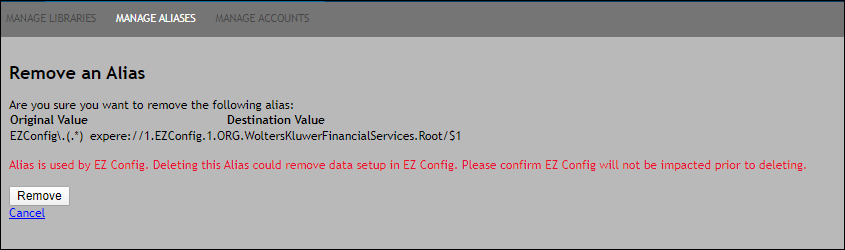
- The Remove an Alias page appears; click OK under Are you sure: to remove the alias; click Cancel to return to the Aliases for Account page.
Note: If the alias is associated to an EZ Config account, the following warning is displayed:
Alias is used by EZ Config. Deleting this Alias could remove data setup in EZ Config. Please confirm EZ Config will not impacted prior to deleting.