Working with Data Collection Fields
Adding and Editing Data: Question Mark Icons
Some fields within the data collection section will prompt additional data fields when
certain options are selected. For instance, some fields include Question Mark (?) icons.
The  indicates there are variations regarding how text will appear within a paragraph. The
paragraph displayed will remain with variations based on the data selected. For example,
clicking the next to Exception Type results in a prompt for collection
of data. Clicking the dropdown arrow displays a list of options.
indicates there are variations regarding how text will appear within a paragraph. The
paragraph displayed will remain with variations based on the data selected. For example,
clicking the next to Exception Type results in a prompt for collection
of data. Clicking the dropdown arrow displays a list of options.
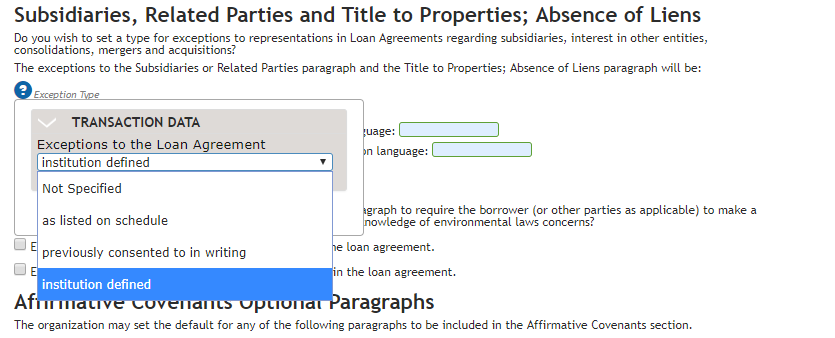
Selecting the option that applies to the transaction will change what appears in the paragraph. In this case, the selection results in additional data collection fields.
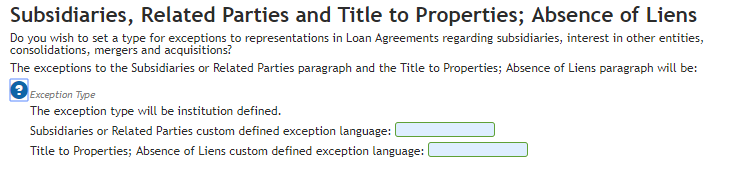
Click anywhere in the document to close the data point display.
Adding and Editing Data: Plus and Minus Signs
The presence of Plus and Minus signs also indicates the availability of additional data collection. For instance, the following illustration shows an example where the data collection allows you to specify an additional address type.
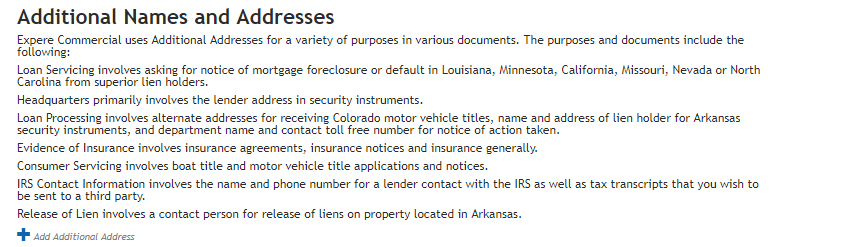
The  symbol
indicates that additional fields may be added. Click to define
additional addresses.
symbol
indicates that additional fields may be added. Click to define
additional addresses.
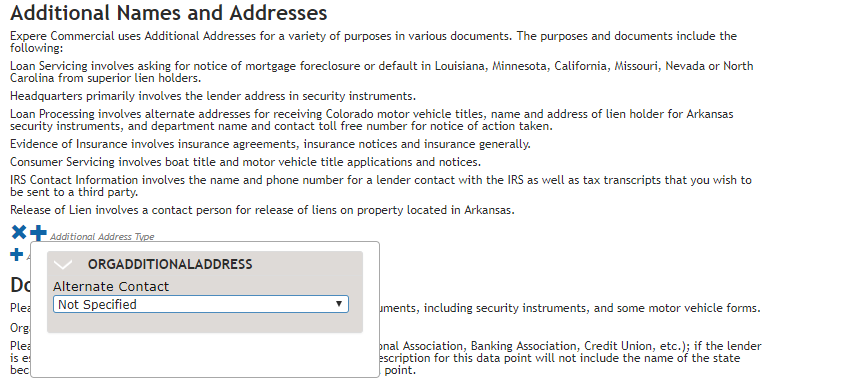 is
clicked, the data collection displays a drop down field listing available additional
address types. Select the relevant address type from the list to display additional data
collection fields.
is
clicked, the data collection displays a drop down field listing available additional
address types. Select the relevant address type from the list to display additional data
collection fields. 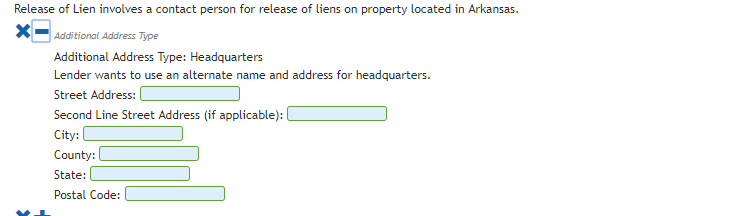
In some instances, you can add multiple iterations of the data value. Click the last
to add
additional types.
To remove a data type, click  .
.
Field Indicators
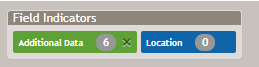
When these fields are added to the data collection section, a field indicator displays at the top of the data collection section. This indicator identifies how many additional fields have been added and are available for data entry.
Location Indicators
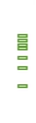
When a user makes a selection in the data collection section for which additional fields available for data entry, a series of green location indicators display on the right side of the page. These lines are placeholders, used to indicate the approximate location of the field within the document. Note that these indicators do not always align with the field itself; rather, they represent approximately where within the section as a whole you can locate these fields. Clicking on an indicator brings you to the approximate location within the section where the field is contained.
Available Field Identification
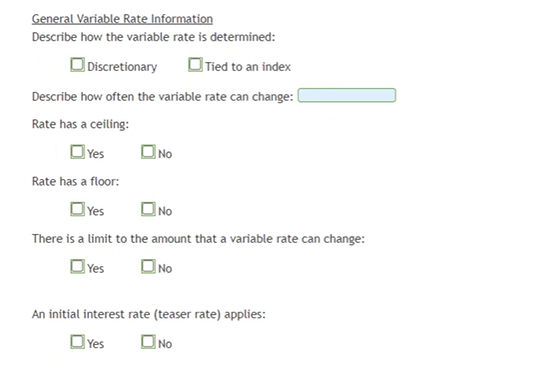
Fields appearing based on your selection of data and available for data entry display with a green border to make it easier to identify and locate these fields when working in the data collection section.
Formatting Options
- Bold: <b>bold</b>
- Italics: <i>italics</i>
- Underline: <u>underline</u>
- Carriage Return/Line Break: <br/>
To use any of these formatting options, you must apply the appropriate HTML tags to the text.