Menus
The following sections contain detailed information on each command
located within the menu bar.
Note: Some menu items are context sensitive,
meaning that options are enabled and disabled depending on where you are in the
application and the features available to you based on the Requirements Editor
edition and advanced features you have installed.
File Menu
| New | Mainly used for creating dynamic, inherited, or static documents. You can also select and create various types of transactions, as well as REQ Diff Editor files (for merges). |
| Open | Used to open REQ files as well as transaction XML files. |
| Close | Closes the file that currently has focus in the tool. This will close transaction XML or REQ files. |
| Merge Sessions (New, Open, and Close) | These menu options are for the new merge tool functionality (refer to the Merge Tool section for details). Not included in the FOP install. |
| Save/Save As/Save All | Used to save changes made to the file that has focus in the tool. Save All saves all files that are open in the tool, regardless of if they have focus. |
| Properties | Shows the different properties of the document that currently has focus. |
| Page Setup/Print Preview/Print | All of these options relate to printing. |
| Recent Files | This menu option allows you open files that you had worked with recently. |
| Exit | Closes the application |
Edit Menu
| Undo/Redo | Undo/Redo the last change that was made. |
| Cut/Copy/Paste | Works like normal Cut/Copy/Paste functionality. You can use these three options on elements in the Outline Editor and Transaction tabs. |
| Delete | Removes the selected element from the file. A message is
displayed prompting you to confirm the action. Note: The
Delete command is also available for multi-selected elements. A message is displayed
prompting you to confirm the action and provides the elements
impacted. 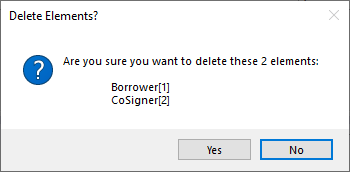 |
| Duplicate | Only usable in the Outline Editor tab. This creates a copy of the currently selected element (or elements). The copy is added to the tab. |
| Move Up/Down | Only usable in the Outline Editor tab. This moves the currently selected element (or elements) up or down in the tree structure of elements. |
| Decrease/Increase Indent | Only usable in the Outline Editor tab. This will move the currently selected element (or elements) to a shallower or deeper level in the tree structure of the elements. |
| Find | Normal find functionality. It works in many Requirements Editor
windows/tabs. Attention: When
the Find feature is called from the Outline Editor tab:
|
| Replace | Normal replace functionality. You should avoid using this functionality for the time being. |
| Incremental Search | Built in Visual Studio functionality. Currently, this does nothing. You can ignore this for now. |
| XPath Location | Allows you to provide an XPath in order to display its location inside the REQ. |
| Go To | Built in Visual Studio functionality. Currently, this does nothing. You can ignore this for now. |
| Navigate To | Built in Visual Studio functionality. Currently, this does nothing. This can be ignored. |
View Menu
| DocViewer | Allows you to see the document through a DocViewer web interface (a web page). Not included in the FOP install. |
| Expand/Collapse All | Only usable in the Outline Editor tab. This expands or collapses all tree nodes in the tab. |
| Show Element IDs | When this option is selected element IDs are displayed in the Outline Editor tab at the end of each element with an associated ID. |
| Expand/Collapse All Attributes | Expands or collapses all attribute nodes inside the current document in the "Outline Editor." |
| Source | Displays the open REQ source within your default text editor. |
| Messages | Built in Visual Studio functionality. Currently, this window/tab shows nothing. You can ignore this for now. |
| Merge Session | Only applies to merges. Makes the merge session windows appear. Not included in the FOP install. |
| REQs Diffs | Only applies to merges. Makes the REQ Diffs window appear. Not included in the FOP install. |
| Content Item Diffs | Only applies to merges. Makes the Content Item Diffs window appear. Not included in the FOP install. |
| Incoming REQ | Only applies to merges. Makes the Incoming REQ window appear. Not included in the FOP install. |
| Existing REQ | Only applies to merges. Makes the Existing REQ window appear. Not included in the FOP install. |
| Shared Content Diffs | Only applies to merges. Makes the Shared Content Diffs window appear. Not included in the FOP install. |
| Merge Notes | Only applies to merges. Makes the Merge Notes window appear. Not included with the FOP install. |
| Other Windows | Clicking on each of these options will show their respective
window/tab. These options (minus Dynamic Help) are also tabs on the
bottom of the Outline Editor tab. |
| Toolbars | Allows you change which toolbars appear. You can also customize the toolbars and menu options. |
| Full Screen | Changes the view to a full screen one. |
Static Menu
Note: These options appear for static documents only.
| Find Rules for this Public Name | Used to find rules for a given public name. |
| Find Definition for this Public Name | Used to find definitions for a given public name. |
| Find Rules and Definitions for All Public Names | Performs a combination of the two options above. |
| Verify Revised Rules | Verifies any revisions for rules. |
| Import/Export xTemplate | Used to import or export xTemplates for static documents. |
| Continuation Page Setup | Used to add continuation pages to static documents. |
PDF Menu
| Import PDF | Used to import a PDF for use as a document template. |
| Export PDF | Used to export the document as a PDF template. |
Merge Menu
Note: These options appear for internal installations or Requirements
Editor 3.
| Generate Results & Update Content References | Performs the function of the next two options. |
| Generate Results Only | Creates all the folders and files containing the merge results. |
| Update Content References | Updates the content references present in the merge session. |
| Expere Content Build ERL Format | Builds the repository content in the ERL format. |
| Generate Impact Analysis Report | Creates a web page detailing the differences between the repositories. |
Transaction Menu
| Create Transaction from Document Rules | You can opt to create a transaction internally or externally. If you opt for an external transaction, you create a transaction xml file and then build it within Requirements Editor. The external transaction is not linked to the REQ. Rather it’s treated as another tab for just working on that xml. |
| Create Transaction from Package Rules | Similar to Create Transaction from Document Rules, but uses Package Rules as a source. |
| Import Transaction | Used to import transaction XML. |
| Save Transaction As | Used to save transactions. |
| Export All Transactions | Allows you to export all embedded transactions simultaneously. |
| Change Transaction Name | Used to change the name of transactions. |
| Validate Transaction | Used to validate whether the transaction XML is correctly
constructed. During this process, a list of deprecated items is displayed as a list of XPaths. For more information, refer to Validating Transactions. |
| Remove All Transactions | Permanently removes all transactions from the document. |
Assembly Menu
| Build | Runs a syntax check on REQs. Any incorrect structure or PTR will show build errors. For more information, refer to Assembling (Building) a Document. |
| Execute Document | Creates and displays a PDF version of the document, based on the transaction XML you provide. For more information, refer to Executing a Document. |
| Test Document | Allows you to test the current document by select multiple transactions and generating a PDF for each one. For more information, refer to Testing a Document. |
| Execute Package Rules | Creates and displays a PDF which outlines each package rule and if the document was auto-selected or suggested for each of them. For more information, refer to Executing a Document. |
Tools Menu
| Find Forms Using this Rule | Shows documents that use a given rule. This option only appears for static documents. |
| Export Field Grid | Used to export the field grid contents as an Excel document. |
| Export XPaths... | Creates a text file that includes a list of all XPaths within the current document, including XPaths located in the Package Rules tab. |
| Spell Check | Performs a spell check. Currently, this has limited use. |
| Freeze Content References | Prevents content references from being updated. |
| Unfreeze Content References | Allows content references to be updated. |
| Customize | Lets you customize your menu options and toolbars. You shouldn’t need to use this. |
| Options | Displays an options window where various settings for
Requirements Editor reside.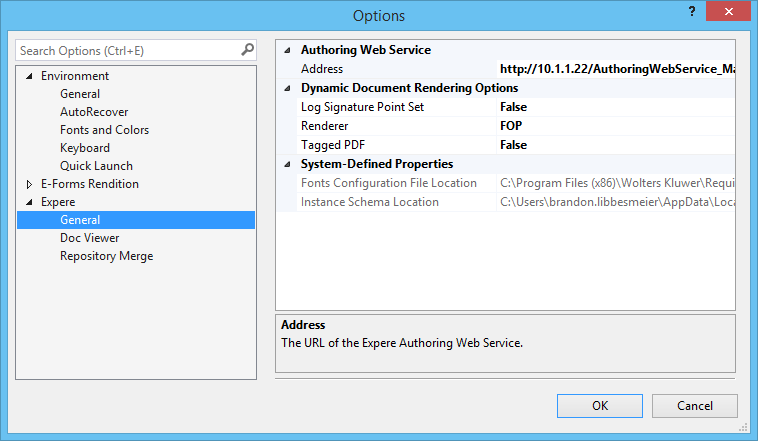 |
Rendition Menu
Note: These options are not included in the FOP version of Requirements
Editor.
| Create Renditions | Used to create different file format versions of the REQ file. |
| Edit Instances | Used for EPM documents. Allows you to edit the different instances for a document. |
Window Menu
All of the menu options are used to select and position the windows and tabs.
Help Menu
| Requirements Editor Help | Opens the online help web page. |
| About Requirements Editor | Displays version information, Expere Engine Version, and installed packages. |