Header
Each screen includes a consistent header that helps the user get started quickly and easily, making navigation feel familiar and straightforward.

- Home Button - Returns you to the home page
- Menu Button - Displays the Submenu (see below)
- Page Title - Displays the name of the page you are currently viewing. When you are within the transaction it shows the Name of the Borrower and the product/policy name.
- Your Name/Username - Displays your name as a link to your user account information.
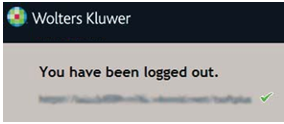
- Log Off Link - Once logged off, you will be redirected to the logout page:
Hovering the mouse cursor over the arrow or selecting the menu button displays the menu.
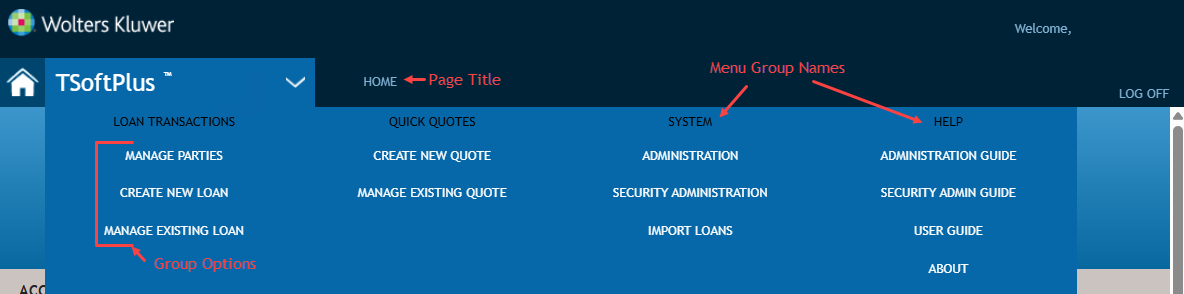
- Menu Group Name- The name of each group is displayed at the top of its respective section. The main groups include Loan Transactions, Quick Quotes, System, and Help.
- Group Options- This section outlines the options available under each group
name. Below, you will find a list describing the options associated with each
leading group.
- Loan Transactions
- Manage Parties - Opens the Manage Parties page, where you can add a new party or search for an existing one to review or modify.
- Create New Loan - Opens the Create New Transaction page to initiate the process of creating a new transaction.
- Manage Existing Loan - Opens the Manage Transactions page, allowing you to search for and review or modify existing loans.
- Quick Quotes
- Create New Quote - Opens the Manage Quotes page to begin entering details for a new quote.
- Manage Existing Quote - Opens the Manage Quotes page, enabling you to search for and review or modify existing quotes.
- System
- Administration - Opens the Administration screen, allowing you to define the organizational structure, policies, product setup, and other administrative functions. This menu item is accessible only to administrators and is not visible to loan processors.
- System Setup - Opens the System Settings screen for
accessing various preferences and configuration options.
- Note:The System Settings menu choice will be unavailable if you run TSoftPlus in a hosted environment.
- Import Loans - Opens the Import Loans page with options to select files for importing into TSoftPlus.
- Help
- Security Admin Guide
- Administration Guide - Opens a PDF of the TSoftPlus Administrator Guide.
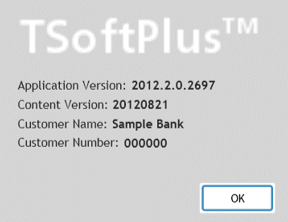
- About - Displays a message box that provides the version
numbers of your installed TSoftPlus application, along with
your primary organization name and customer number. Your assigned
customer number represents only the top level of your
organization.
- Loan Transactions