Executing a Document
The Execute Document feature is used to assemble (or generate) a PDF output of the REQ file for testing purposes. This is used primarily to evaluate rules and create a document based on a particular data set. When using this feature you must define the source of the transaction data to use in creating the PDF output.
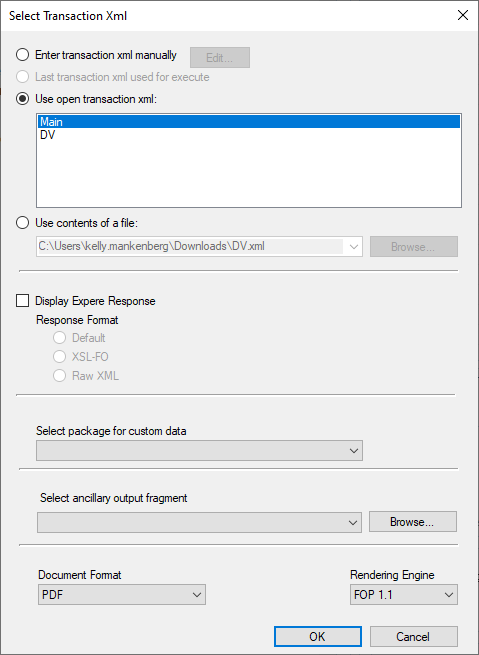
- Enter transaction xml manually - refer to Entering Transaction XML Manually.
- Last transaction xml used for executeNote: The Last transaction xml used for execute option is only available if you have previously executed a document.
- Use open transaction xml - Select this option to use an embedded external or internal transaction.
- Use contents of a file - Select this option to use an external transaction file.
- Display Expere Response - Select this option and it's subitems to display
the Expere Response in:
- Default format
- XSL-FO
- Raw XML
- Select package for custom data - Allows you to select the desired package to use during document execution. This allows you to test different variants of the executed customer content. If no selection is made, the first package is used.
- Select ancillary output xml fragment - This feature
allows you to test ancillary barcodes and watermarks and logos. The selections
include a blank option to indicate no fragment will be processed and any
fragments included with the installation. For more information, refer to Selecting the Ancillary Output XML Fragment.Note: This items in this list are populated with files from the location set in the Ancillary Output Fragments Location option in the Options dialog ().
- Document Format - Allows you to select the desired format of the rendered
document. Options are:
- RTF
- Tagged PDF
- Tagged PDF Embedded Fonts
Note:- For static documents only: The Document Format list is disabled as the only format available for static documents is PDF.
- To ensure that all fonts are embedded within the rendered Tagged PDF, be sure to select Tagged PDF Embedded Fonts.
- Rendering Engine - Allows you to select the version of FOP to be used when the document is rendered. The default value is FOP 1.1.
Once the transaction data source is defined, the system then processes the REQ file and creates a PDF output. The resulting PDF(s) automatically open and can be reviewed, printed, and saved as a separate file.
Entering Transaction XML Manually
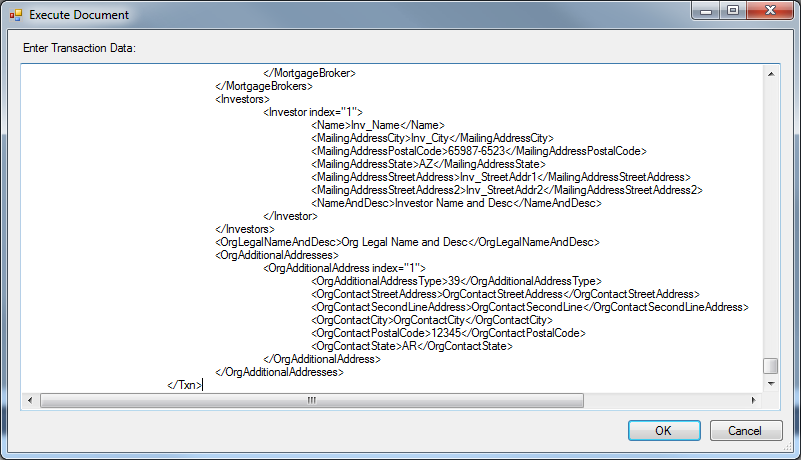
When returned to the Select Transaction XML dialog box, click OK to execute the document.
Selecting the Ancillary Output XML Fragment
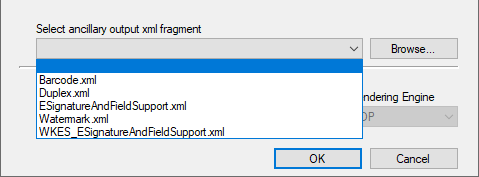
- ESignatureAndFieldSupport: The ESignatureAndFieldSupport.xml file listed third in the image above contains an eSignatureWKES value of false. The last item in the list, WKES_ESignatureAndFieldSupport.xml allows you to use a file containing an eSignatureWKES value of true.
- This items in this list are populated with files from the location set in the Ancillary Output Fragments Location option in the Options dialog ().
PTR Schema Warnings
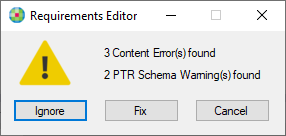
The message displays the number of content errors and PTR Schema Warnings identified. The number of content errors is a direct reflection of the errors found within the Content Errors pane.
Selecting Ignore ignores the identified errors and continues with the document execution process.
Selecting Fix displays the Content Errors pane allowing you to view and address the identified issues. If there's nothing listed under the Error(s) section of the Content Errors pane, the Fix button redirects to the Field Grid tab with the first PTR from the warnings list highlighted.