Keyboard and Mouse functions
Requirements Editor provides a variety of methods to select and work with the many features of the application. This topic provides details in working with keyboard shortcuts, mouse selection, and their combinations.
Keyboard
Using the keyboard you can access all standard keyboard features within a Microsoft
Windows environment, such as entering text using the typing keys or numeric keypad.
The following table highlights the keyboard functions that are more prevailant or
noteworthy within the Requirements Editor application.
Note: Longer keyboard shortcut combinations (i.e., Ctrl + W, M) are performed
by pressing and releasing the initial key combination (Ctrl + W) and then
pressing and releasing the last assigned key
(M).
| Feature | Description |
|---|---|
| Navigation keys | The navigation keys allow you to move the cursor, move around in
documents and features such as treeview controls, and edit text. The
following lists some common functions of these keys.
|
| Useful shortcuts | The following table lists the keyboard shortcuts within their
respective menus.
|
Mouse
Mouse functionality within Requirements Editor utilizes the standard usage practices
for Windows applications. Some of the more prevalent practices are:
- selection of content in the editor windows
- selection of single or multiple elements and attributes
- using Drag and Drop to move or copy content
Keyboard/Mouse, Keyboard multikey combinations
Keyboard + Click (mouse/touchpad) combinations allow for a variety of item selection
within Requirements Editor, making working with single and multiple selections
easier.
- Keyboard/Mouse combinations
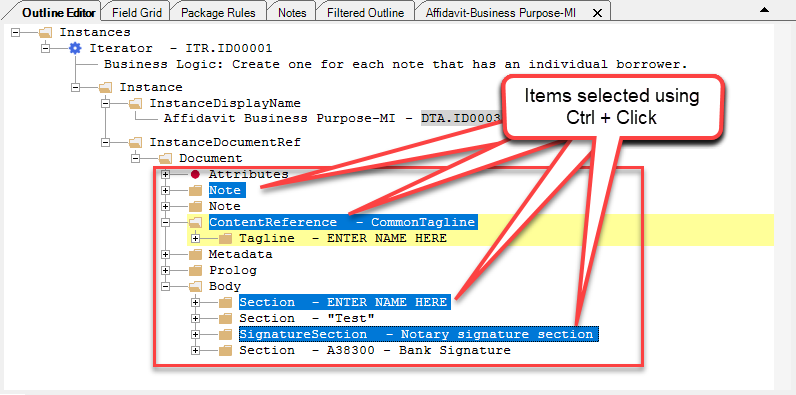
- Ctrl + Click: Allows you to select multiple non-sequential
items. This is done by selecting a first item and then pressing and
holding the Ctrl key while clicking on other items.
- Shift + Click: Allows you to select multiple sequential
items. This is done by selecting a first item and then pressing and
holding the Shift key and then clicking on last item you want
to include.

- Ctrl + Click: Allows you to select multiple non-sequential
items. This is done by selecting a first item and then pressing and
holding the Ctrl key while clicking on other items.
- Multikey combinations
- Ctrl + Space: Displays the context menu for the selected item. If multiple items are selected, the context menu for the last item is displayed.
- Shift + Up/Down Arrow key: Adds the next like item (i.e., a selected attribute can only select other attributes) in the direction pressed to the selection.