Testing a Document
-
With an REQ document open, select .
The Test Document window is displayed.
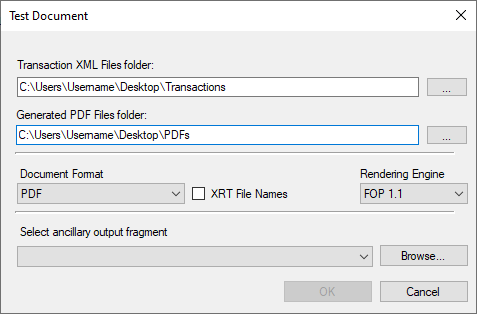
- Select the Transaction XML Files folder browse button to navigate to and select a folder containing the transactions to run against the document.
- Select the Generated PDF Files Folder browse button to navigate to and select a folder to be used as an output location for the generated PDFs.
- From the Document Format list, select the desired format of the rendered document. Options are: PDF, RTF, Tagged PDF, and Tagged PDF Embedded Fonts.
- (Optional) To produce a test document with a filename that contains no spaces, select XRT File Names.
- (Optional) From the Rendering Engine list, select the FOP version you wish to use during document rendering. The default value is FOP 1.1.
-
(Optional) Select an ancillary output fragment from the Select ancillary
output xml fragment list. This allows you to compare the output response
against a baseline set of PDF files.
Note: You can also choose a custom fragment by selecting the Browse button. Custom fragments are not saved in the fragment list.
-
Select OK.
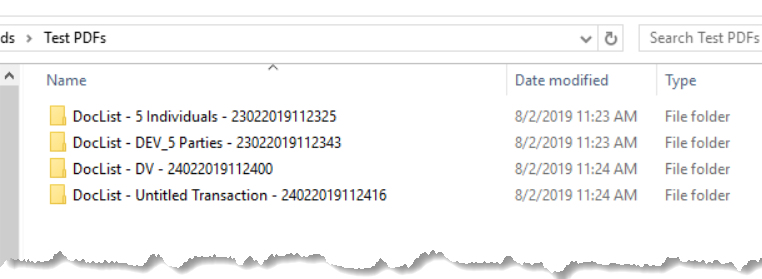
Requirements Editor generates individual PDFs based on the transactions within the folder selected in step 2.Requirements Editor displays a message indicating the execution results of the documents generated.
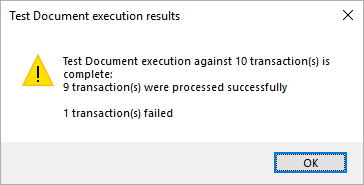 Note: If any errors occur during document generation, the execution results message indicates the number of failed transactions, as in the example above.Failed transactions can occur if:
- The transaction being processed has invalid xml code.
- The transaction leads to no instances being generated.
In the case of an error, the intended PDF and ExpereResponse.xml files are not generated. However, the error log (Error.txt) is saved in the location in which the successful files would have been placed.