Customization Options

Requirements Editor provides several options allowing you to define the look and feel of the interface, how toolbars are displayed, auto-recovery and start up behavior, and other features to tailor the working environment. These customization options are available in Options (Tools > Options).


Environment

General

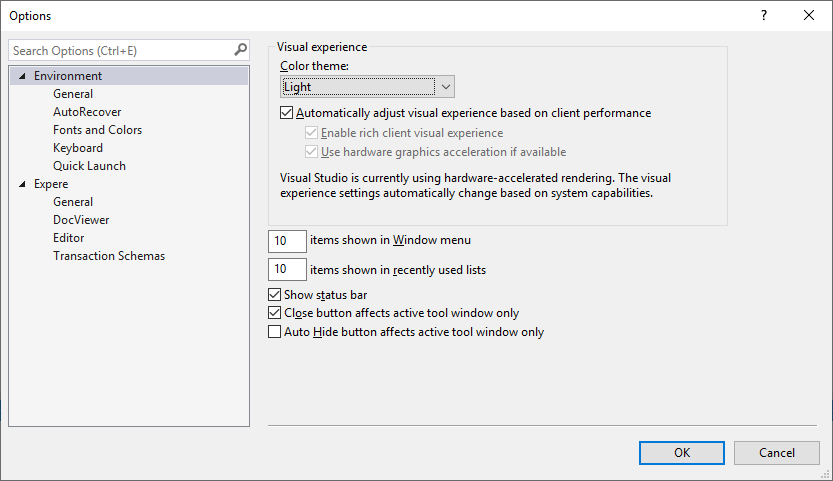
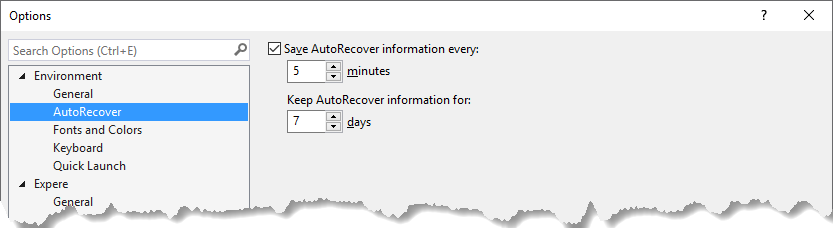
You can select a color theme to apply to Requirements Editor. By default, the blue theme is selected. You have the option of selecting the default blue theme or either a light of dark color theme.

In addition to a color theme, the General environment options let you choose how many items to show in the Recent Files list (File > Recent Files) and in the list of available open Windows (Window menu).


AutoRecover

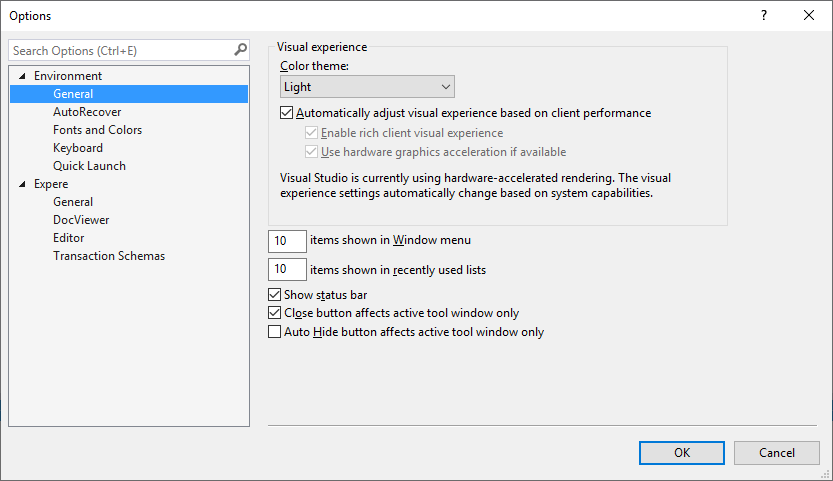
The AutoRecover feature is used in case of an unexpected system failure to ensure that any recent work is saved and can be recovered when the application is restarted.


Fonts and Colors

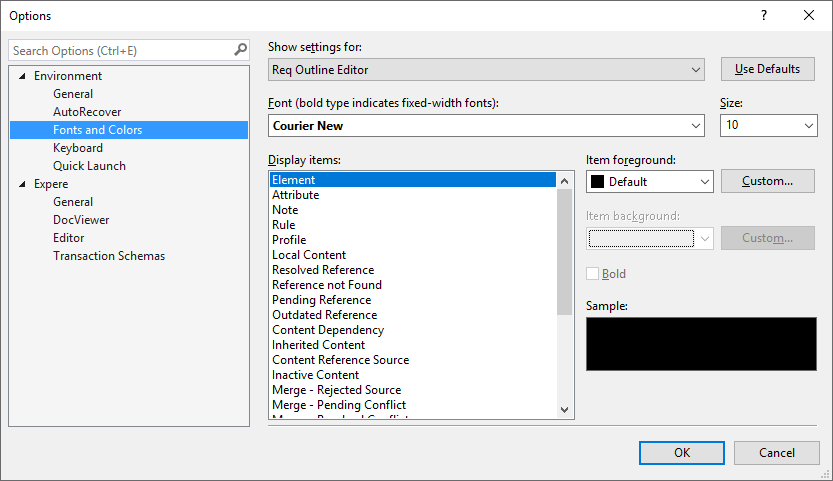
The Fonts and Colors option allows you to define how text and elements appear in the Outline Editor. You can apply a font and color setting to all text presented in the editor and define a foreground or background color to specific elements within a document.

Keyboard The Keyboard option is used to set keyboard shortcut keys.
Note:
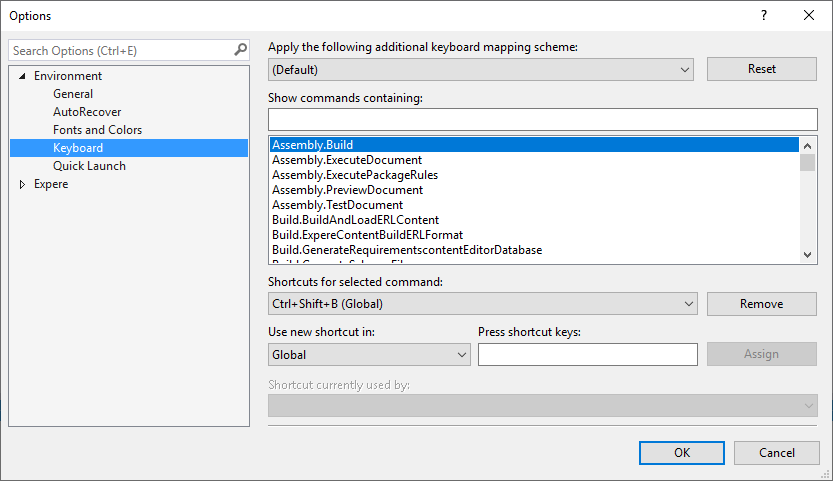
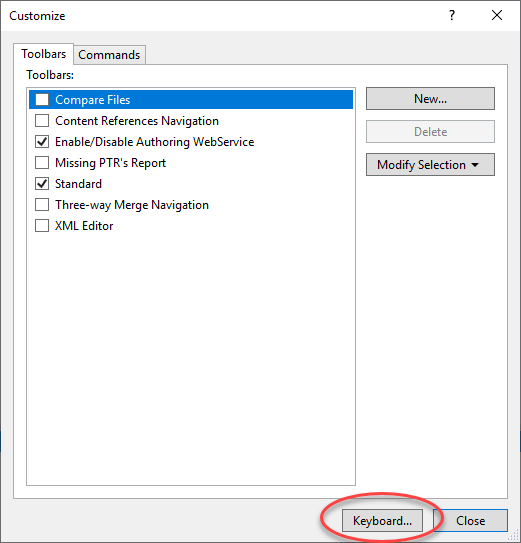
  • The Keyboard options are also available by clicking the Keyboard button located at the bottom of the Customize window (Tools > Customize).

  • Keyboard shortcuts are retained if you install Requirements Editor over a previously installed version.


Quick Launch

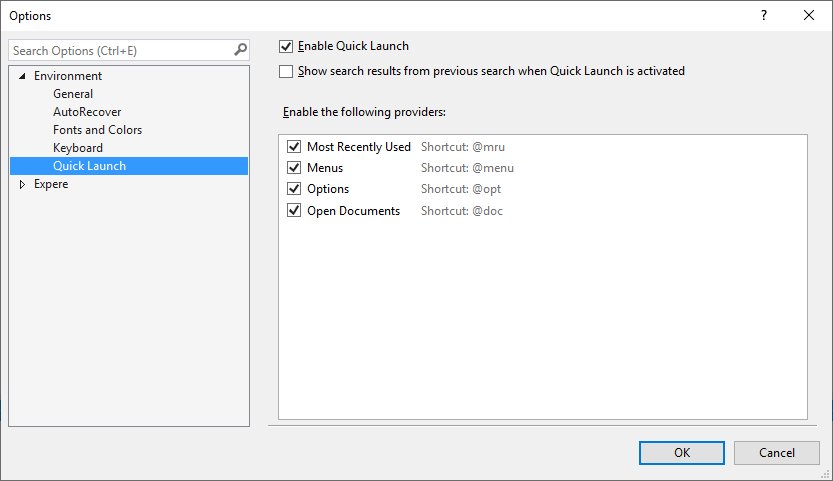
The Quick Launch option lets you enable and disable the feature as it appears in the top-right corner of the screen. The feature is enabled by default.


Expere

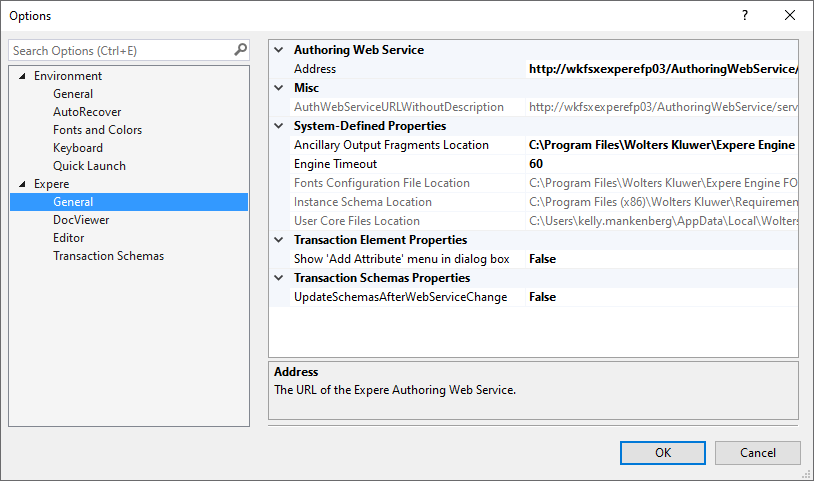
General The General section provides access to a variety of settings pertaining to the Expere engine.
Authoring Web Service
  • Address: allows you to select the desired Authoring Web Service file.
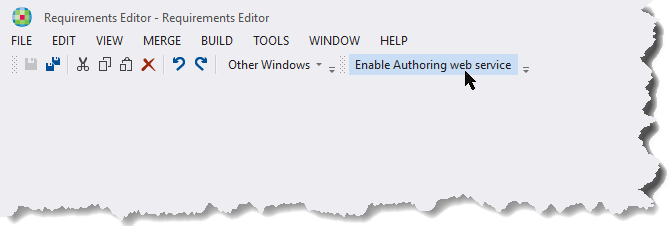
    Note: The Enable/Disable Authoring WebService button on the Toolbar menu (View > Toolbar > Enable/Disable Authoring WebService) allows you to connect and disconnect from the Web Services.

    This button is available even if a document is not opened within Requirements Editor.

Misc
  • AuthWebServiceURLWithoutDescription: Displays the Authoring Web Service URL. This is a static, non-changeable path.
System-Defined Properties
  • Ancillary Output Fragments Location: Displays the location of the ancillary templates. A new location can be entered by typing or pasting the path.
  • Engine Timeout: Displays the current timeout value (in seconds) for a response from the engine. This value can be changed by entering a new value in seconds.
  • Fonts Configuration File Location: Displays the location of the fonts configuration file. This is a static, non-changeable path.
  • Instance Schema Location: Displays the location of the Instance schema. This is a static, non-changeable path.
  • User Core Files Location: Displays the location of the core files for the currently logged in user. This is a static, non-changeable path.
Transaction Element Properties
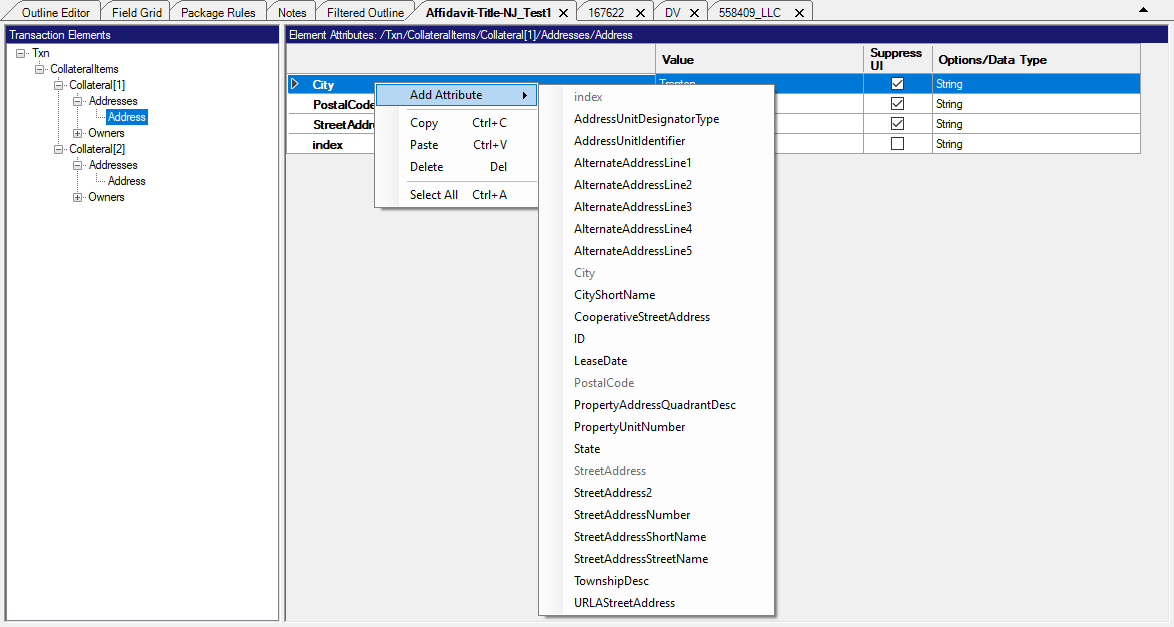
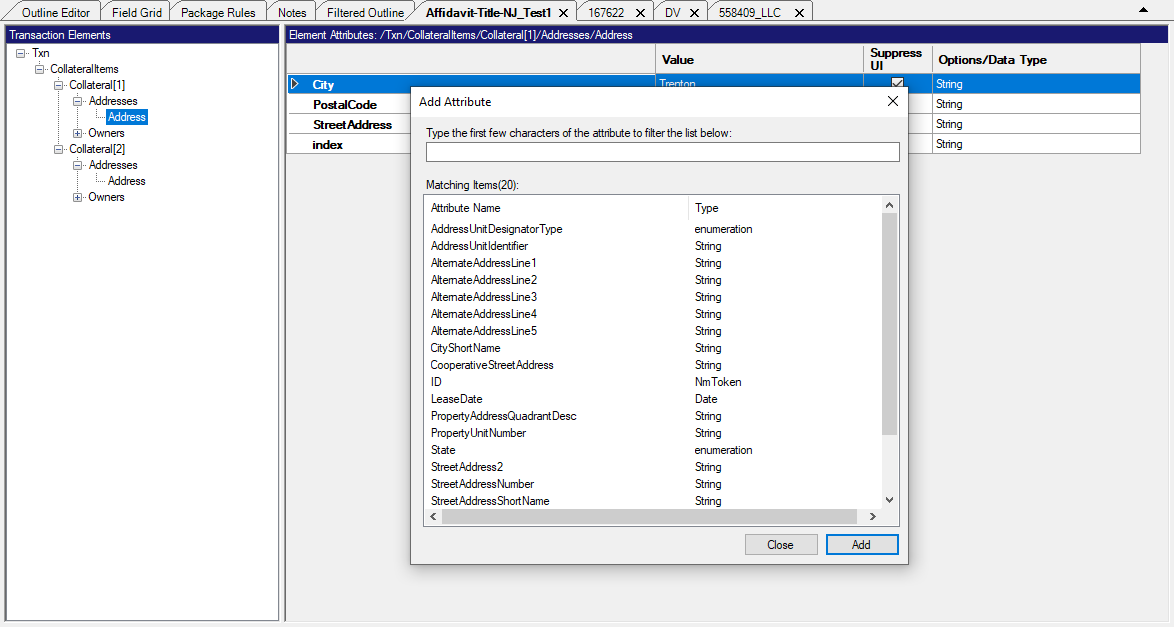
  • Show 'Add Attribute' menu in dialog box: Allows you to configure the appearance of the Add Attribute list for transaction elements.
    When set to False, the attributes list appears within the context menu:

    When set to True, the attributes list appears within the Add Attribute dialog box:

Transaction Schemas Properties
  • UpdateSchemasAfterWebServiceChange: Allows you to set whether or not the schemas are updated after a web service change. Default is False.
DocViewer
  • Address: Displays and allows you to change the location of the DocViewer service.
Editor Allows you to view and change the following Editor settings:
  • Collapse Attributes:

    The Collapse Attributes option allows you to decide if attributes should be displayed within the Outline Editor as expanded or collapsed.

    For more information, refer to Collapse Attributes.
  • Show Dependencies Count:

    The Show Dependencies Count option provides the means to always show the number of dependencies for elements within the Outline Editor.

    For more information, refer to Show Dependencies Count.
  • Show Element IDs:

    The Show Element IDs option provides a method of showing or hiding the element IDs when a requirements document is opened.

    For more information, refer toShow Element IDs.
  • Use Schema Occurrances:

    The Use Schema Occurrences option allows you to enable or disable schema validation of element occurrences in order to create content with conflicting element occurrences. The default value for this setting is True.

    For more information, refer to Use Schema Occurrences.
Transaction Schemas Allows you to view, edit and create Transaction Schema parameters. For details, refer to Working with Transaction Schemas.