Data Attributes - Appearance
The following attributes allow you to override the standard appearance for that data item. These attributes are accessible from the dropdown menu on the PTR Editor tab.
- Underline: You can set the Underline attribute that
will apply for this data item in the PTR editor tab. This overrides the
default for the selected stylesheet. The following are standards for when a
field should not get an underline even when the default for the stylesheet is to
underline fields:
- SignerName, SignerTitle, and SignerDescription fields below the Signature line
- All fields that appear in the tagline of the document
- Fields that are the only content within a table cell
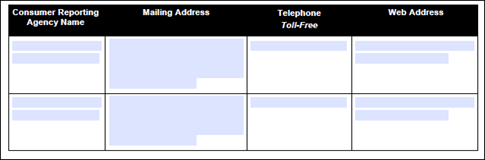
- If the field is more than three lines and is preceded
and followed by text (if part of a sentence):
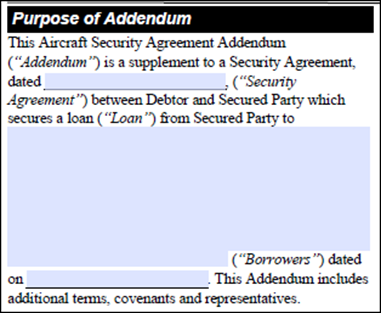
- If the field is not preceded by and followed by text
(if not part of a sentence) and extends to more than one line.Note: A field that appears with only a period following it should be considered a sentence for purposes of determining whether to underline.
- The attorney/CA can also decide to remove an underline in other areas to improve the cosmetic appearance of the document.
- Alignment: Setting the alignment for a data item overrides the standard alignment applied by the stylesheet. (Percents are right aligned, Dollar amounts are left aligned, etc.) Typically this is used when there is a column of dollar amounts that are being added to show a total and we want all of the dollar amounts to be right aligned instead of left.
- Prefix and Suffix: Adding a value for the Prefix or Suffix attributes inserts that entry immediately before or after the data item in the document output. This is used when a calculation is being done on the data items and we add a +, -, or = as the Prefix value.
Custom Fonts
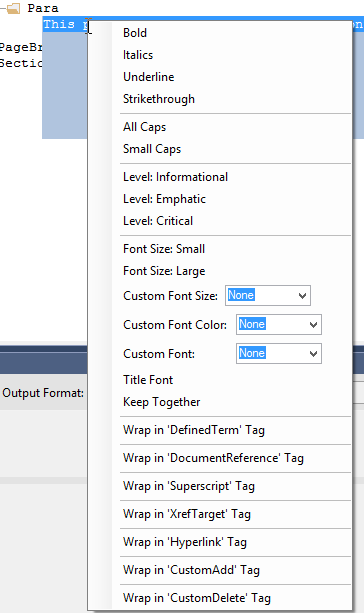
You can override the default font for para and dta
elements. This is done by double-clicking the desired element and then
right-clicking to display the context menu containing the custom fonts
options.
Note: Custom fonts must be registered within the
Font.XML file. For more information, refer to Managing Fonts and Colors.