Spell Check
How to check the spelling of all text in any open document.
The Spell Check feature of Requirements Editor allows you to check the spelling of all
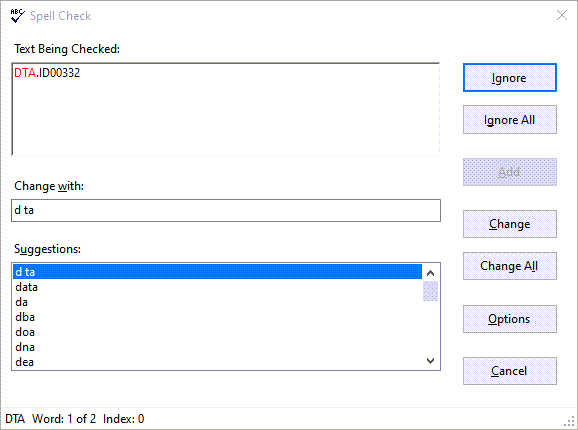
text in any open document. Selecting , or pressing the F7 key displays the Spell Check dialog.
Note:
- Regardless of your location within the document, Spell Check begins at the top of the information within the Outline Editor tab.
- Code for graphics and xPaths are not checked.
Spell check within dynamic documents
The following tabs and columns are spell checked within dynamic documents:
Note: Private notes (Note elements containing a Type
attribute with a value of private) are not included when performing Spell
Check.
- Field Grid tab
- Business Logic
- Developer Notes
- Package Rules tab
- Selection - Business Logic
- Suggestion - Business Logic
- Notes tab
- Description
- Mandatory Change Description
- Non-Mandatory Change Description
- Reason for Change
- Common File Changes
Important: Notes have a limit of 32676 characters (32K). This ensures that the entire note fits within the limitation of a single Excel spreadsheet cell. If more characters are required to satisfy the note, you must add another note row. - Instance Properties tab
- Property Value
- Discrete Party tab
- Business Logic
- Outline Editor tab
Spell check within static documents
The following tabs and columns are spell checked within static documents:
- Package Rules tab
- Selection - Business Logic
- Suggestion - Business Logic
- Discrete Party tab
- Business Logic
- Discrete Party ID Rules tab
- Business Logic
- Instance Properties tab
- Property Value
- Notes tab
- Description
- Mandatory Change Description
- Non-Mandatory Change Description
- Reason for Change
- Common File Changes
- Instance Rules tab
- Business Logic
- Instance Display Rules tab
- Business Logic
Spell Check Options
Selecting the Options button from the Spell Check dialog displays the Spell
Check Options dialog.
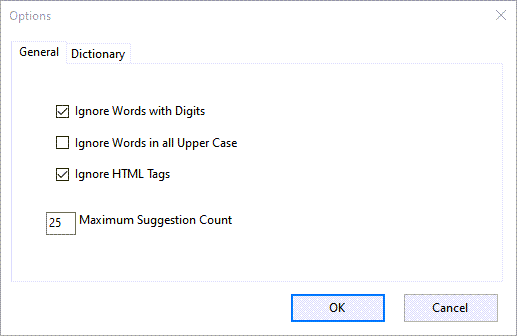
The General tab of this dialog provides access to customizing the boundaries of how Spell Check interacts with your content. The Dictionary tab provides copyright information pertaining to the dictionaries used within Spell Check.