Attributes
The Add Attribute option allows you to specify additional information about an element by adding attributes to it, which appear within the opening tag.
The Add Attribute option allows you to add attributes to an element. Attributes are used to specify additional information about the element. It may help to think of attributes as a means of specializing generic elements to fit your needs. An attribute for an element appears within the opening tag. If there are multiple values an attribute may have, then the value of the attribute must be specified.
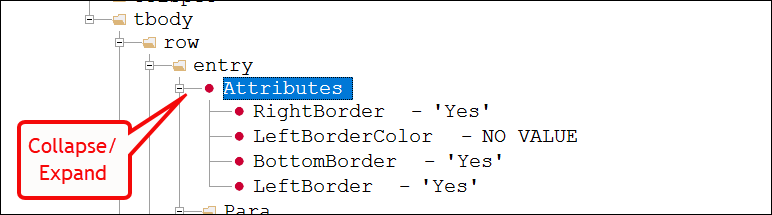
If more than one attribute exists for an element, a +/- button appears allowing you to expand or collapse the list of attributes.
- Add Attribute: adds additional attributes to element.
- Sublist dependent on particular element
Note: The Add Attribute command is also available when multiple elements of the same type are selected. In this scenario, the selected attribute is added with an empty value to all elements.For more information on selecting multiple elements, refer to Selecting Multiple Items.
The Add Attribute dialog has the following filter features.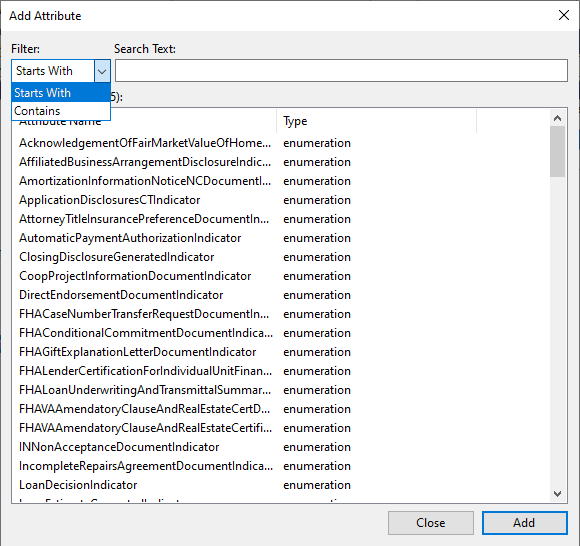
- Filter provides a drop list that allows you to select if what you are searching for starts with or contains the text you provide in the Search Text field.
- Search Text allows you to enter the text you are searching for. As you type within this field, the items listed in the Matching Items list filters automatically.
- Delete: deletes the Attributes node.Note: The Delete command is also available when multiple elements of the same type are selected.
- Copy XPath Location: used for troubleshooting, this allows a user to send the XPath location of the node to another user.
- Expand: expands the Attributes node.
- Collapse: collapses the Attributes node.