Field Grid
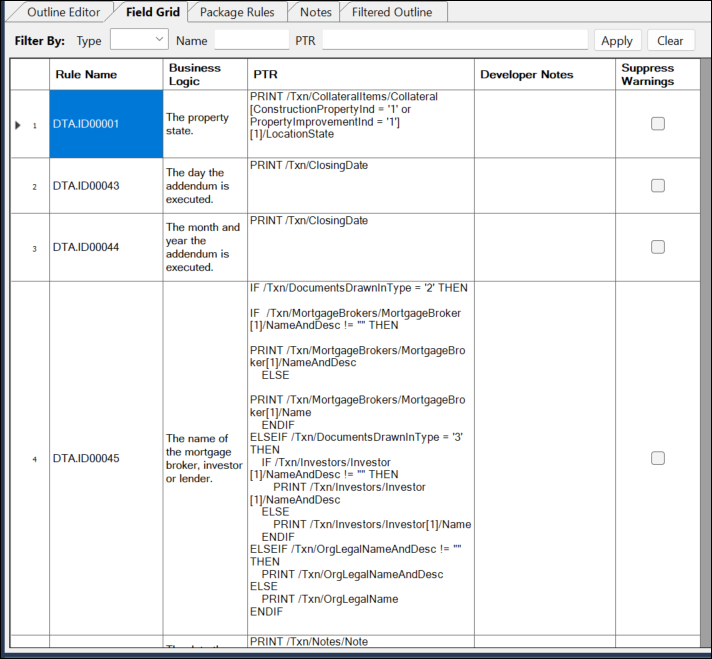
| Type | Allows you to filter the Field Grid by rule type (DTA, COND,
ITR). Example: Entering "ITR" in the Rule Type field and selecting Apply filters the Field Grid so that only rule names containing "ITR" appear. Selecting Clear resets the field grid so that all entries appear. |
| Name | Allows you to filter the Field Grid by rule name, either through text
or numerals. Example: Entering "46" in the PTR field and selecting Apply filters the Field Grid so that rules containing the numerical value "46" within the PTR appear. Note that multiple entries may appear if "46" is present in the rule name. Selecting Clear resets the field grid so that all entries appear. |
| PTR | Allows you to filter the Field Grid by a text string within the PTR
column. Example: Entering "Ethnicity" in the PTR field and selecting Find filters the Field Grid so that rules containing the string "Ethnicity" within the PTR are displayed. Selecting Clear resets the field grid so that all entries appear. |
| Rule Name | A unique ID for each data field entered. |
| Business Logic | A plain English description of the purpose of the data field, or rule. This is not used for EPM content. |
| Product Technical Rule (PTR) | The PTR represents the processing instructions, or code, that defines the behavior of the rule. This is not used for EPM content. |
| Developer Notes | Allows you to add internal notes to a PTR. This information is not customer facing and is stripped out when building the document. Special characters ( <, >, &, ', ") and line returns are honored. |
| Suppress Warnings | When the checkbox is selected, this will allow you to suppress warnings that would come from schema validation during the build process. |
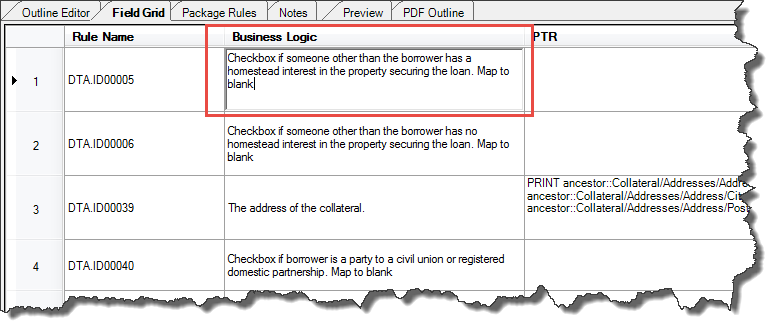
The Overflow column is available in the Field Grid for Embedded PDF documents. This column allows users to view and export overflow settings for each field, making it easier to validate and document Overflow behaviors across multiple forms. When exporting the Field Grid, the Overflow column is included in the output, saving time and reducing manual effort for reviewing overflow data.