Filtered Outline
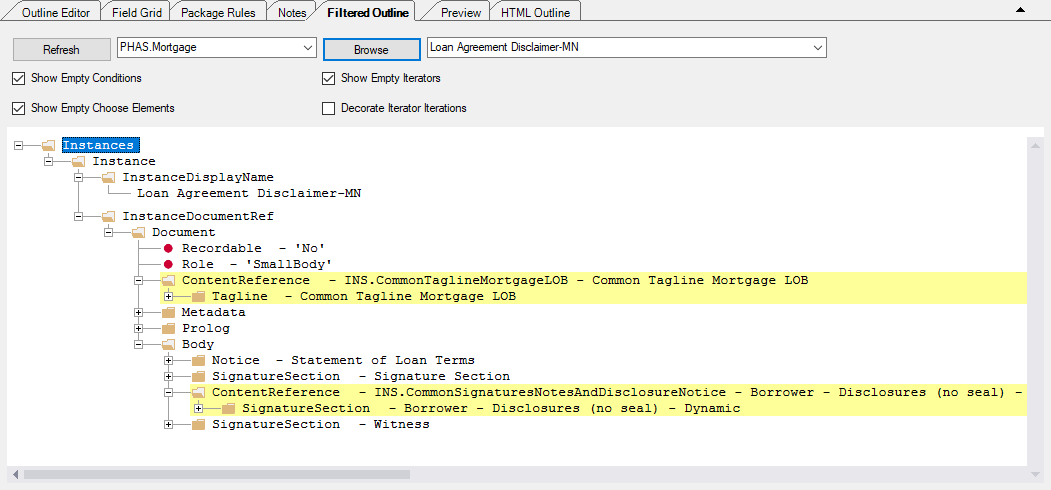
The Filtered Outline tab displays all transaction based elements for the open
REQ.
Note: The Filtered Outline tab:
- is available only for dynamic and PDF documents.
- is not available within a Merge session.
The Filtered Outline Toolbar
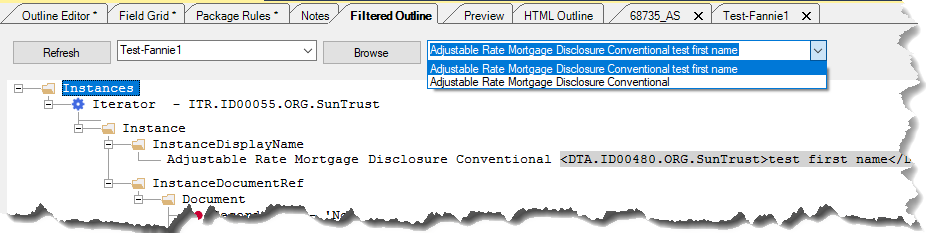
The Transaction Selection drop-down list box allows you to select from a list
of previously selected transactions. Select the associated Browse button to
select a new transaction file.

The Instances drop-down list provides a list of all instances available to
view within the open REQ file. Only one instance is available at a given time, and
the first instance in the document is initially displayed when the document is
opened.
Four options are available to assist you in working with the content of the Filtered
Outline tab.
| Show Empty Conditions: | This checkbox affects all Condition and not()
elements anywhere within the content, but does not affect direct
child Condition elements inside a Choose element.
If this option is selected and the Condition or
not() element does not meet the PTR condition, an
empty (no child elements) Condition or not()
element is shown in the content. In the following example, the
Condition element is empty and it is shown in the
content. If this option is not selected and the Condition
or not() element does not meet the PTR condition, the
Condition or not() element is not shown in the
content. Note: The not() element
reverses the boolean value of the associated
item. |
| Show Empty Choose Elements: | This option affects the direct child Condition and
Otherwise elements inside a Choose element. If
this option is selected and the direct child Condition or
Otherwise element of a Choose element does not
meet the PTR condition, then the empty (no child elements)
elements are shown in the content.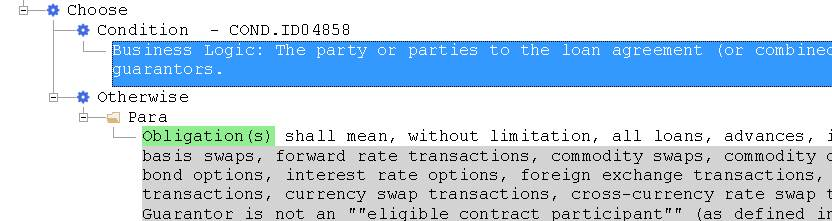 |
| Show Empty Iterators: | If this option is selected and the Iterator element produces
no iterations, then an empty (no child elements) Iterator
element is shown in the content. In the above example, the Iterator element has no iterations and it is shown in the content. If this option is not selected and the Iterator element produces no iterations, the Iterator element is not shown in the content. |
| Decorate Iterator Iterations: | The Iterator element can contain multiple iterations.
If this option is not selected then elements from each iteration
appear one after another. In the following
example, the first Para element is from the first iteration
while the second Para element is from the second iteration.
If this option is selected then elements from each iteration
are wrapped in an Iteration{Iteration Index}
element. 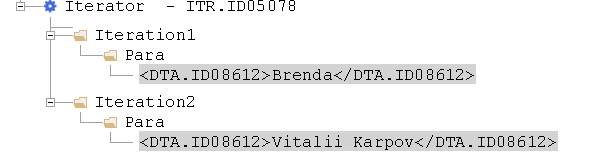 |
| Expand Recursive Iterators | Whene selected, the recursive iterator is automatically expanded as well as all recursive nested iterators (up to 9 levels). If not selected, the recursive iterator is collapsed, and all nested recursive iterators will not be shown automatically. |
Working with Filtered Outline Content
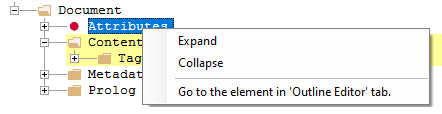
Right-clicking a transaction or element displays a shortcut menu allowing you to
expand or collapse the selected item, as well as navigate to that transaction in the
Outline Editor Tab.
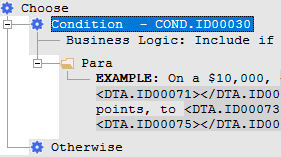
If the Iterator, Choose and Conditions do not execute, only their headers are
displayed. To illustrate, the following image shows the Condition (highlighted) has
executed successfully where the Otherwise was unsuccessful.
Outdated Filtered Outline
The Filtered Outline becomes "outdated" if one of the following happens:
- The Outline Editor tab is modified
- A transaction is modifed in name or content
- The Field Grid is modified
Options
The options at the top of the Filtered Outline tab allow you to toggle themn on or off, including:
- Show Empty Conditions
- Show Empty Iterators
- Show Empty Choose Elements
- Decorate Iterator Iterations
Note: To apply your selected options, you will need to click Refresh after
selecting one or more options.