PDF (PDF Documents)
The PDF tab is the initial view for PDF documents, both in authoring new and
editing existing requirements files. This tab provides an XML Editor experience where
the requirements file is presented in an outline based on the XML structure of the
file.
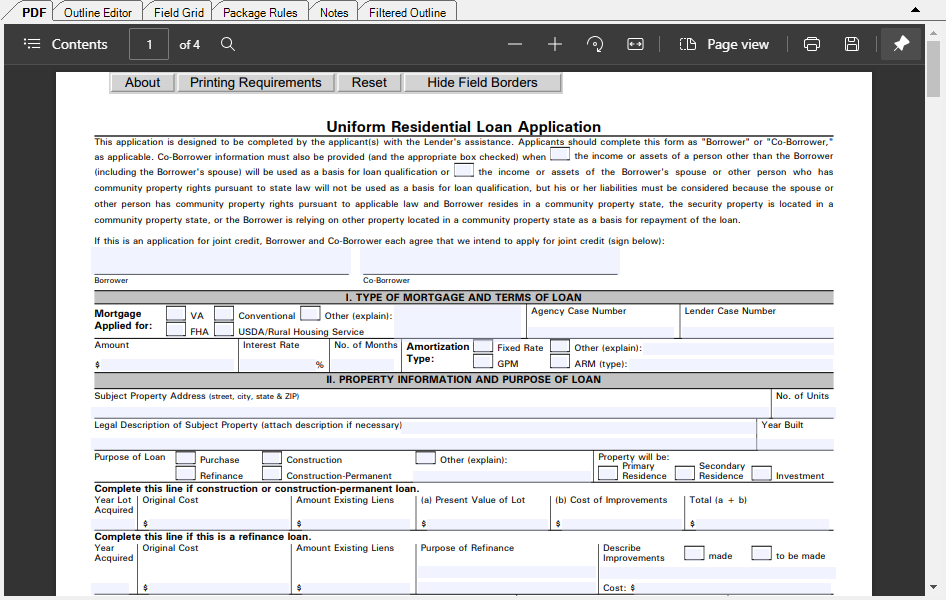
Note: The PDF tab is available exclusively for PDF documents and is
the default tab displayed when opening the PDF document type.
PDF Tab Features
The features configured within the PDF tab include the following.
| Toolbar Items | Description |
|---|---|
| Contents button | Displays or hides the Table of Contents pane for the open
PDF.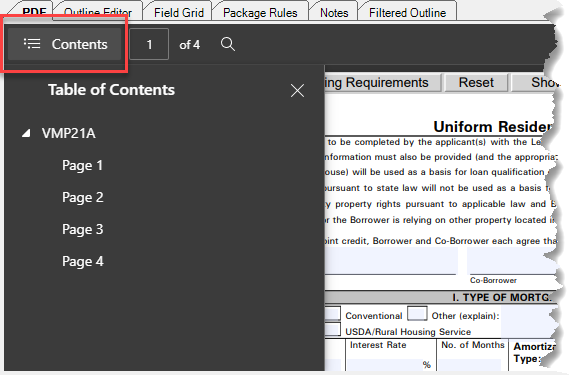 |
| Page selector (Ctrl + Alt + G) |
Typing a number and then pressing Enter navigates directly to the
desired page.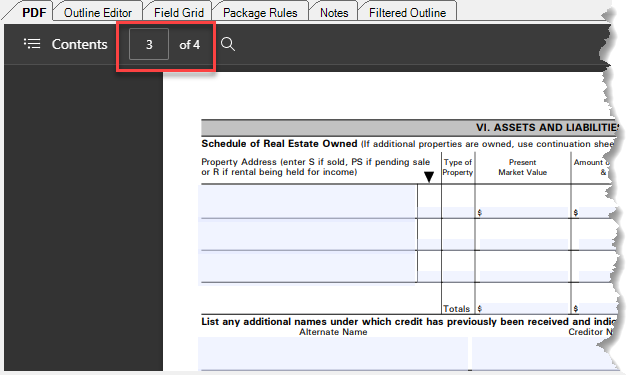 |
| Search (Ctrl + F) |
Displays a search bar, allowing you to search the PDF for the
desired text.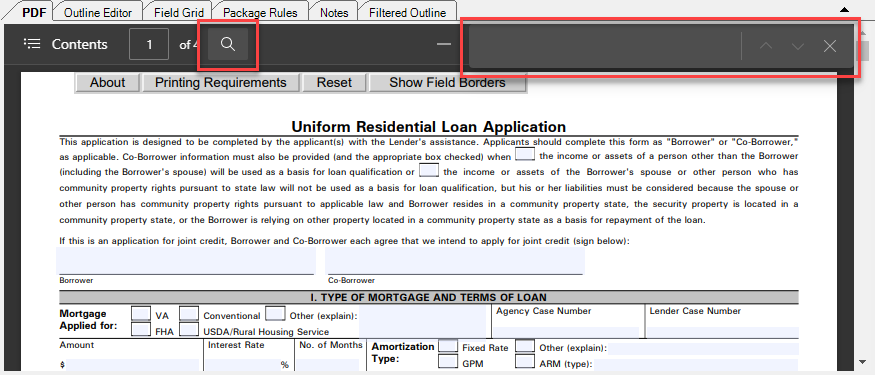 |
| Zoom buttons (Ctrl + -) / (Ctrl + +)  |
Allow you to decrease or increase the size of the document within the window. |
| Rotate (Ctrl + ]) |
Rotates the entire PDF document 90 degrees to the right. Note: Left rotation is possible by right-clicking
the document and selecting the option from the context
menu. |
| Page Width Ctrl + \) |
Increases or decreases the PDF so that it fits the width of the display. If the Requirements Editor window is resized after selecting Page Width, the document automatically resizes accordingly. |
| Page View | Allows you to display a single page or two pages within the width
of the PDF tab. With Two Pages selected, you also have the option to
show the cover page separate from the body pages.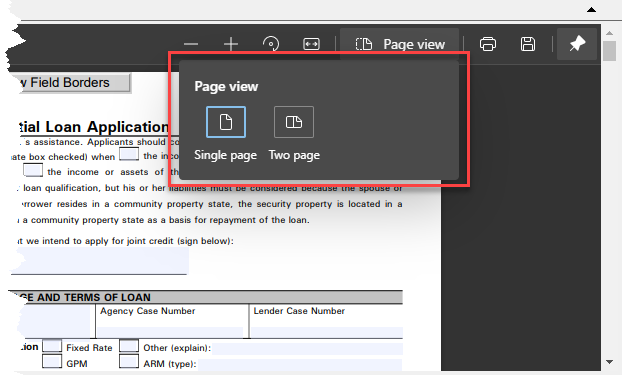 |
| Print (Ctrl + P) |
Displays the built-in Print dialog.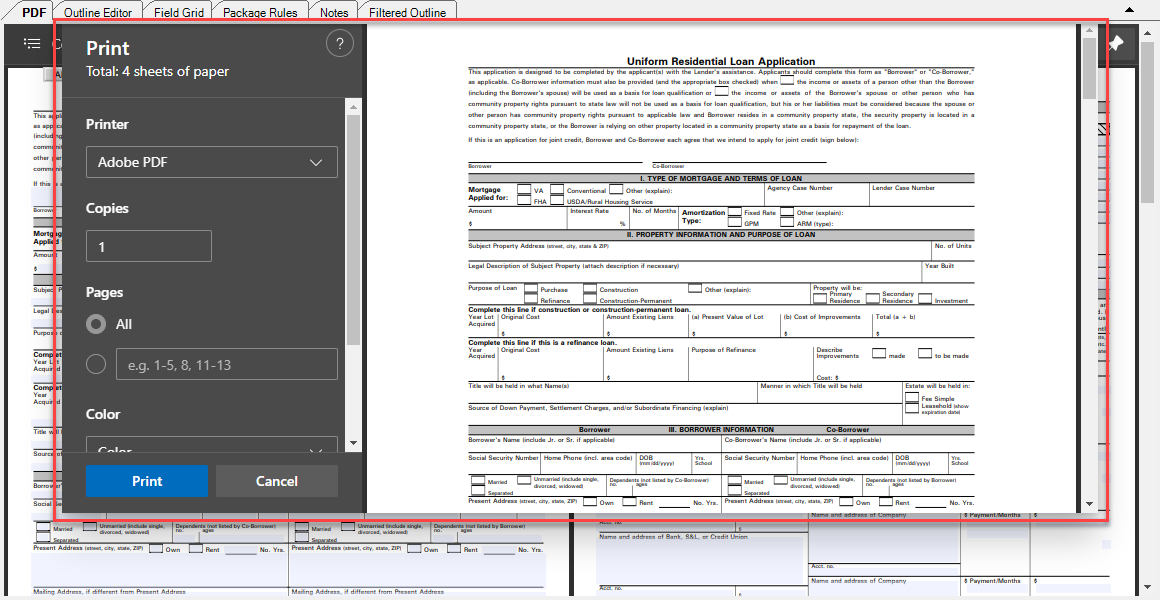 |
| Save (Ctrl + S) |
Allows you to save the PDF document to a file system location. |
Pin/Unpin Toolbar |
Allows you to show or hide the toolbar. When hidden, the toolbar can be temporarily displayed by moving your mouse pointer to the top of the PDF tab. |