Active Conditions
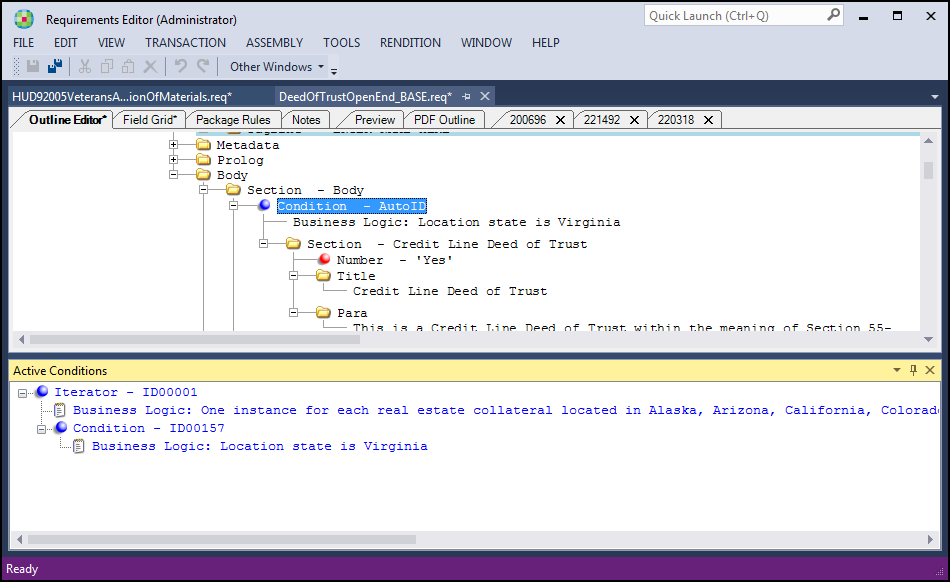
The Active Conditions window displays any rules and subsequent business logic that apply to the selected element node. The view is a read-only presentation of the rules selected in the Outline Editor perspective for a dynamic document.
The Active Conditions window is available by clicking the Active
Conditions option in the menu and also through the standard toolbar in the Other Windows
list. The window is available for dynamic documents. For static documents, the window is
available but static documents contain no active conditions. This is an example of the
active conditions window when a Condition element is selected in the Outline Editor.
As with all elements, validation exists for Condition elements. You are unable to drop a Condition element to invalid locations within the Outline Editor, as dictated by the schema.
Links within the Active Condition view
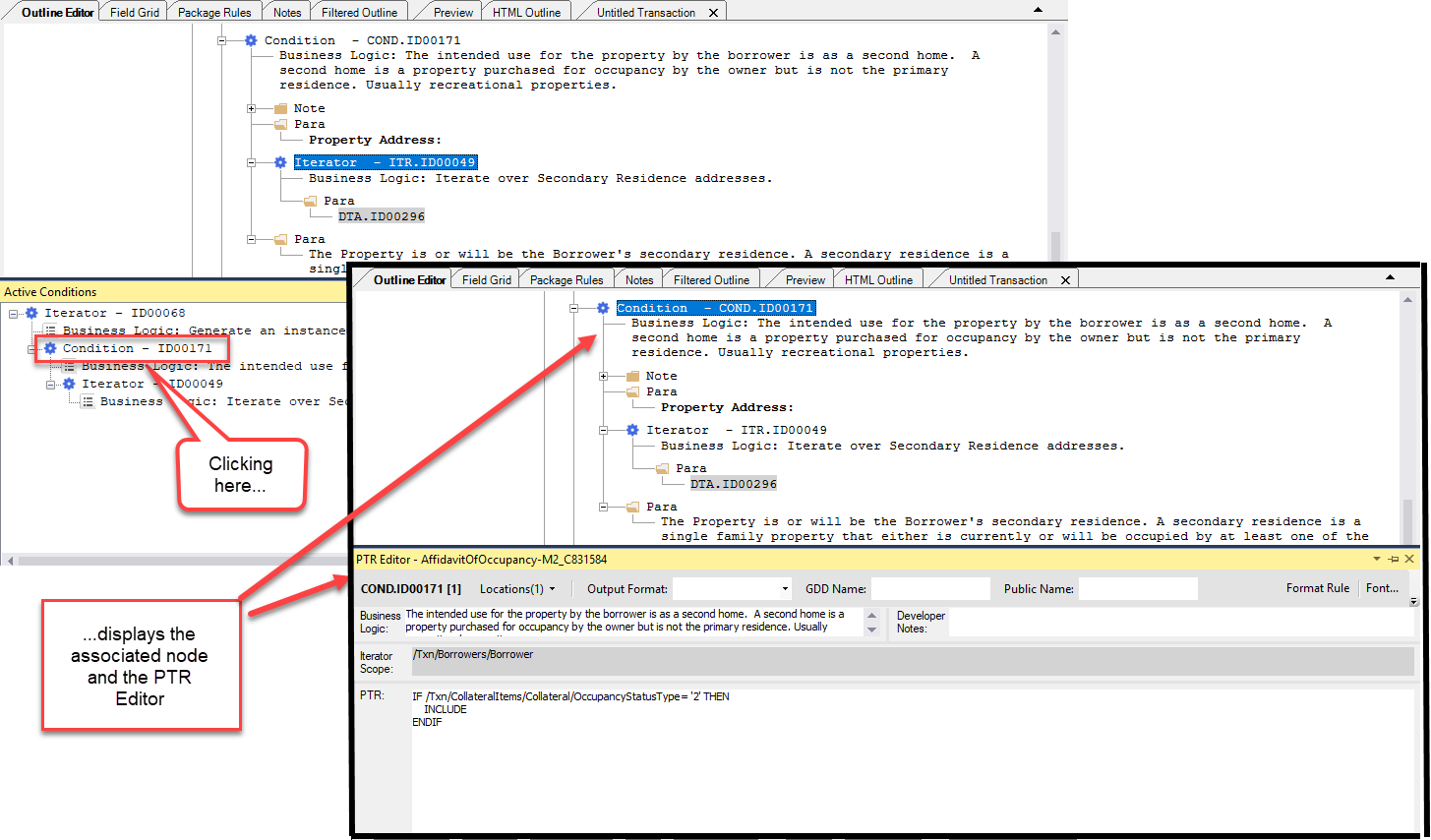
Clicking an item in the Active Conditions view displays the associated node within the Active Conditions tab and also displays the PTR Editor for convenient access to editing business logic and technical rules.
In the following example, Condition - ID00171 displays the associated node
(Condition - COND,ID00171) in the Outline Editor tab and also displays the condition
in the PTR Editor.
Note: Within the PTR Editor, the Output Format selector is disabled for
Conditions and Iterators.