Oxygen Settings Backup and Restore
Backing up and restoring your Oxygen customizations.
This feature is designed to help you keep a backup of your Oxygen settings. Should you
need to restore your settings for any reason, this tools makes restoration easy. Oxygen
Settings Backup and Restore backs up the entire Options file used within Oxygen.
Included in the Options file are all custom settings you have made to Oxygen. Some of
the key features within this file are:
- profile condition sets
- menu customizations
- toolbar customizations
- custom templates
- custom actions (macros)
Restoring your OXygen settings file is mostly necessary when performing an installation
of Oxygen on a new laptop. When you upgrade Oxygen, it uses the earlier version of the
options file to modify the new file. This ensures that your previous options are carried
over to the new version. As an illustration, the following example shows the existing
options files: oxyOptionsSa21.1.xml which was installed when Oxygen
21.1 was installed, and oxyOptionsSa21.2.xml which was installed
when Oxygen 21.2 was installed.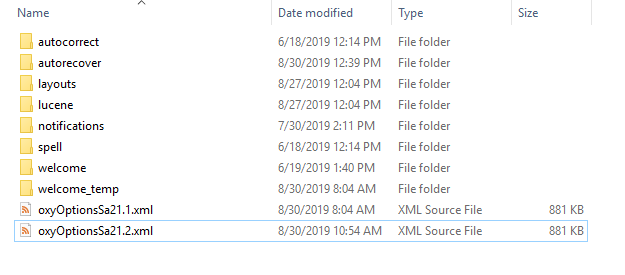
In the above example, when Oxygen 21.2 was installed, it copied the content of oxyOptionsSa21.1.xml and created the new file. Version 21.2 of Oxygen would then use the new options file moving forward. The fact that Oxygen uses this framework for the options file allows you to use multiple versions of Oxygen without uninstalling a previous version.
Making a backup of your Oxygen settings
To display Oxygen Settings Backup and Restore, select .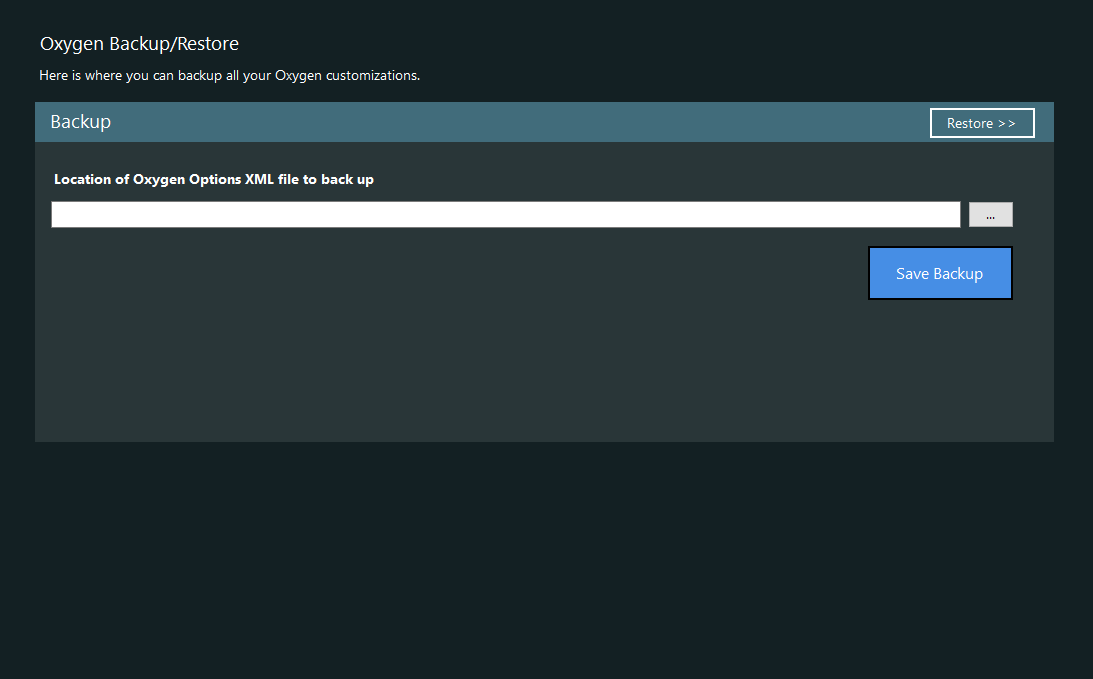
To create a backup of the Oxygen settings file:
- Select the Browse button and then select the latest version of the
oxyOptions file.
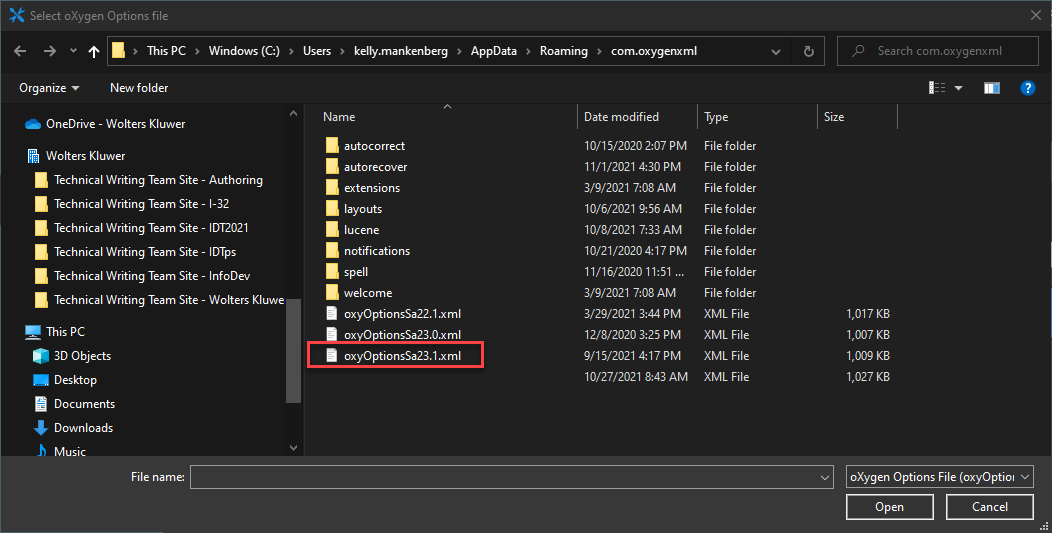 Note: When you select Browse, IDT automatically opens the browser dialog to the Oxygen installation folder.
 - Select OK.
- Select Save Backup. Your backup is created within the OxygenSettingsBackup folder within the InfoDev Tools folder of your Documents.
Restoring your Oxygen settings
To restore a previous backup of the Oxygen settings file:
- Select the Restore button to display the Restore screen.
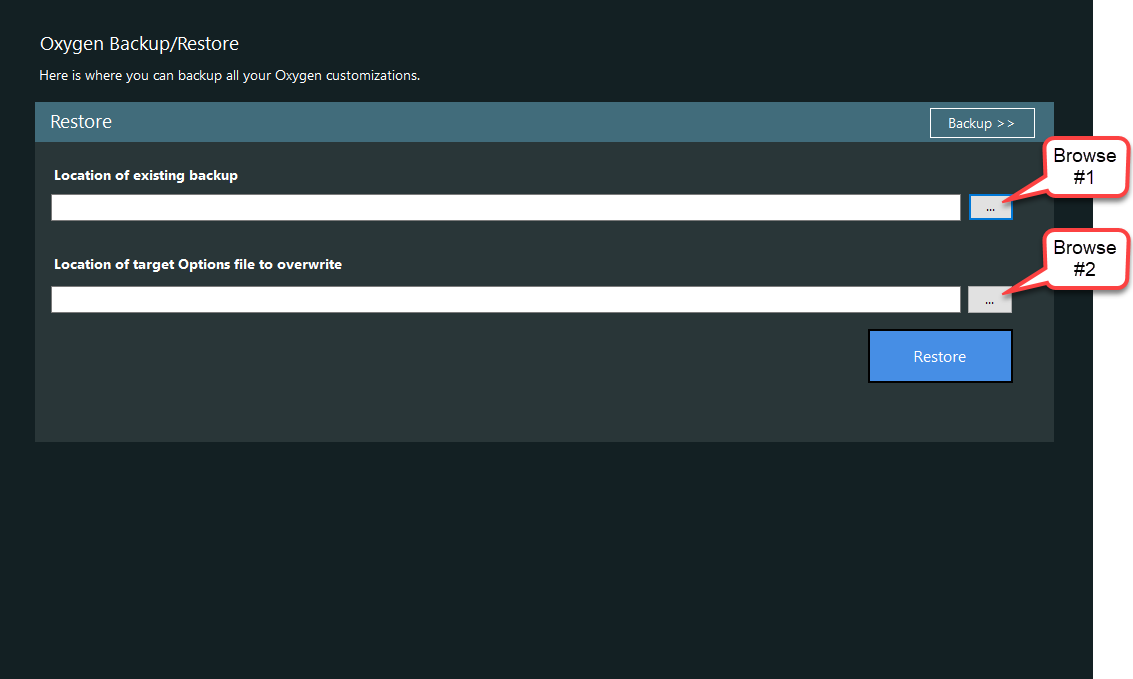
- Select the first Browse button to select the previous backup file to restore.
- Select the second Browsebutton to then select the version of the
oxyOptions file you want to overwrite. This would match the version of
Oxygen you are using, typically the latest version.
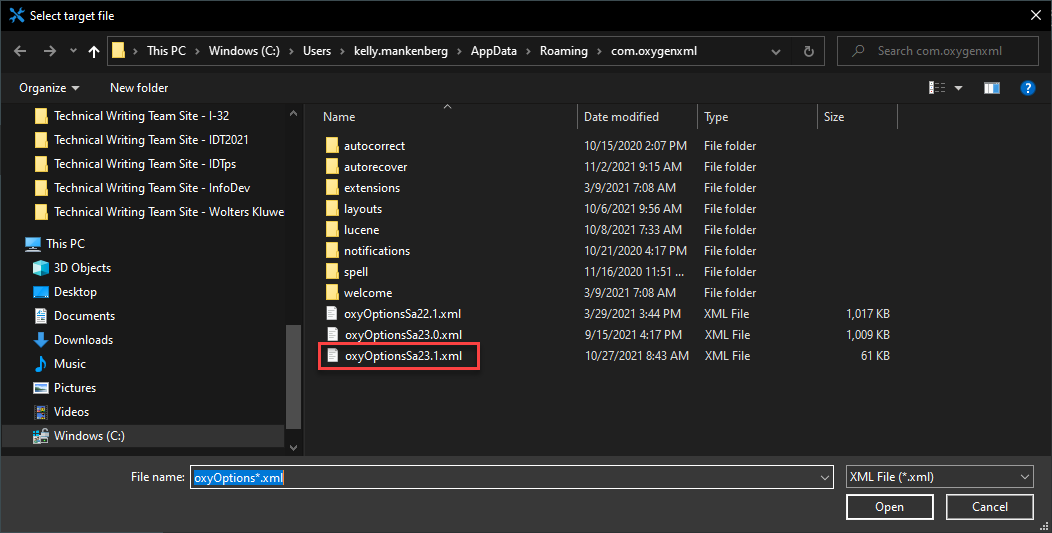
- Select Open to accept the filename.
- Select Restore to complete the restoration procedure.