Settings
The Settings screen provides access to options for controlling various features of
InfoDev Tools.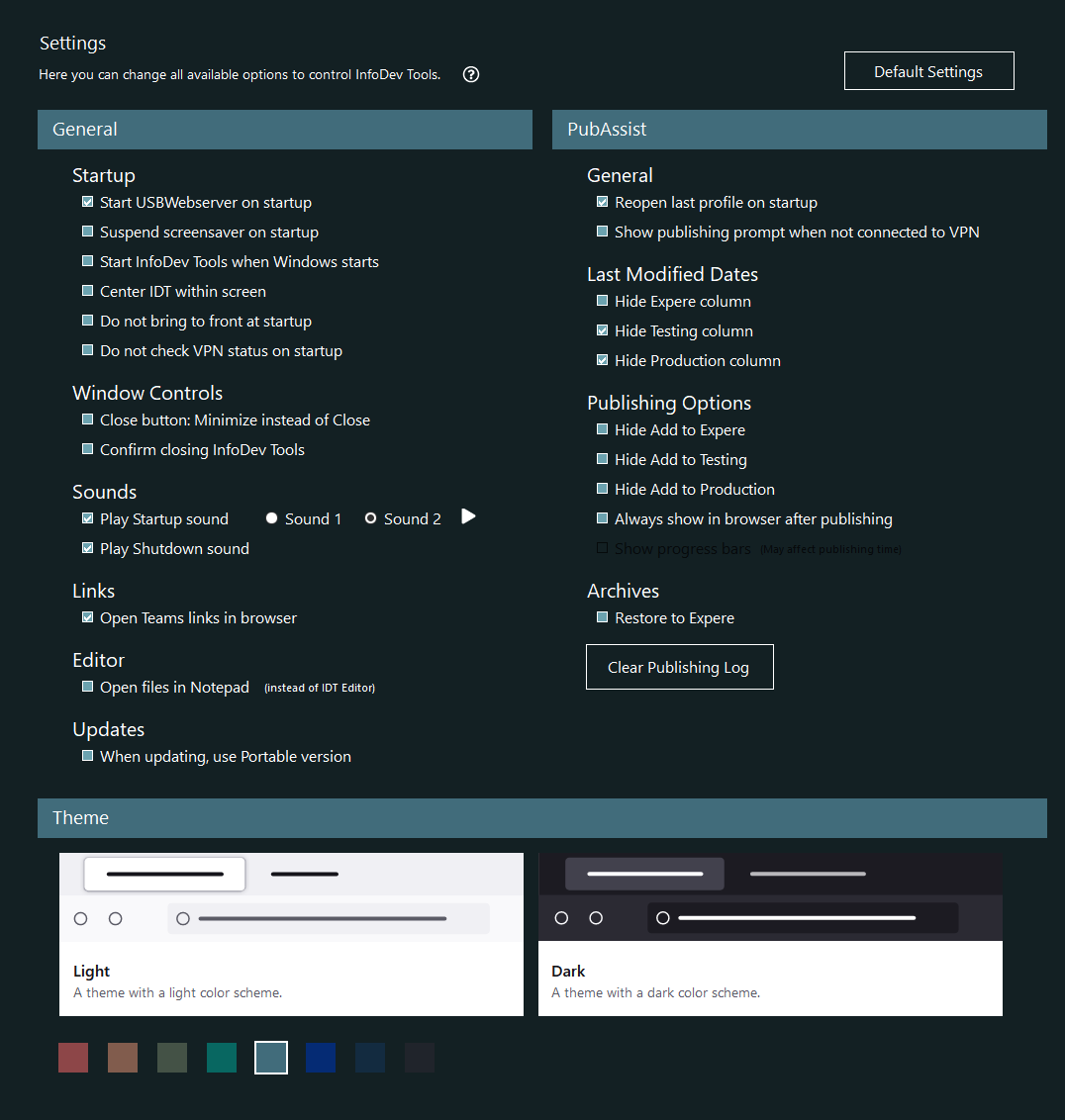
The options are divided between groups that affect their individual areas. The text of
most options explain their function. The options requiring more explanation are detailed
below.
Note:
- All options are retained in InfoDev Tools settings between sessions.
- Selecting Default settings selects the following options:
- Start USBWebserver on startup
- Confirm closing InfoDev Tools
- Play Startup Sound
- Play Shutdown sound
- Reopen last profile on startup
- Always show in browser after publishing
General options
- Startup
- Start USBWebserver on startup: Start the USBWebserver (to tun your localhost site) when IDT starts. When closing, IDT automatically kills the USBWebserver.
- Suspend screensaver on startup: Prevents the Windows screensaver from engaging. This is helpful when you need to ensure that a sharing session is not interrupted.
- Start InfoDev Tools when Windows starts: Automatically starts IDT when you log in to Windows.
- Center IDT within screen: Centers IDT within your primary screen.
- Do not bring to front at startup: There are circumstances in which IDT is not displayed on your screen when you start it. In this instance, you would have to open Task Manager and manually bring IDT to the front of all other applications. To help with this issue, IDT starts by default so that it is quickly maximized and then restored to normal display sizeresulting in a very brief flash of IDT resizing. The Do not bring to front at startup option turns off this feature so that you do not see the flash.
- Do not check VPN status on startup: By default, your VPN status (whether or not you are connected) is automatically checked when IDT starts. Selecting this option reduces the amount of time IDT requires to start up.
- Window Controls
- Close button: Minimize instead of Close: When selected, selecting the Close button does not close IDT but instead minimizes the application.
- Confirm closing InfoDev Tools: Selecting this causes a confirmation message to appear when closing IDT.
- Sounds
- Play Startup sound: When selected, the startup sound is
played when IDT starts for audible notification.Note: You can select from Sound 1 and Sound 2 to play at startup
- Play Shutdown sound: When selected, the shutdown sound is played when IDT closes.
- Play Startup sound: When selected, the startup sound is
played when IDT starts for audible notification.
- Links
- Open Teams links in browser: By default, links to Teams items opens within nthe Teams client using a web link. This method leaves a web page open you will need to manually close. Selecting this option instead displays the Teams links in the web browser.
- Editor
- Open files in Notepad: Causes the documents you select in the Editor to open in Notepad instead of directly within the IDT Editor.
- Updates
- When updating, use Portable version: If you use the portable version of IDT, you can use this option to bring you to the portable version link instead of the standard IDT download.
PubAssist options
- General
- Reopen last profile on startup: Selecting this option causes the last profile selected within PubAssist to automatically be selected the next time you start IDT.
- Show publishing prompt when not connected to VPN: If your Windows account requires you to be connected to VPN to publish or otherwise connect to the Azure file system, selecting this option gives you a prompt should you try to use any pertinent features when you are not connected to VPN.
- Last Modified Dates
- Hide Expere column: Hides the Expere column from the Last Modified Dates grid
- Hide Testing Column: Hides the Testing column from the Last Modified Dates grid
- Hide Production column: Hides the Production column from the Last Modified Dates grid
- Publishing Options
- Hide Add to Expere: Hides the Publish to Expere menu option from the Add to Queue context menu
- Hide Add to Testing: Hides the Publish to Testing menu option from the Add to Queue context menu
- Hide Add to Production: Hides the Publish to Production menu option from the Add to Queue context menu
- Always show in browser after publishing: Causes the content to be shown in your default web browser immediately after being published.
- Show progress bars: Currently in development
- Archives
- Restore to Expere: Selecting this option causes restoration of archived content to be restored to the Expere server instead of the Production server.
- Clear Publishing Log: Clears your current publishing log. When run, and archive is made.
Theme
Selecting a color from the color palette changes the color scheme of IDT. This selection is retained between IDT sessions.