PTR Editor
The PTR Editor pane provides an editing view for product technical rules (PTRs) contained within a dynamic or static requirements file. Here you can edit business logic and technical rules, as well as navigate to specific locations in the files where the condition is used. The PTR Editor also presents options to view and edit the output format, GDD name, and Public name along with changing the formatting of the PTR within the Outline Editor, Filtered Outline, and Field Grid.
DTA Selection Synchronization: When you select a DTA in the PTR Editor, the corresponding DTA is automatically selected and highlighted in the Outline Editor, and vice versa. This bidirectional synchronization ensures that your focus remains consistent between both views, making it easier to review and edit DTA details. Changing the selection in one editor will update the other to match.
- The PTR Editor must be populated with business logic and PTR to enable editing.
- If the rule comes from a content reference, then Output Format, GDD Name and Public Name, as well as the PTR and business logic, are read only.
- The PTR text box contains ten lines of visible text with a scroll bar to view any lines that span beyond ten lines.
- Copying text from the PTR text box is enabled.
- selecting
- through the standard toolbar by selecting list.
- pressing Ctrl+Alt+P on your keyboard.
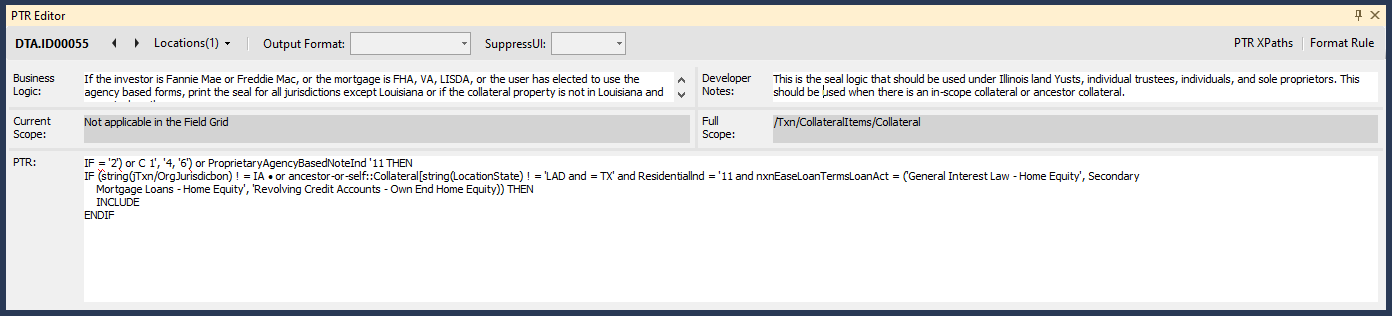
PTR Editor Features
| Previous Location / Next Location | Allows you to navigate between the previous and next
location.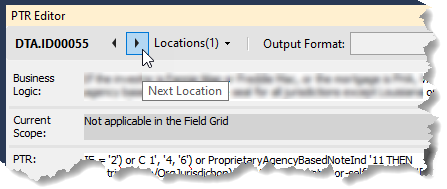 When
at the first location, Previous Location cycles to the last
location. Likewise, when at the last location, Next Location
cycles to the first location. |
||
| Locations | Displays the number of times the condition is used as well as
provides a link to each location. |
||
| Output Format | Used to define how certain entries are presented in the system.
For more information, refer toOutput Formats
. Formats include:
|
||
| GDD Name* | The data name used for VMP tech/board and E-Forms content. | ||
| Public Name* | The name used to define the rule for the BSI tech/board and E-Forms content. | ||
| Substitution Name* | The data name used when completed with values from the Edit Instance screen. | ||
| SuppressUI | When Yes is selected, this allows you to suppress warnings that would come from schema validation during the build process. | ||
| XPath: | Contains an XPath attribute value, used to supply the
location to a corresponding SmartDocData element section. Its
contents can be text, a data element (DTA), or a combination of the
two.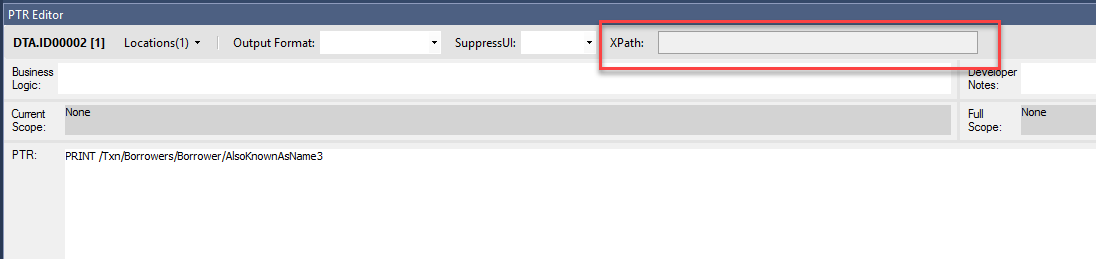 |
||
| Format Rule | Autocorrects the text within the PTR field, including rule
completion, case correction, etc. In the following example, the IF
statement is not completed. Clicking Format Rule analyzes and
completes the rule. Note:The Format Rule command is automatically run when you change focus from the PTR field to another field via the Tab key or using the mouse. |
||
| PTR XPaths | Displays a window containing a list of all XPaths in use by the
associated PTR.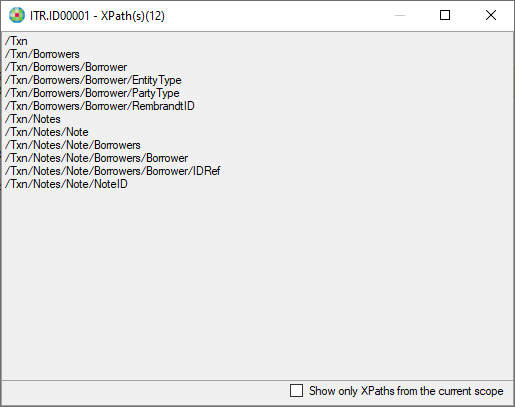 Note:
|
||
| Font | Allows you to change the font used within the PTR Editor fields. | ||
| Business Logic | A plain English description of the purpose of the data field, or rule. This is not used for EPM content. | ||
| Developer Notes | Allows you to add internal notes to a PTR. This information is
not customer facing and is stripped out when building the document.
Special characters ( <, >, &, ', ") and line returns are
honored. Information entered into Developer Notes is also viewable
in the PTR Editor tab of the Outline window.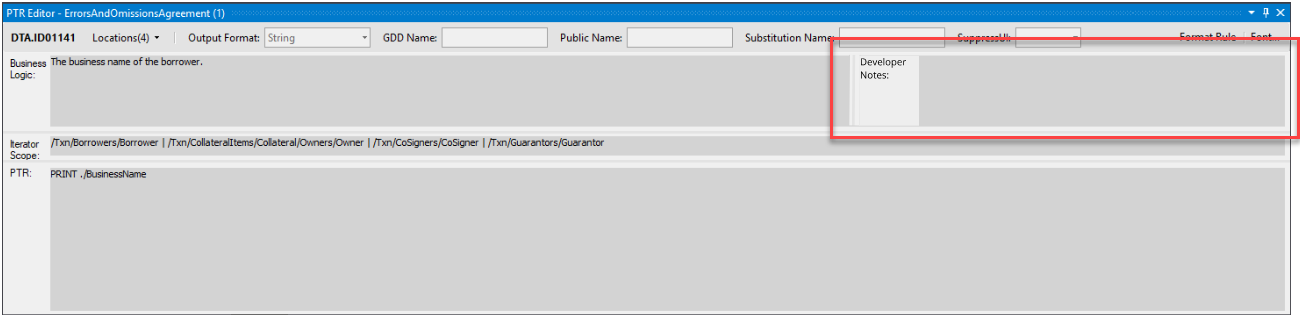 |
||
| Current Scope | Displays the scope that applies to the selected PTR
rule.Note:If the selected rule is not applicable within
the Field Grid, it is indicated here.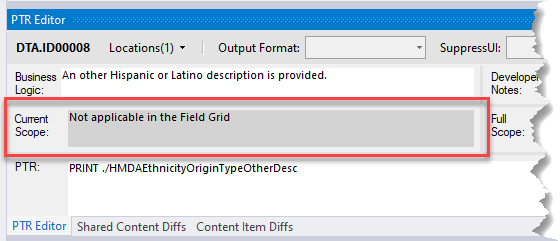 |
||
| Full Scope | Displays the combined scope of all rules, except for the current scope. | ||
| PTR | Displays and allows you to edit the Product Technical Rule for the condition. For more information on using the PTR Editor, see Product Technical Rule (PTR) Reference. | ||
| * Displayed only if the Rendition plugin is being utilized | |||
Instances
- in the DTA.ID:
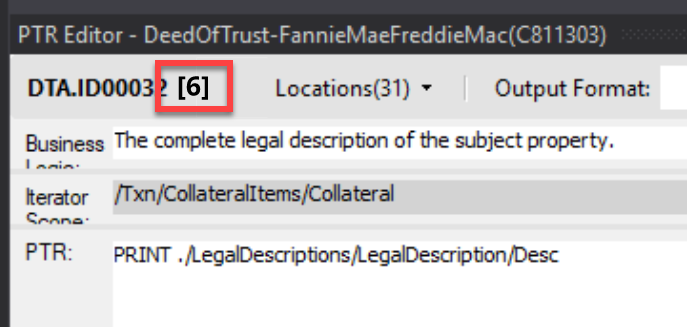
- in the location drop down list:
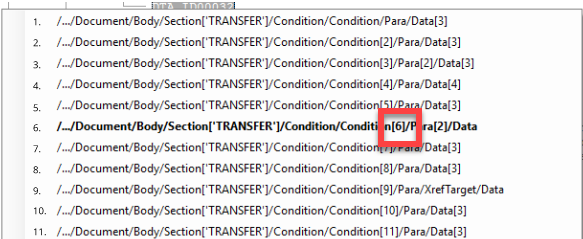
Bookmarks
| Ctrl + F2 | adds or removes a bookmark |
| Ctrl + Shift + F2 | deletes all bookmarks |
| F2 | moves to next bookmark |
| Shift + F2 | moves to previous bookmark |