Arranging and Docking Windows
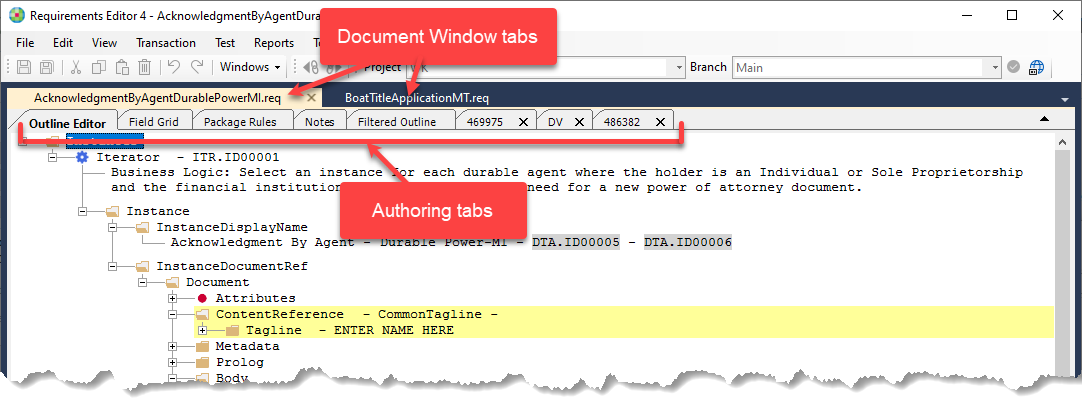
Customizing the location of the Document and View windows
- Pin document windows to any side of the document area. This also allows you to collapse windows along the edge of the application.
- Float View windows over or outside main Requirements Editor application window by selecting . You can dock a window back in the application window by selecting or by double-clicking its titlebar.
- Display windows on different monitors.
- Reset window placement to the default layout by selecting .
Docking Windows
By default, document windows can be arranged as docked windows in the environment. If you have customized your viewing configuration and select , the windows will be reconfigured in this manner.
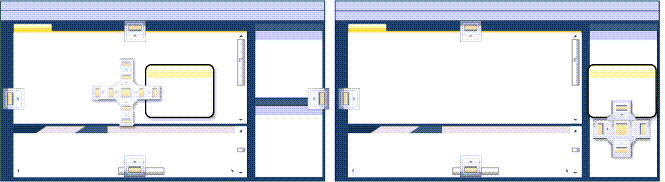
- Click the tab you want to dock.
- Drag the tab toward the middle of the document area. A guide diamond appears. The four arrows of the diamond point toward the four sides of the editing pane.
- When the tab you are dragging reaches the location where you want to dock it, move the pointer over the corresponding part of the guide diamond.
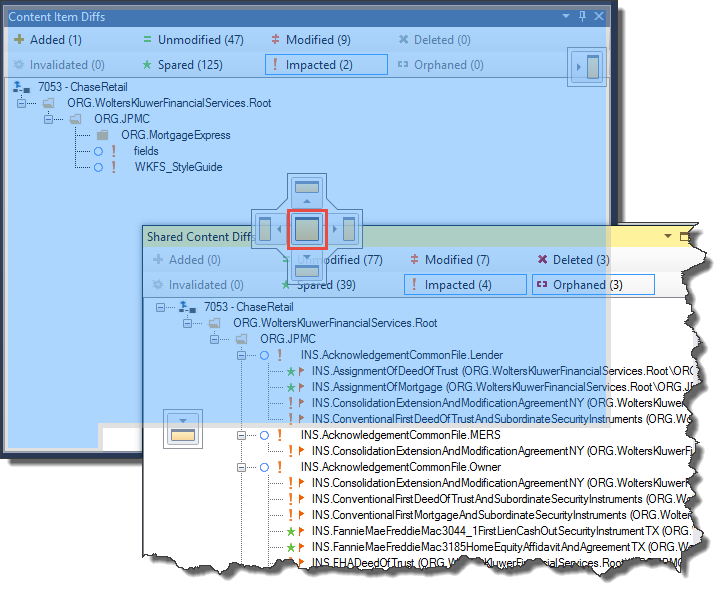
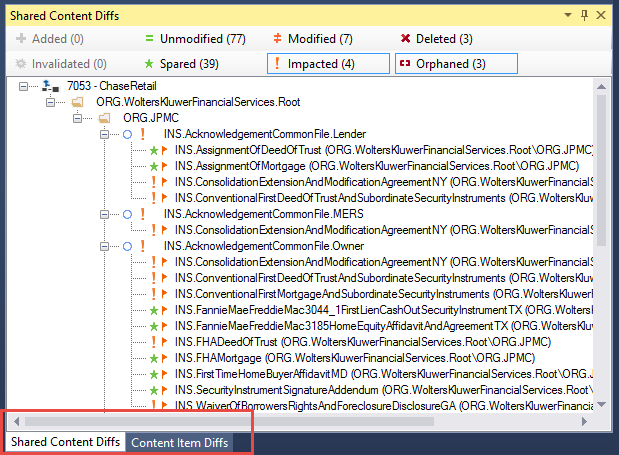
- To dock the tab in the position indicated, release the mouse button.For example, if Merge Session is docked on the right edge of the environment and you want to dock it on the left edge, drag Merge Session toward the middle of the environment, move the pointer over the far left arrow of the guide diamond, and then release the mouse button. Or, you can dock a View window to a part of one of the side walls of the environment by dragging it to the side until you see a secondary guide diamond. Click one of the four arrows to dock the View window to that part of the side wall. If you drag and release a window to the center of the guide diamond, the window will join the window in that location and the window titles appear as tabs.
Floating Windows
Any View window can be undocked from, and positioned anywhere outside the main application window.
To position a View window outside the IDE: Drag the window to the location you want.
To return a View window to its docked location: Double-click the title bar of the View window.
- When floating a View window for the first time, its window size from within the document area is retained.
- Resized undocked View windows have their size retained for when it's next undocked.
Pinning Document Windows
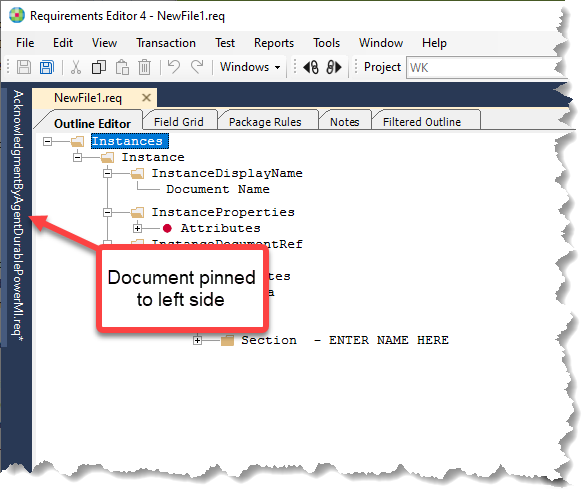
While you can pin a document to any of the four edges of the document area, the following procedure will illustrate pinning to the left side.
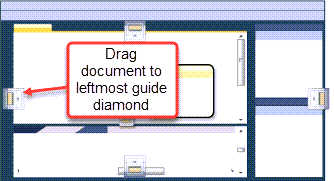
- Drag the document tab and release it within the leftmost guide
diamond.
The document is docked to the left side of the document area.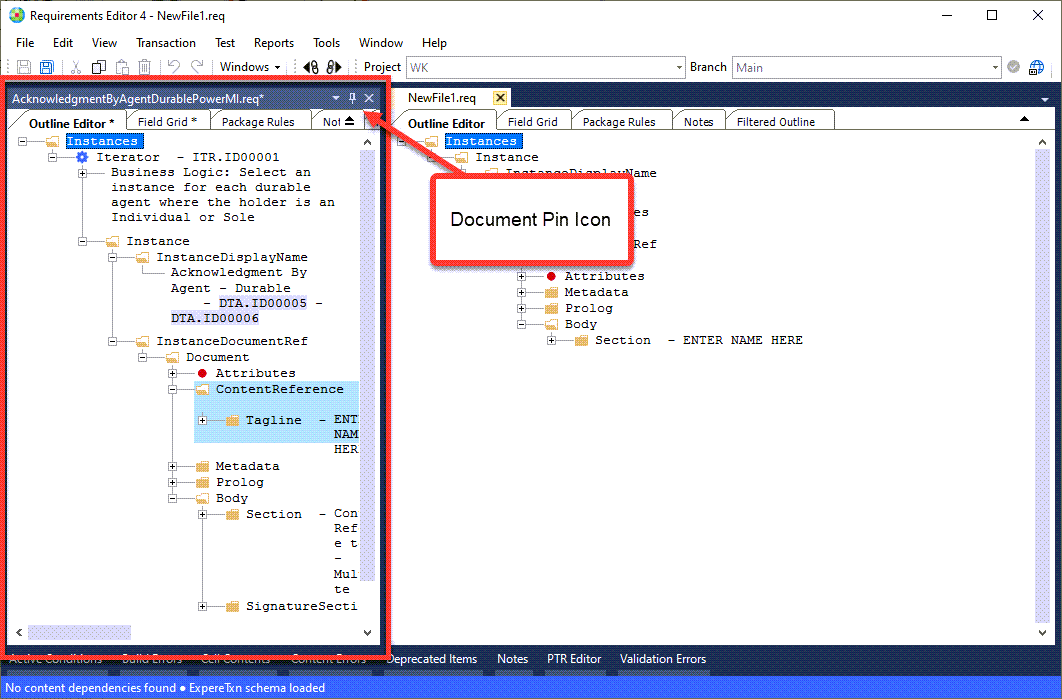
-
Click the pin icon in the docked document.
The document is pinned and automatically collapsed to the left side of the document area.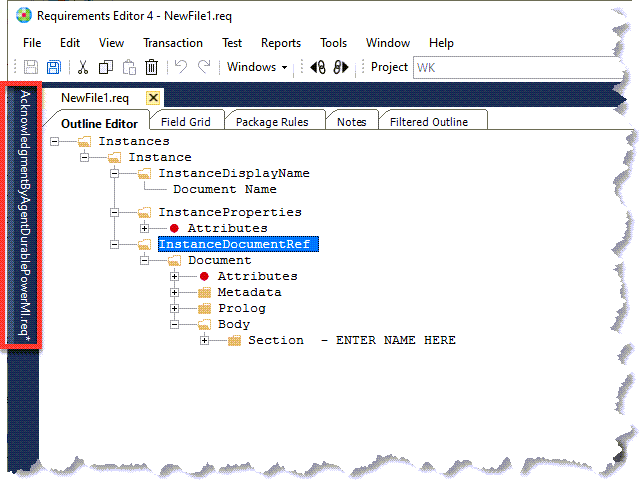
- Click the title of the collapsed document to expand and temporarily show the
document. This allows you view and edit the document. When you click outside
the document, it automatically collapses back to the hidden position.
If you wish to unhide the document pane so that it doesn't autohide, expand the document and click the pin icon.
Resetting Window Layouts
- All windows are moved to their default positions.
- Windows that are closed in the default window layout are closed.
- Windows that are open in the default window layout are opened.
You can specify a different default window layout by modifying your current settings.
- From the Windows menu, select Reset Window Layout.
- In the message box, select Yes.