Expere EZ Config Transaction
This section explains how to generate a Default Data transaction.
-
From the SERVICES page, select Expere EZ Config
Transaction.
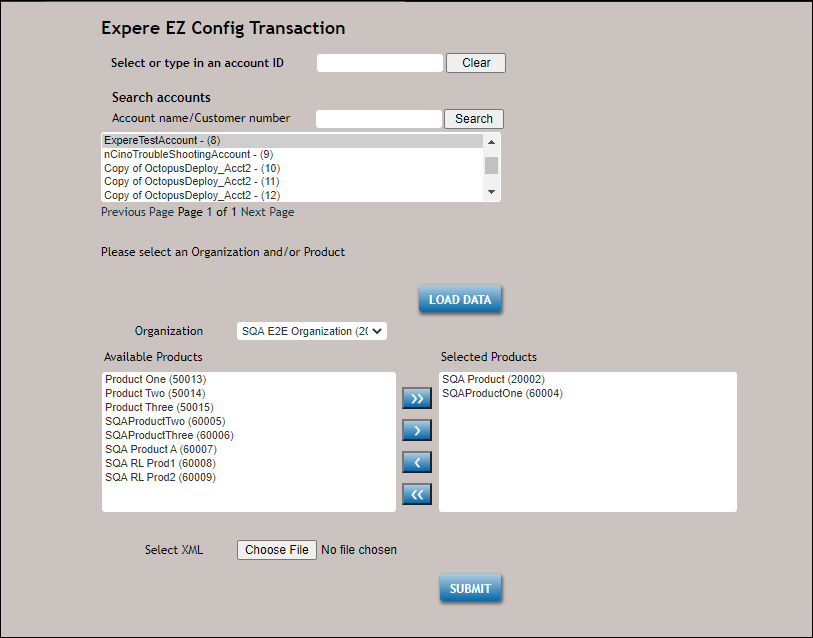
-
Either select an account from the list below Search accounts > Account Name
/ Customer number, enter a search term in the Account Name / Customer
Number field, or enter an account ID in the Select or type in an
account ID field.
Note: Users can enter up to 255 characters in the Account name/Customer number field.
- Click LOAD DATA.
- From the Organization drop-down list box, select the desired organization.
-
From the list of Available Products, use the >> or >
arrows to transfer product(s) to the Selected Products list.
- When a Deposit product is available, a user is able to select multiple Available Products that can be added to the Selected Products list.
- When the product is not Deposit, the user is only able to select one Available Product.
Note: an identification number appears adjacent to the product name for easier product identification. -
Click Choose File to browse and select a transaction XML file.
when selected, the filename of the selected file is displayed (with truncated text) to the right of the button inidcating the file has been selected.
-
Click SUBMIT.
A process indicator is displayed briefly while the new transaction is generated.
 The new transaction file is generated and automatically downloaded to your browswer's default download location.Note: If your browser is set to prompt you for a download location, the standard Save As window appears for you to select the location to download the transaction.