SETUP Page
The SETUP page is used to configure expiration settings in licensed Accounts.
Click the side arrow at the top of the page and select SETUP.
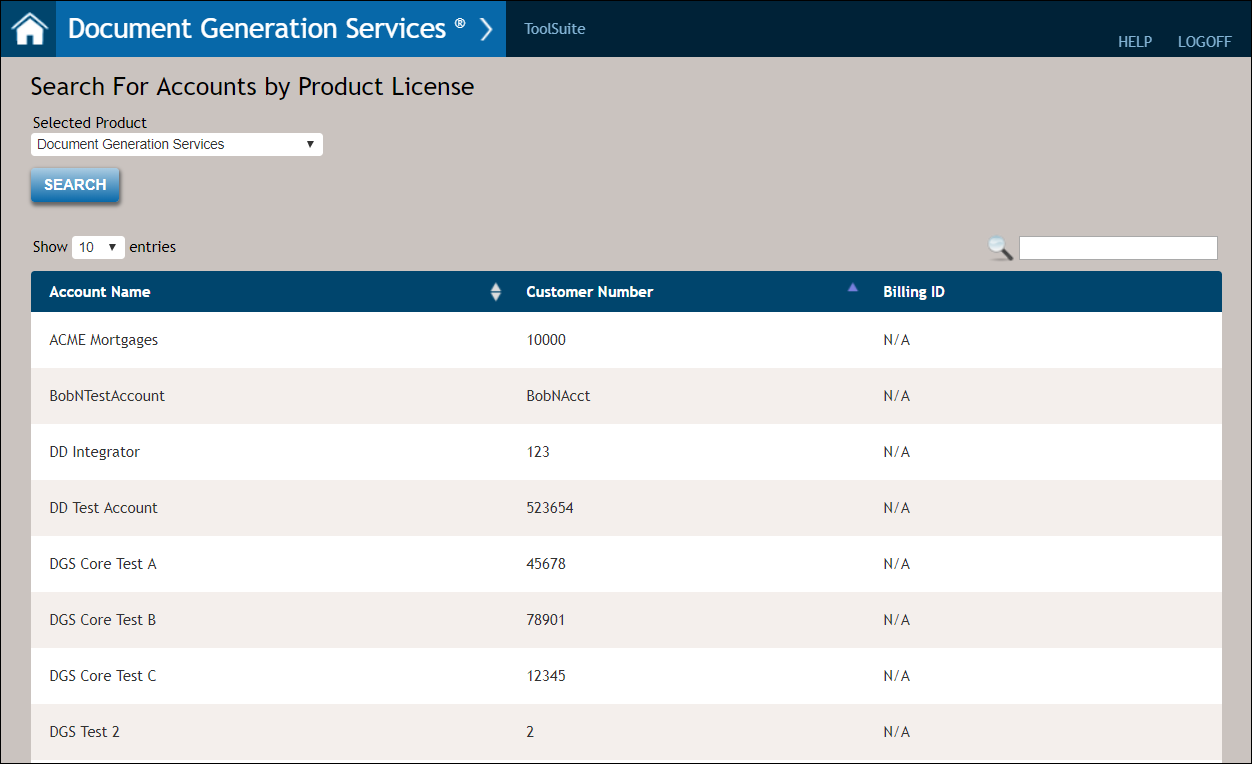
Displaying Results
To access all available accounts for a specific product, select an option from the Selected Product dropdown. Click the desired account to advance to the Account Settings - <Account Name> page.
Configuring the Days to Expire Setting
- Wolters Kluwer will configure this value per customer request.
- The Days to Expire allows up to 255 numeric characters.

SmartSign Plus Credentials
The SmartSign Plus Credentials section allows you to configure the credentials required to connect to SmartSign Plus.
Credential Fields
Enter the values provided by your SmartSign Plus administrator for the following fields:
- Login ID: this field will contain the username or login used for logging into SmartSign Plus.
- API Key: this field will contain a unique code required for authentication.
- Client ID: this ID is used in the authentication process.
- Client Secret: required parameter entered by OAuth provider when used as part of the SmartSign Plus authentication process.
- Organization ID: this field contains the system-defined UID for an organization.
- Closing Center Lender Name: this field contains the lender name used in the Closing Center configuration. This value is displayed in the Closing Center footer and dashboard.
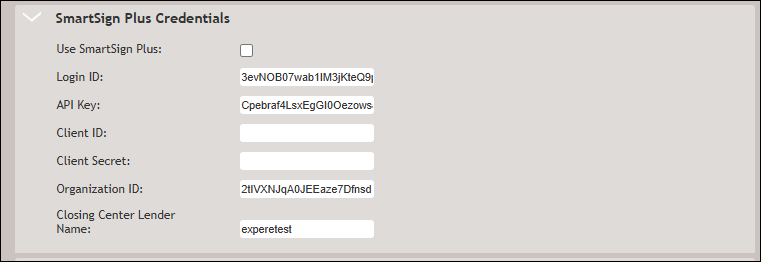
- Credential fields have been expanded to display longer values, allowing the complete credential to be viewed without truncation.
- Any leading or trailing whitespace entered in a credential field is automatically removed when the value is saved. This helps prevent authentication and connection issues caused by unintended spaces.
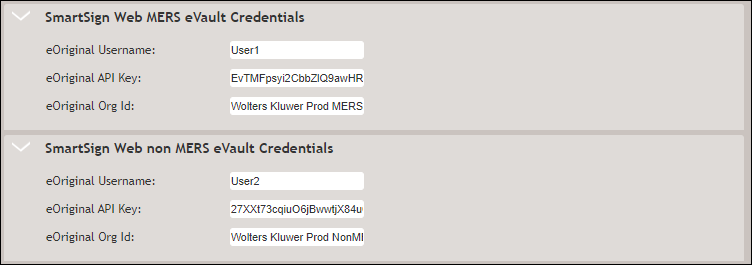
Production users: MERS eVault / non MERS eVault Credentials sections
MERS eVault Credentials: this section is used to enter the username, API Key,
and Org ID used when submitting MERS transactions to the eOriginal eVault. Use this
section to enter MERS-related credentials if uploading documents to eOriginal
(/Txn/EOriginalUploadInd=1) that comprise an eNote transaction
(/Txn/EOriginalUploadTransactionType=1).
non MERS eVault Credentials: this section is used to enter the username, API
Key, and Org ID used when submitting non-MERS transactions to the eOriginal eVault.
Use this section to enter non MERS-related credentials if uploading documents to
eOriginal (/Txn/EOriginalUploadInd=1) that do not comprise
an eNote transaction (/Txn/EOriginalUploadTransactionType=2).
Customer Test (CT) users: SmartSign Web TestOnDemand / Preview OnDemand MERS / nonMERS eVault Credentials
When configured, these sections allow users to input credentials for the following environments:
- SmartSign Web TestOnDemand MERS eVault
- SmartSign Web TestOnDemand non MERS eVault
- SmartSign Web PreviewOnDemand MERS eVault
- SmartSign Web PreviewOnDemand non MERS eVault
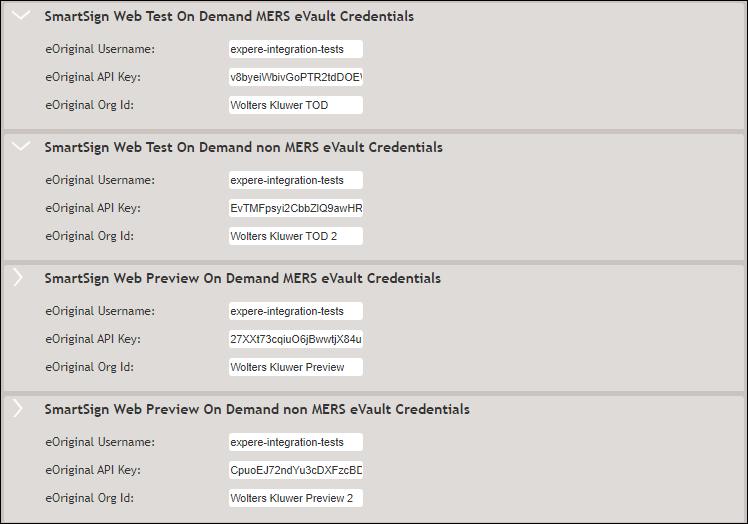
SmartSign Web TestOnDemand / PreviewOnDemand MERS eVault Credentials: the MERS
eVault sections are used to enter the username, API key, and Org ID used when
submitting MERS transactions to the eOriginal eVault. Use this section to enter
MERS-related credentials if uploading documents to eOriginal
(/Txn/EOriginalUploadInd=1) that comprise an eNote transaction
(/Txn/EOriginalUploadTransactionType=1).
SmartSign Web TestOnDemand / PreviewOnDemand non MERS eVault Credentials: the
non MERS sections are used to enter the username, API Key, and Org ID used when
submitting non-MERS transactions to the eOriginal eVault. Use this section to enter
non MERS-related credentials if uploading documents to eOriginal
(/Txn/EOriginalUploadInd=1) that do not comprise an
eNote transaction (/Txn/EOriginalUploadTransactionType=2)
Hosted Expere users: REST Callback Credentials
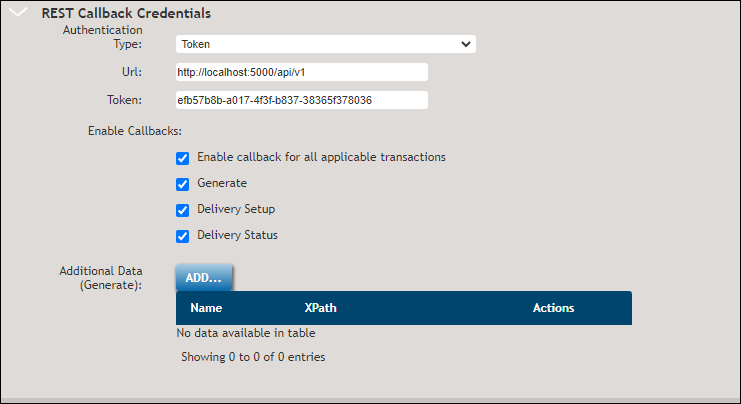
The following fields contained in the REST Callback Credentials section are used to configure a DocumentService callback for a particular account.
- Authentication Type: select either a Username/Password or Token option
- URL: Enter the Callback URL field. Complete this field to receive notifications that documents have been posted to the document rendering engine as well as document status
- Username: The account level user name
- Password: The account level password
Enable Callbacks sub-section
Select any of the following checkboxes to receive callbacks for the corresponding REST API methods:
- Enable callback for all applicable transactionsNote: In order for the user to receive the
Package
                            ID "DocSetPackageIDRef"
, the Enable callback for all applicable transactions must be selected and authentication configured with valid credentials. - Generate
Additional Data (Generate) sub-section
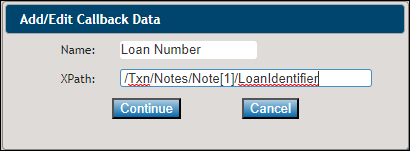
Users can specify names and XPaths to return in the REST callback; for example:
LoanNumber and /Txn/Notes/Note[1]/LoanIdentifier. Click the
ADD button to enter the desired name and XPath. Adding the Name
and XPath below will result in these values appearing in the REST
callback.
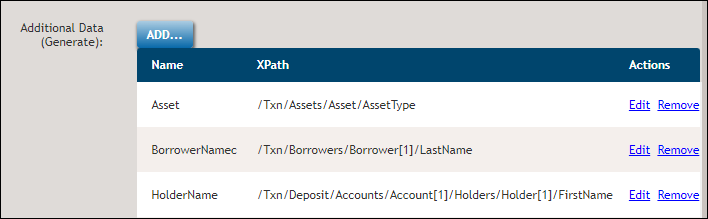
Users can Edit or Remove the desired Name and XPath. Clicking the Edit button displays the Add/Edit Callback Data dialog; however, clicking the Remove button removes the desired Name and XPath without prompting the user for removal.
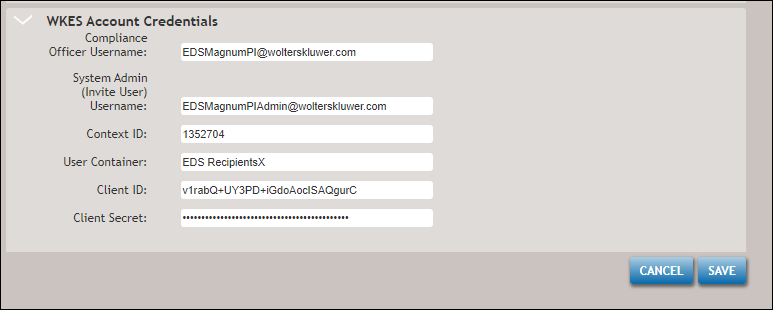
WKES Account Credentials
The following fields contained in the WKES Account Credentials section are used to log into Wolters Kluwer E-Sign.
- Compliance Officer Username: the username with Compliance Officer permissions in WKES for the account
- System Admin (Invite User) Username: the username with System Admin permissions in WKES for the account
- Context ID: the unique customer-related ID associated with the Wolters Kluwer E-Sign account
- User Container: the name of the container created in WKES for invite requests
- Client ID: this ID is used in the authentication process
- Client Secret: this unique API key is used when requesting an access token to Wolters Kluwer E-Sign