SUPPORT Page
The SUPPORT page is used to view the status of requests and supporting details for troubleshooting. The SUPPORT page assists users in determining the cause of issues without displaying any non-public information. An example of non-public information is Social Security Numbers that could be part of the XML transaction data.
Click the side arrow at the top of the page and select SUPPORT.
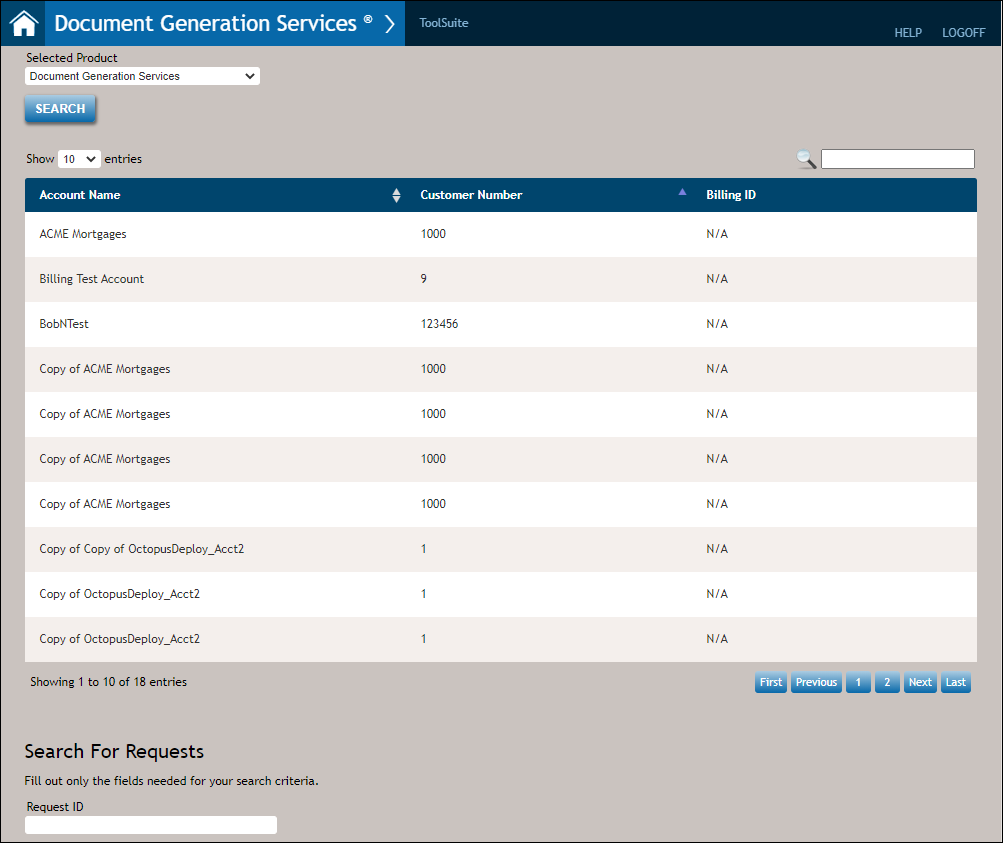
Displaying results
Users can display transaction results through one of the following methods:
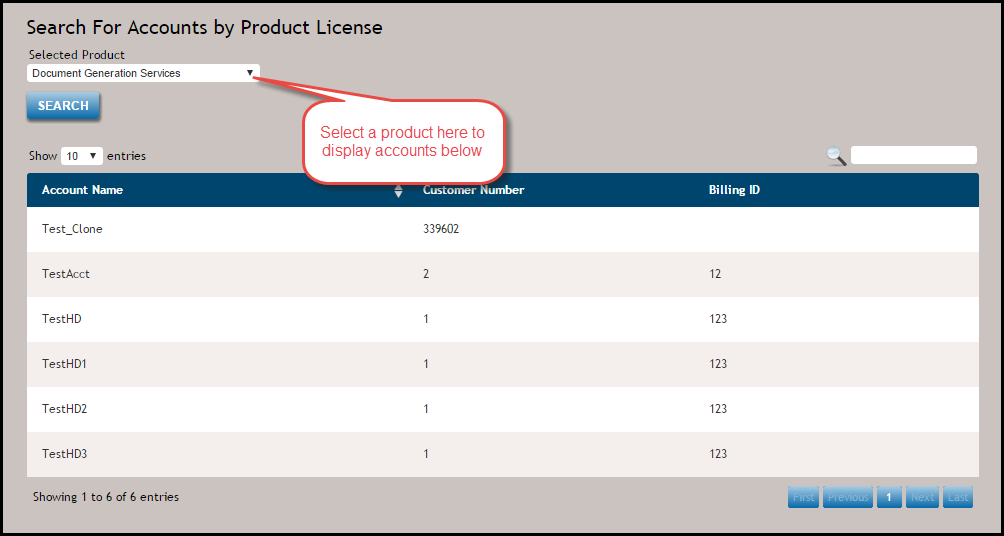
- Select a Product from the Selected Product.
- Enter a value in the Select or type in an account ID field; click View to display the results at the bottom of the page.
- Enter an account name or customer number in the Account name/Customer number field; click Search. The Account name/Customer number field will return an account list with all of the accounts that contain any portion of that search criteria.
- Single-click an account from your list of assigned accounts to display its transactions.
Searching for a transaction
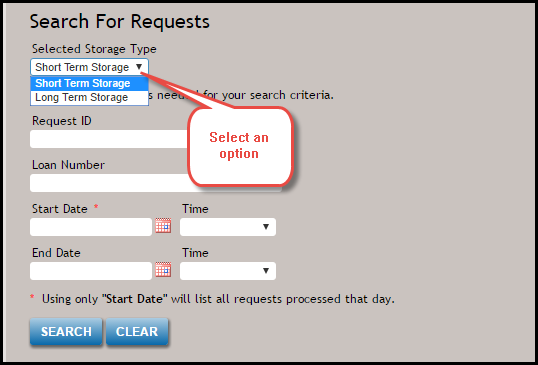
You can search for a transactions through one of the following methods:
- Enter the Request ID or Loan
Number in the corresponding field to return the specific transaction
that matches either the request ID or loan number for the identified account;
click Search. Note that the ID must be an exact match.
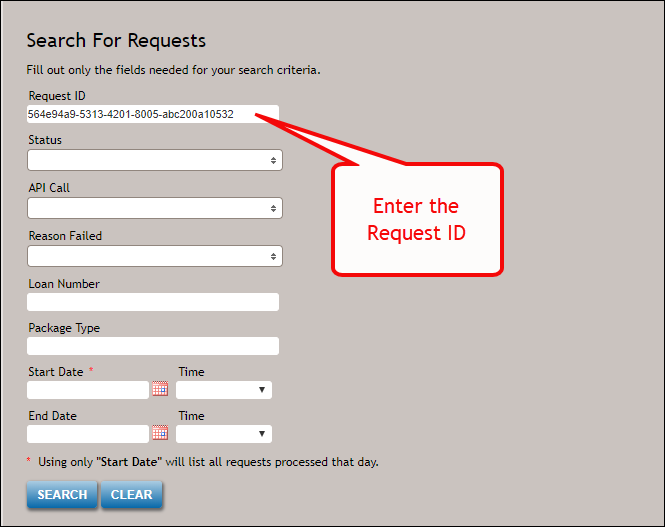
Note: The Request ID field allows up to 36 GUID characters. - Either directly enter a date in the Start Date field
(mm/dd/yyyy) to return all transactions for the specified date or click the down
arrow to select a date from the interactive calendar. For a broader search
result, also enter a date in the End Date field. Click Search.
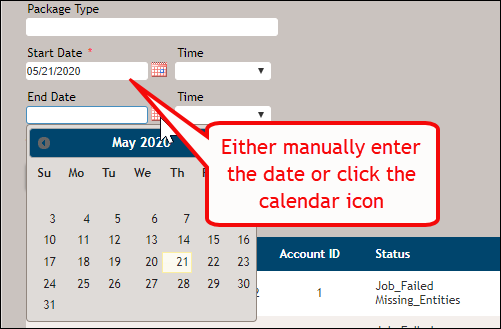
Note: When searching by date, you must enter a date in the Start Date field at a minimum. Only entering a date in the End Date field will result in an error. To narrow your search, enter an exact time in the time (optional) field. Using only Start Date will list all requests processed that day.
Transaction list features
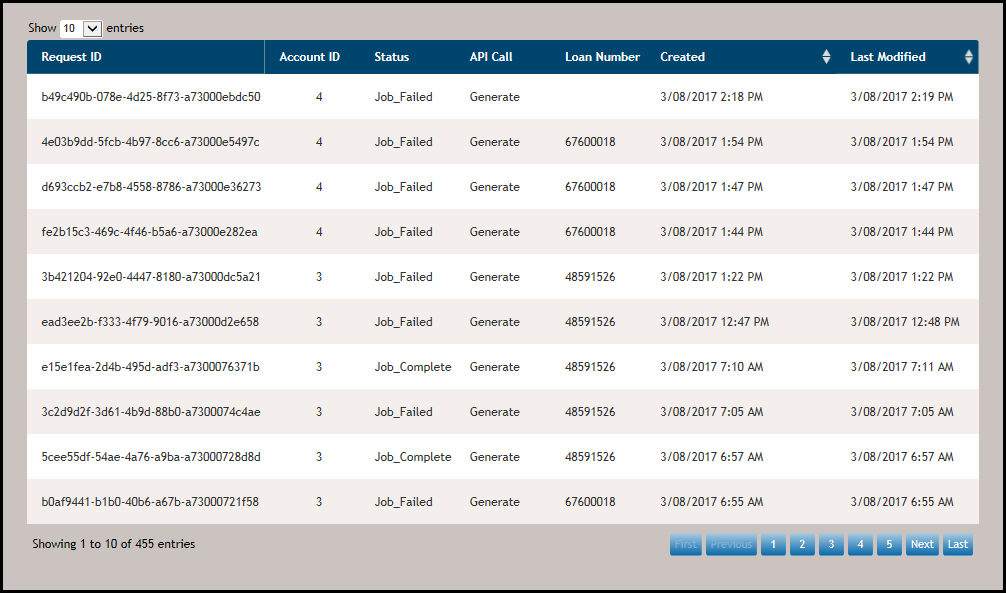
The list of transactions contains the following:
- Request ID: The Request ID is generated when creating the transaction using one of the API methods. The ID's presented here are unique keys generated by the database.
- Account ID:
The Account ID is generated
when creating the transaction using one of the API methods. With View All
Accounts and/or Edit All Accounts permissions, users can view the
last ten (10) submitted transactions.Note: Users can still limit their search to a specific customer account; simply select the desired account from the Account List above. To get back to searching all accounts, after choosing one account from the list, select the Clear button at the bottom of the search criteria fields.
- Status: The Status column displays a status related to the stage of the transaction.
- API Call: The API Call column displays the corresponding API that was used when creating the transaction.
- Account: The Account is associated with a specific account; this account is created in the Wolters Kluwer Financial Services Administration tool.
- Submitted By: signifies the user who submitted the transaction.
- Loan Number: The Loan Number is supplied by the end user through the transaction.
- Created: The Created column displays the date and time stamp of the submitted transaction.
- Last Modified: The Last Modified column displays the date and time stamp of the most recent modification.
Opening a transaction
Click anywhere on the desired row on the main page to view the details of the transaction. The transaction details opens in a new internet browser tab.
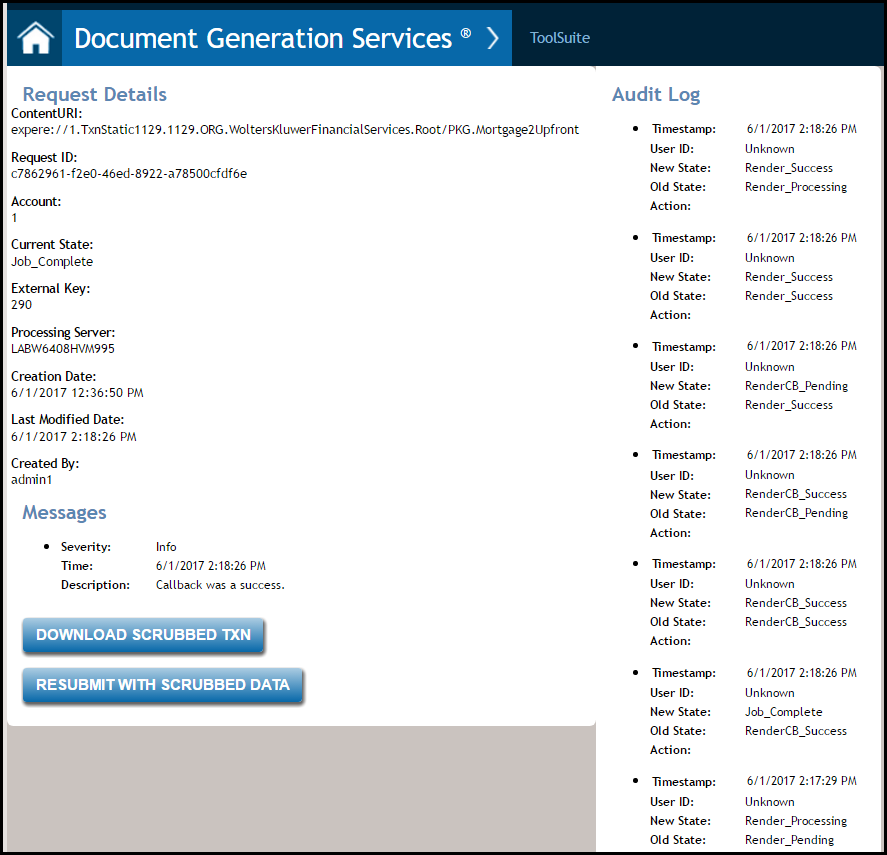
This transaction results page consists of a summary of the transaction process steps, a summary of the main Support Page, and unique Content URI and Created By user information. Users may also download and resubmit scrubbed transaction data.
The transaction results page consists of a summary of the request details (EDS Request Details) and the Delivery Audit Log.
Downloading transaction data
Uses can click the DOWNLOAD SCRUBBED TXN button to open the scrubbed transaction xml and review it or save the transaction to a desired location and use it for additional troubleshooting.
Resubmitting scrubbed transaction data
Uses can click the RESUBMIT WITH SCRUBBED DATA button to resubmit the transaction and review the documents returned with scrubbed data.