Navigation
Navigation
Expere EZ Config makes use of the following user interface features and conventions to accommodate the application workflow.
Cards are containers for various subsections of functionality within the application. For example, Packets and Barcodes will appear on cards on the right side of the application.
The left navigation bar is a static navigation bar and is used to navigate between Expere EZ Config Packages and Packets components. There are two components available: Packages and Packets and More. When working in Packages and Packets, clicking the Packages and Packets icon in the navigation bar opens the Package List page.
Click More to display a list of additional menu options, including Repost, Import, and Export. Clicking any of these options opens the corresponding Packages and Packets functionality.
Breadcrumbs at the top of the page identify where you are in the workflow. For example, Packages > Package Details. Breadcrumbs may also be used to navigate the application by clicking the breadcrumb details to return to a previous page within the workflow.
The following navigation conventions are also in place.
- Vertical ellipses.
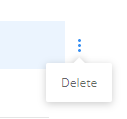 The vertical elipses appears on some controls to indicate
further actions are available for section. For example, on the Packets card,
a packet name displays with a vertical elipses. Hover over it to display a
menu of options available for that packet. Currently, Delete is available as
the only option.
The vertical elipses appears on some controls to indicate
further actions are available for section. For example, on the Packets card,
a packet name displays with a vertical elipses. Hover over it to display a
menu of options available for that packet. Currently, Delete is available as
the only option. - Horizontal ellipses. The horizontal ellipses indicate a tooltip that is used to display the full text string value when hovering over because the value is too long to display on the regular view.