Working with Documents in Packages
To add documents to a package
Select which documents to include in the package. The Set Rule Source list initially displays all documents available for the entire line of business. The rule source (Package) name displays below the document name as defined in the content repository. This is useful because a document may have multiple rule sources. Click Add All/Add # Selected to add all selected documents to the package.
Additional Tips
- Use the Rule Source field to filter documents displayed. The dropdown displays the available rule sources. (The rule source and the associated documents are defined as part of your organization's content repository.) Refer to Filtering Documents for additional details.
- Use Add All or Add # Selected to add multiple documents at a time. There is no limit on the number you may select and add. Note: You must click Add All or Add # Selected before clicking Done on the Set Rule Source list in order for the documents to be added to the package.
- You may use search critieria when adding documents to packages, which may allow
you to more easily locate which documents to include.
- The search function is available on both the left and right panels and work independently.
- The search limits the results to only those documents that match the search criteria.
- The search applies to the Document ID only.
- The search is dynamic partial text: results are returned when a match is found anywhere within the Document ID value.
- The search may contain letters, numbers, and/or the following special characters: underscore ( _), comma (,), and period (.).
- Documents may be added to a package multiple times - once for each rule source to which it belongs.
- The application indicates when a document has multiple rule sources selected within a package.
- You will receive the document only once for the Package when document generation is requested through Expere Document Services, provided autoselection is met, even if you have associated multiple rule sources. The exception to this is that there is instancing logic within the document that supports creating multiple versions of a document (for example, one for borrower and one for cosigner).
To remove documents from a package
- Single Document: On the Package Details page, click Edit. On the popup document list, hover over the document for the document you wish to removed. Click the red X to the right of the document name to remove the document from the list. A popup message asks you to confirm the deletion. Click Remove. Click Done on the Set Rule Source list to save the changes to the package.
- All Documents: On the Package Details page, click Edit. On the popup document list, click Remove All to remove all the documents from the package. A popup message asks you to confirm the deletion. Click Remove. Click Done on the Set Rule Source list to save the changes to the package. Deleting all documents from a package does not delete any packets that were created. Packets are retained despite having no documents.
Configuring documents for SmartSign Plus
After a document has been added to a package, each document can be configured to be included in SmartSign Plus as a Vault and/or Financial Asset item.
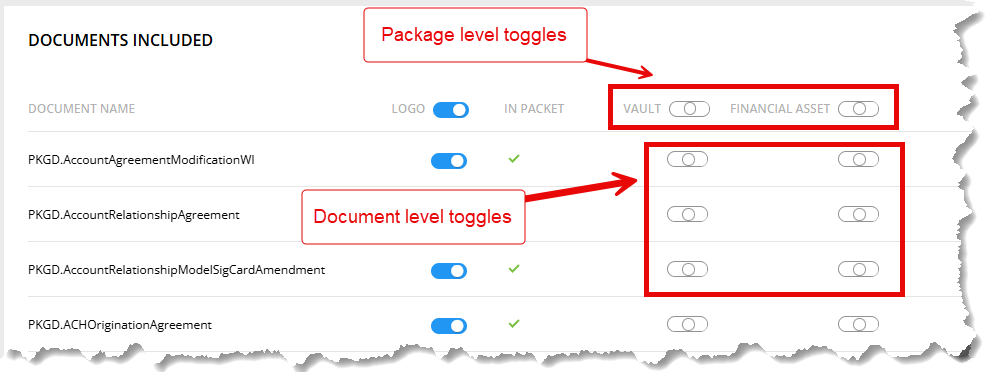
- When set to Off, the item is not included in the vault or as a financial asset.
- When set to Null (default), the item has not been designated as Off or On.
- When set to On, the item is included in the vault or as a financial asset.
- Packages and Packets overrides any values within the associated REQ files.
- Vault and Financial Asset should not be added as Custom Data in the REQ file.
Closing Center document type support
Note: The Packages and Packets (PnP) feature supports adding the Closing Center document type and associated document-level settings (for example, Preview and PreClose) when the feature flag is enabled. Ensure the environment has the feature flag PKGPKT.PreviewAndPrecloseFeature set to True to surface these controls.