Adding Highlighting
You can fill a signature area with a shade or color of your choosing to enhance the
visibility of signature lines in a documents. Filling a signature area, or
highlighting, can be applied to both dynamic and static documents. For dynamic
documents, this is done by enabling highlighting in a condition and then defining
the color of the highlighted area. In a document, the EnableHighlight element
is an indicator flag that must be present at the document level of an REQ. The best
practice is to set this element within a condition so that it enables at the
transaction level. Once set, highlighting is authored in the SignatureSection
by adding an attribute, SignatureHighlightColor, to define the color of the
highlighted area.
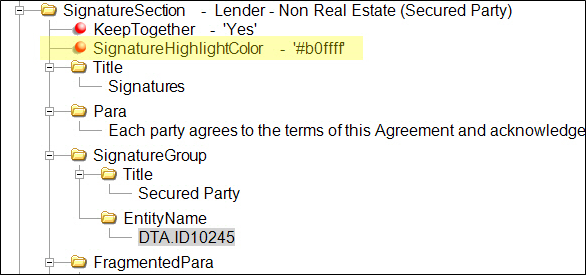
The
SignatureHighlightColor attribute defines the color of the
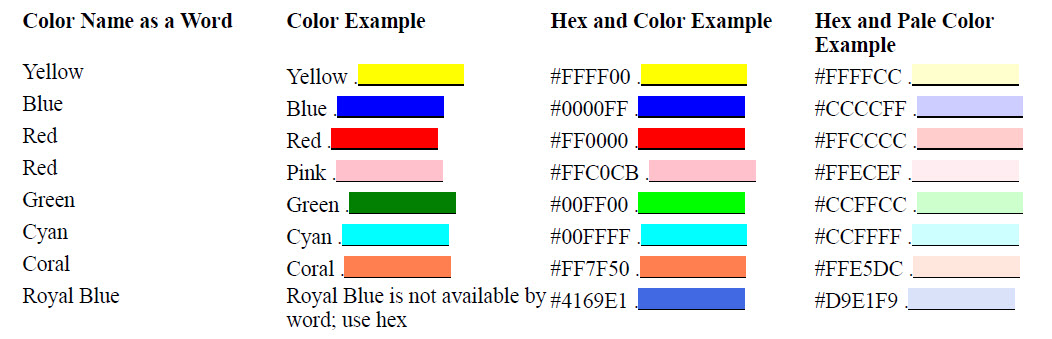
highlighted area and allows you to enter a color (for example, yellow), select a
color through the standard color palette through the shortcut menu (right-click
and select Choose Color), or enter the HEX values (for example, #FFFF00). If the
SignatureHighlightColor attribute is not supplied, no highlighting is
applied. if the SignatureHighlightColor attribute is supplied, but no
color defined, the default color is white and the area appears without
highlighting.
Note: A paler shade of each color is also
provided, and might be preferable for visual documents. Based on our testing
with the colors below, Yellow is the only color that does not appear if the
document is photocopied. Remember that colors are dependent on the printer
being used and will only appear as color if the printer supports color
printing.